Each new version tries to bring a few improvements to the query designer. We are not talking of a a revolution but interesting evolutions and you will feel at home with this new version.
Statements
A toolbar is now available in the statement panel:
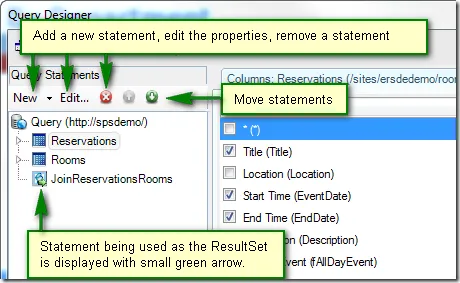
Honestly, it doesn’t make a lot of difference however, in some cases, it makes things easier:
- In previous versions, only drag and drop was available for moving statements. By experience, it was not always easy to move the statement at the desired location using this approach. The up and down buttons makes it easy to move statements.
- The green arrow indicating the statement used as the ResultSet (see the documentation for the concept of ResultSet within a query) is more appropriate than having the statement name in bold like it was the case in previous versions. This could make think that the statement was selected which was not necessarily the case.
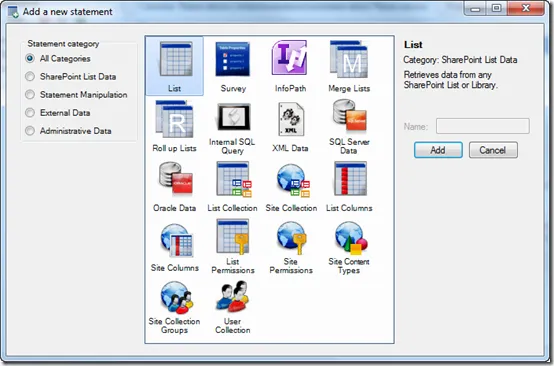
- The New button doesn’t really add any important feature. However, when clicked, it will open a window displaying the various available statements including some description that explain their purposes:
Filters and Order By
In this area we made more significant changes. However, those changes bring better usability without additional learning curve.
There are several ways for filtering data the way you want. The most obvious approach is certainly to filter using a SqlQuery statement. In many cases however, it may be better to filter data at the list level whenever possible. Many customers do not realize this is possible because our user interface doesn’t make it clear at first sight.
Let’s take the query for a report that displays monthly posts between two dates from a SharePoint discussion list.
Previous Versions
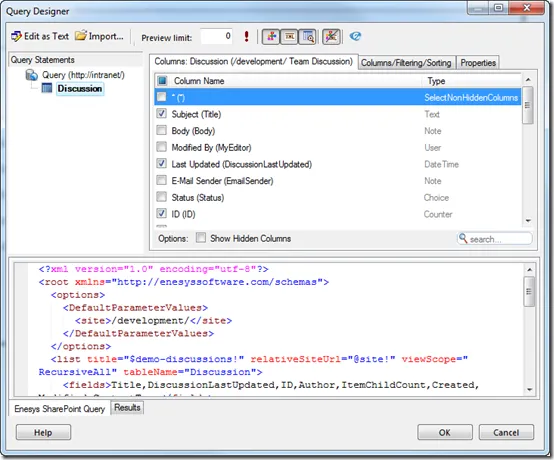
Here is what you have in version 3.6 and earlier:
 .
.
From our requirement, we need to filter posts between two dates. As said earlier, it may not be obvious at first sight what are our options for filtering. If you are used to our SqlQuery statement, you may end up following this path by adding a new statement and filtering using SQL syntax.
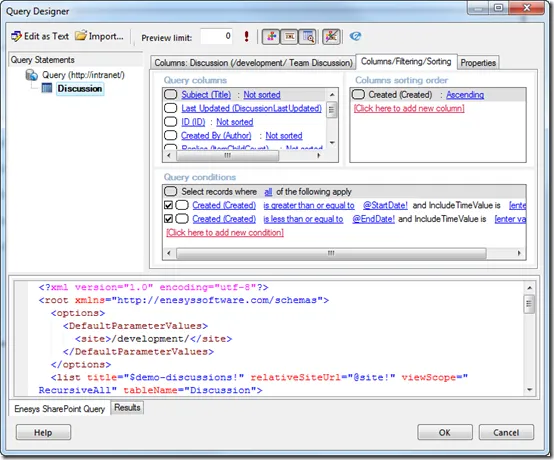
In fact if you look more attentively, you can see a tab “Columns/Filtering/Sorting”:
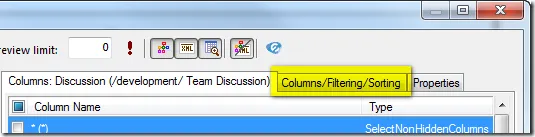
By selecting this “tab”, you will access to filtering options as shown in the following screen shot:
Version 3.7
In version 3.7 we have decided to bring the filtering and sorting options on the main screen without having to select a specific “tab”. Here is what you get for the same query:
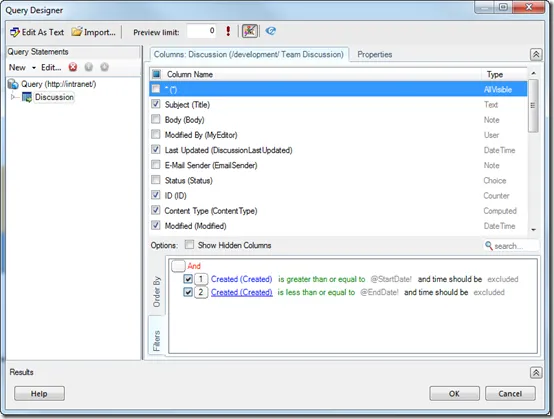
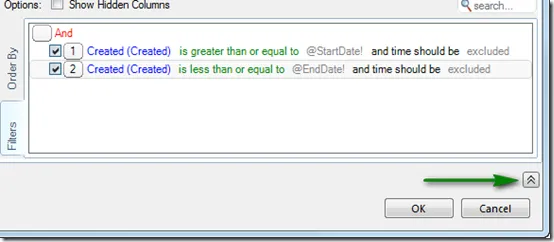
Filtering and sorting options are available right under the column list. Besides reminding that it is possible to filter at the list level, it offers a more synthetic view. Because some space was necessary, you will notice that the query in XML format is not displayed by default. You can always display it by clicking on the arrow in the bottom right corner as shown in the following screen shot:
When running the query within the designer, it will automatically open the Results panel. You can however hide the results with a single click when you want to edit your query.
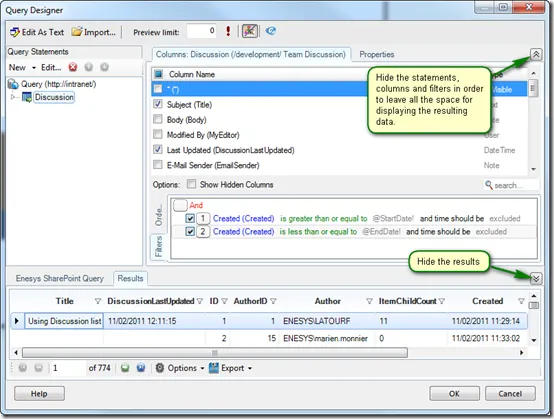
You can also display results more comfortably by hiding the various panels related to the design of the query (statements, columns, filtering, …) by clicking the upper right arrow browsing your data until you want to go back to query design again using a single click:
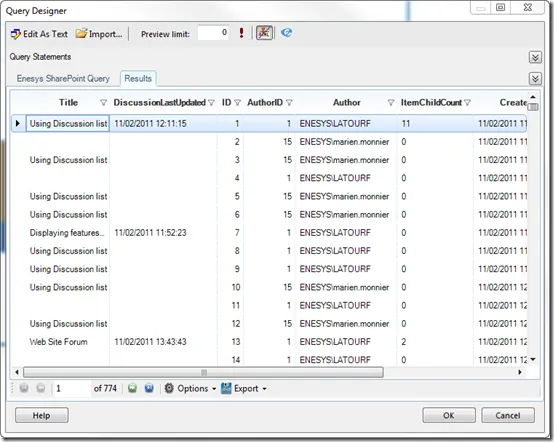
Overall, those improvements make the overall experience more intuitive.
Filtering Some More
Besides the layout changes, we have also rewritten the filter control in order to provide greater flexibility.
Fields selection
In Enesys RS Data Extension 3.6 and earlier, looking for a specific field for applying a condition is not a particularly great experience as shown in the following screen shot:
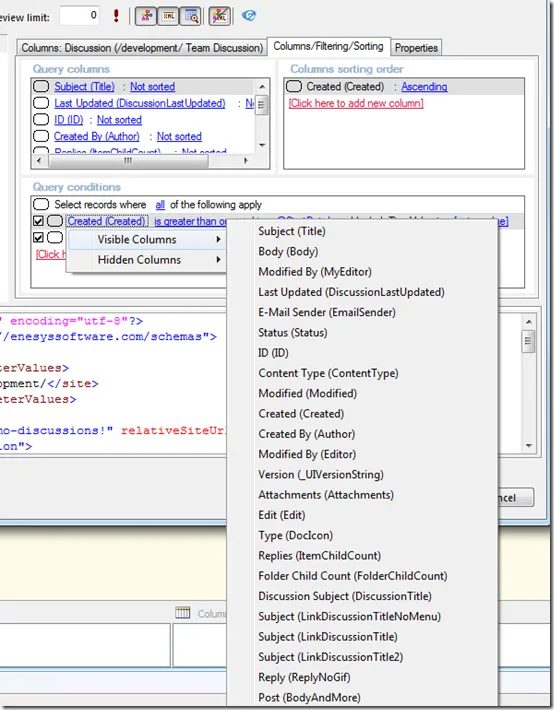
And it is even worse if you are looking for some hidden field as some lists may have lots of them.
Enesys RS Data Extension 3.7 uses a drop down approach where you can search a field by entering some text that is part of the name:
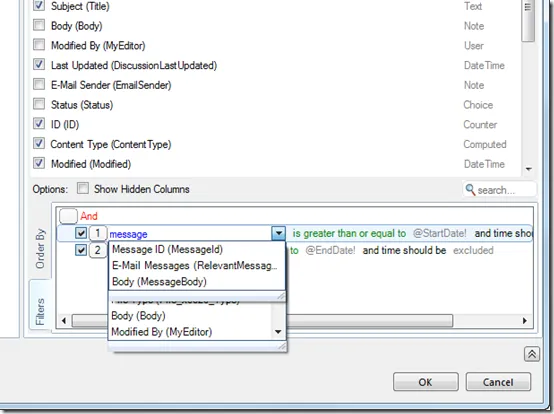
This new approach is a tremendous time saver when adding filters.
Indentation, numbering and other goodies
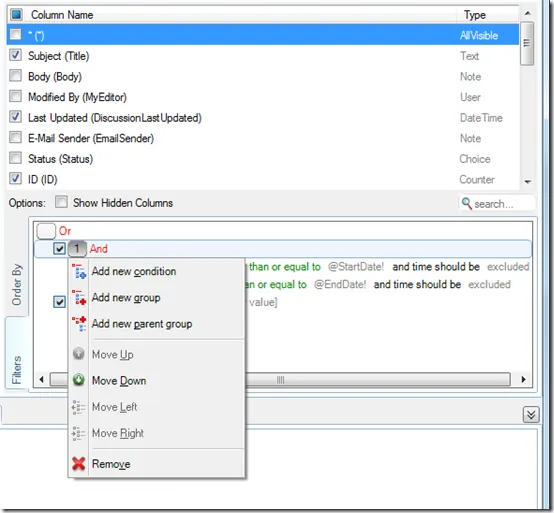
Thanks to a cleaner indentation and the use of numbering, complex filters are easier to read:
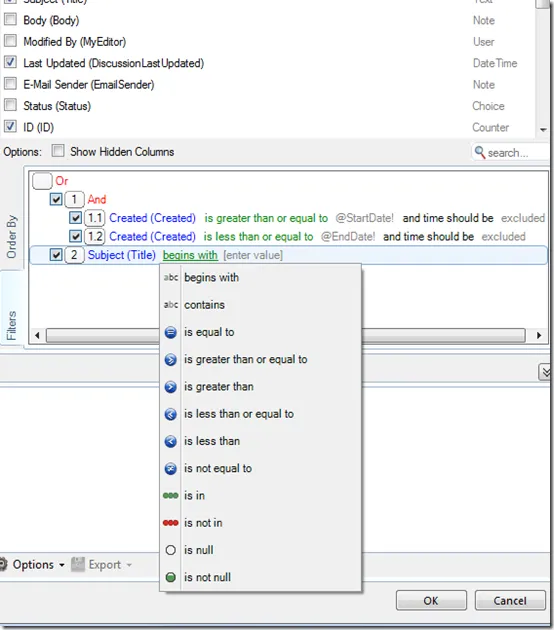
Finally, we are also providing new options that make it possible to rearrange/refactor complex conditions whereas it is often necessary to start from scratch with version 3.6 and earlier. The following screen shot displays some of the available options:
See also
You can also read the following news for additional information about Enesys RS Data Extension 3.7 new features:
Coming in ERSDE 3.7 – New InfoPath features
Coming in ERSDE 3.7 – Claims Based Sites Support and Improved Authentication features
Coming in ERSDE 3.7 – Item Versions Performance Boost
Beta Available
Enesys RS Data Extension 3.7 Beta is available for download. Don’t miss the opportunity to give it a try.