What's New in Enesys RS Data Extension 3.8
Version 3.8.114
Fixes:
- Corrected an issue introduced in v3.8 with the EnableObjectModel default value, which could result in an exception: System.InvalidOperationException: Collection was modified; enumeration operation may not execute.
- Corrected an issue introduced in v3.8 with the use of the Object Model on a SharePoint 2010 server using Forms authentication.
Version 3.8.111
Fixes:
- Fixed a bug that would cause random report failures. When looking at the logfile ERSDE2008Error.log, you should see the following error: Collection was modified; enumeration operation may not execute.
Version 3.8.103
Fixes:
- Corrected a bug with the render of specific characters in Note fields.
Simpler Approach for Distinct Field Values
Retrieving distinct field values is extremely useful when using report parameters. With Enesys RS Data Extension version 3.7 and earlier, you could use an additional “SqlQuery” statement to get distinct values from a SharePoint list.
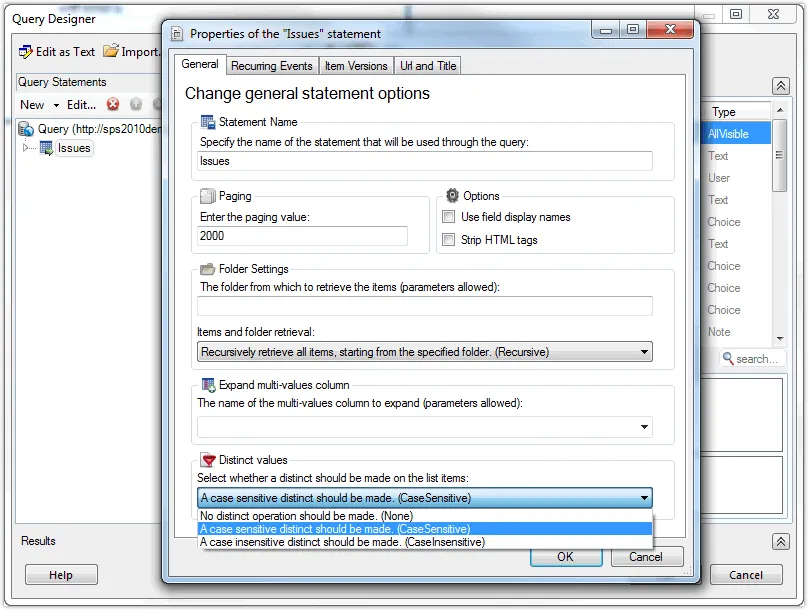
Because this approach is so common, Enesys RS Data Extension 3.8 makes it possible to get distinct values from a list without having to use an additional SqlQuery statement. You can specify that you want distinct values directly within the “List” properties as shown in the following screen shot:
Retrieving Choice Values from a Choice Column
When using a report parameter to filter a list based on the values of a choice column (ie: status, priority,…), you may want to consider two approaches:
- You will only display values that are already in use. Say you are filtering issues based on a specific “Priority” that the user can select when running the report. Even though the “Priority” is a SharePoint choice column that contains the following 3 values (High, Normal and low), if you don’t have any issues with a “low” priority value, you may not want to display “Low” as a possible choice for filtering out issues. With that approach, you consider that it is not necessary to bother the user with some value that does not return any items.
- You will display all possible values regardless of its selection will return any values. If we take the previous example, you want to display “low” as a possible choice for filtering issues even if you don’t have any issues with low priority. With that approach, you are considering that displaying all the possible values and not returning any items for a specific value brings some meaningful information to the user.
Both approaches are perfectly legitimate. It all depend on the business case.
In version 3.7 and earlier of Enesys RS Data Extension, only the first scenario can be implemented. To implement this approach, you will select distinct values from the specific field you want to filter and use them for the report parameter values.
Enesys RS Data Extension 3.8 offers the possibility to retrieve the choice values from a SharePoint choice columns. With this new feature, you can therefore implement the second scenario described earlier and present all the possible values for the column you are filtering as part of a report parameter.
Retrieving choices from a column of type “Choice”
Enesys RS Data Extension 3.8 provides a new statement for retrieving “choices” from list or site columns of type choice:
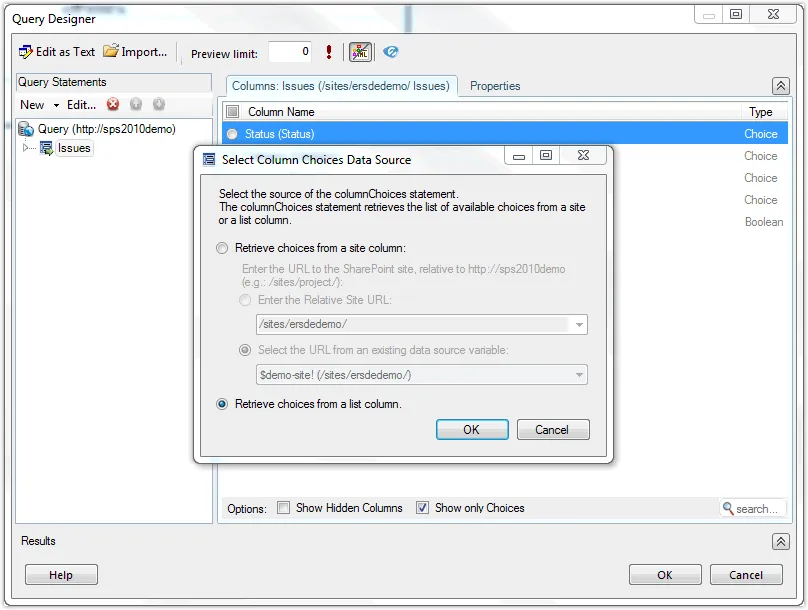
When adding “Column Choices” statement to your query, you are proposed to either retrieve choices from a specific list column or from a column defined at the site level:
When selecting the option, “Retrieve choices from a list column”, you get the usual dialog box where you can select the desired list:
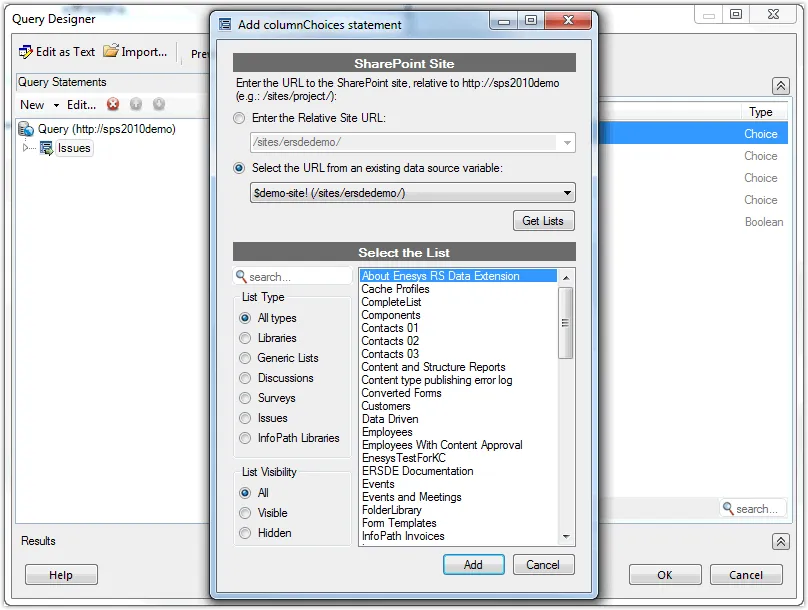
When selecting a list or a site, you will only be proposed the choice columns available in the list or the site. As part of the statement, you can only select a single column to retrieve choices values from (it would not make many sense to return value from multiple choices columns in a single result set). Executing the statement will return choices associated with the column.
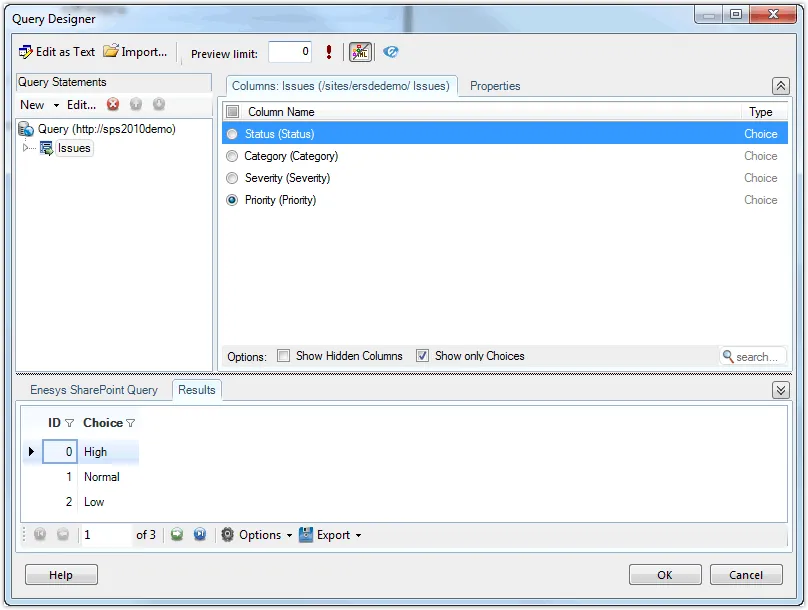
SQL Server Reporting Services 2012 compatibility
SQL Server Reporting Services 2012 brings quite a few changes:
- Business Intelligence Development Studio (BIDS) is now called SQL Server Data Tools (SSDT) and runs under visual studio 2010 shell. It doesn’t mean you need visual studio. The visual studio 2010 core interface will be automatically installed when installing SSDT.
- SharePoint integration in now implemented as a SharePoint 2010 Shared Service.
Enesys RS Data Extension 3.8 addresses the various configuration changes to work with Reporting Services 2012.
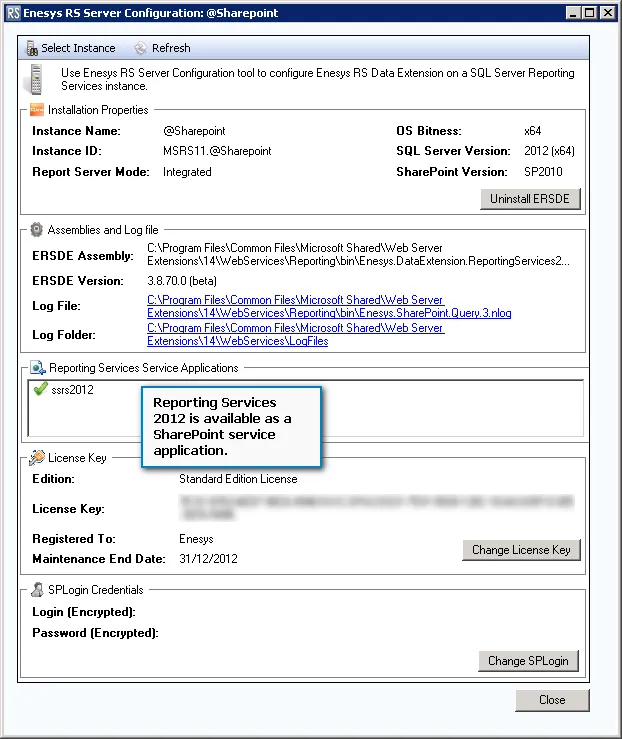
When installed in SharePoint Integration mode, The “Enesys RS Server Configuration” tool reflects the new “SharePoint Service Application” as shown in the following screen-shot:
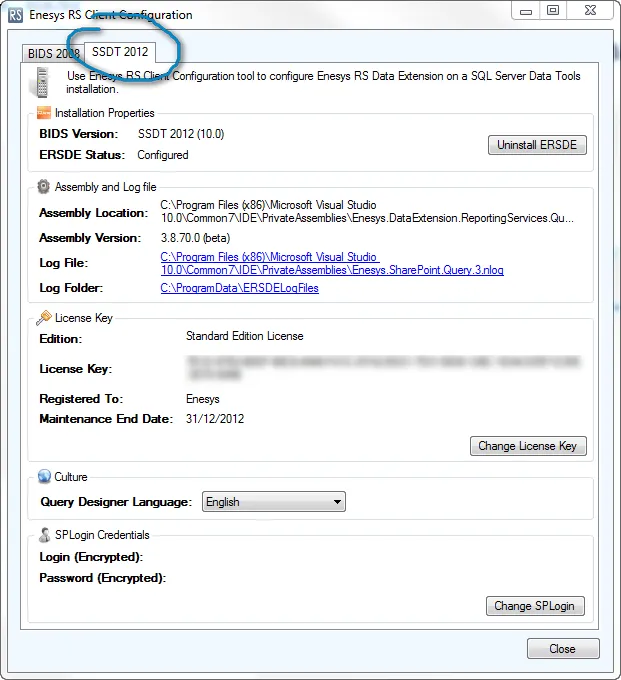
Enesys RS Client Configuration tool reflects the new Microsoft terminology when Enesys RS Data Extension is installed along SQL Server Data Tools:
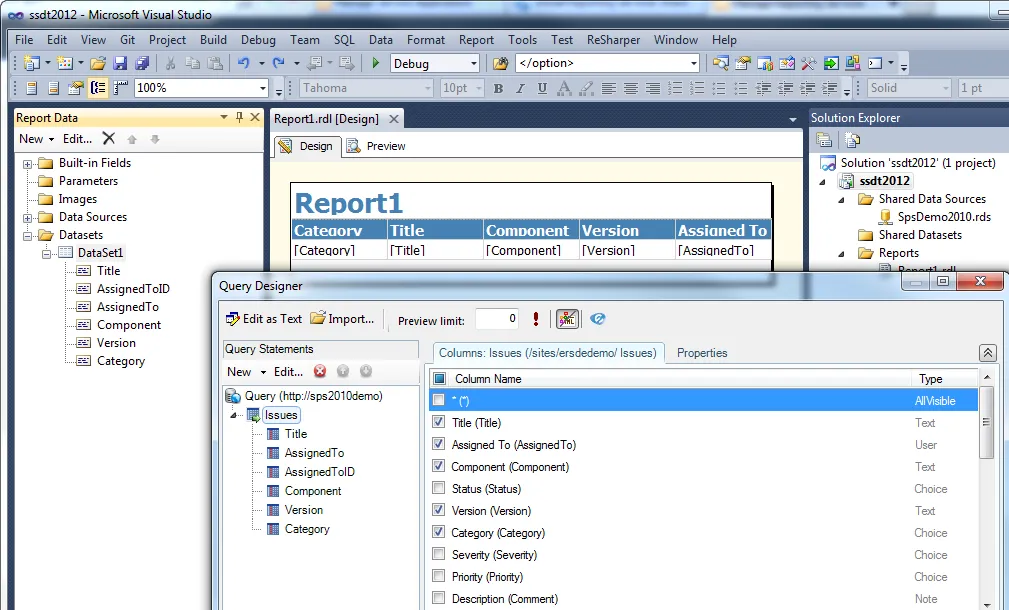
Within SSDT 2012 (Visual Studio 2010 shell), you get the familiar tools for building reports and sophisticated queries:
Merging Multiple Lists
Enesys RS Data Extension 3.8 provides additional flexibility and power for merging multiple lists with the new “ListsMerge” statement.
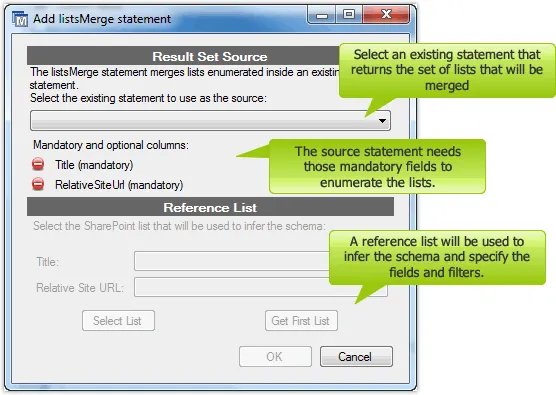
The new “ListsMerge” statement lets you merge a set of lists specified by another statement. You will configure “ListsMerge” statement so that the lists to be merged are specified in another statement which means that you can store the lists in whatever way you want as long as you can use one of the statement provided by Enesys RS Data Extension to retrieve them.
For instance, you may want to use a SharePoint list to maintain the lists/libraries that you would like to merge. Using this approach, adding or removing a list from your report is just a matter of adding or deleting an item in your SharePoint list without having to change your report.
In order to merge a set of lists, you need to specify a statement that returns a set of lists. You will also need to specify an existing list as a reference so that the schema can be inferred at design time to let you choose the necessary fields and apply the desired filters: