Adding a “list” statement
The dialog box for selecting a list has been completely revamped as shown in the following screen shot:
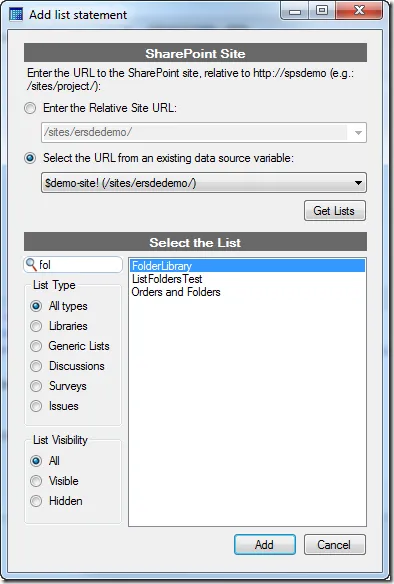
Key improvements:
- You can directly use a data source variable to specify the relative site URL.
- You can filter lists by type or visibility.
- For even greater flexibility, a dynamic search box is available for filtering lists to those that contain the text you enter.
Roll-up statement
The roll-up statement lets you aggregate multiple lists (having the same name) in an entire site collection.
Until now, when adding a roll-up statement in a query, Enesys RS Data Extension Query Designer will grab all the lists in all sites within the collection and display those lists so that you can chose one. The reason to display all the lists is that the list you want to aggregate is not necessary located in the site from which you want to start rolling up. It could be in a sub-site or even in a sub-sub-site. However, this approach has a serious drawback in term of performance. With large site collection, you may end up waiting a very long time for the list to display.
If this sounds familiar to you, you will certainly like version 3.6. We came up with a solution to this problem by providing a way to navigate within the sites as shown in the following screen shot:
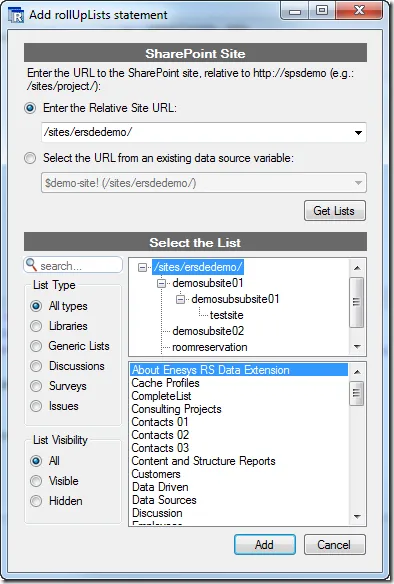
When adding a “roll-up lists” statement, Enesys RS Data Extension Query Designer will display the site hierarchy and only retrieve the lists available in the root site. If the list you are looking for is not located in the root site, you can navigate in the site hierarchy. Lists from a specific site are loaded the first time you select a site. The whole approach results in a much faster experience.
SharePoint List Columns
SharePoint lists may have numerous columns. Finding the desired columns amongst the internal names and display names mixture is not always easy. We have taken care of this in the new version:
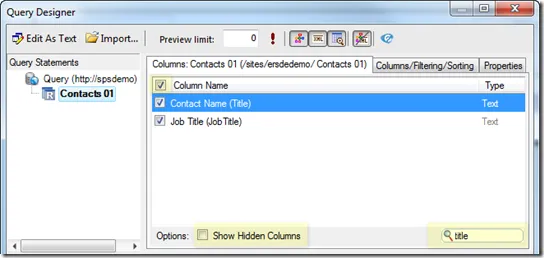
- You can dynamically filter the columns based on some text (title on the screen shot). The filter will act on both internal and display names. Therefore, you’ll always find what you want with a few keystrokes.
- You can display or hide hidden columns in just one click.
- You can select/unselect all displayed columns in just one click.