When manipulating very large lists, it may be not be viable to retrieve every items from the list each time you run the SSIS package.
Starting from RC2 of Enesys IS Data Extension, we have added a second data flow source component (Enesys Synchronization SharePoint Source) that will be used to retrieve synchronized data from SharePoint using the new syncList statement.
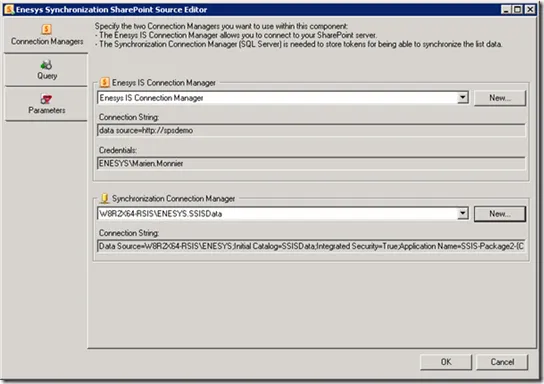
As you can see on the previous screenshot, this component uses two connections. The first one is used to retrieve SharePoint data from a SharePoint server. The second one is used to store and retrieve synchronization tokens.
Once the connections are specified, switch to the Query tab to specify the list that you want to synchronize.
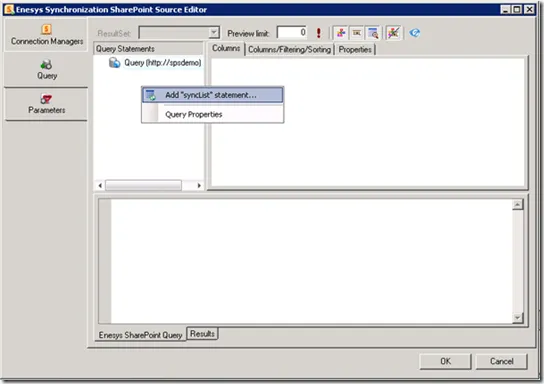
Add a “syncList” statement:
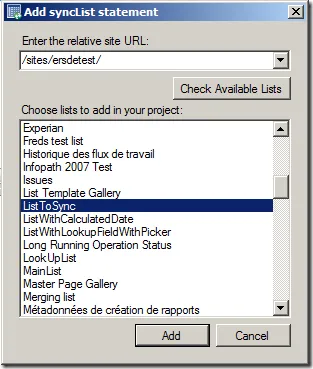
Select the SharePoint list you want to synchronize:
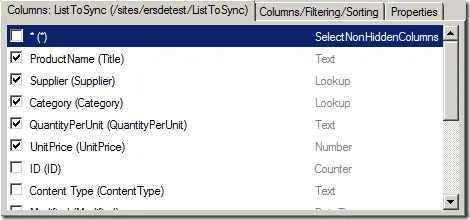
Select the needed fields:
You can test the query within the Designer:
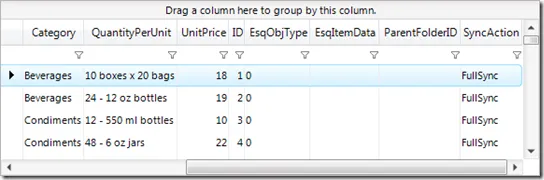
The SyncAction column provides information about the status of each item:
- Upsert: this item was inserted / updated since the last synchronization
- Delete: this item was deleted since the last synchronization
- FullSync: a full synchronization was made, all the items are returned
The “syncList” statement will retrieve and update the synchronization token each time it is executed (except in the query designer) so that it can keep tracks of the last modifications.
Building the Integration Services package?
The data retrieved from the Enesys Synchronization SharePoint Source component may be somewhat tricky to use. In order to simplify this process, we are providing a custom destination component (SQL Server 2008 only) that will handle the merge process.
Add an Enesys Merge Destination component:
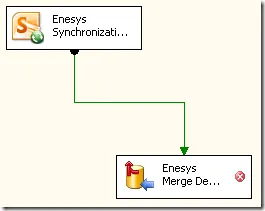
Configure the Merge Destination component as you would configure a classic ADO.Net Destination component:
-
Select the same ADO NET Connection Manager that you used with the Synchronization component (or create a new one)
-
Create a new SQL table based on the fields retrieved from the Synchronization component
-
Switch to the Mapping tab in order to automatically map the columns
And you are done.
After the initial full synchronization, keeping up to date a 500 000 items SharePoint list will usually take a minute or so depending on the number of changes that took place since the last synchronization.