Here are the main new features available in this version:
Reporting from a Survey list
Survey lists store data in a very specific way. Even though Enesys RS Data Extension lets you retrieve data from a Survey list, it is challenging to build a meaningful report out of the raw data that is returned from such a list.
Enesys RS Data Extension provides you with a specific command that returns Survey list data in a format that can be used for creating great looking reports.
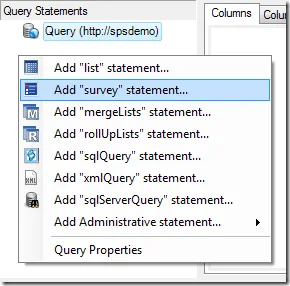
Under the hood, Enesys RS Data Extension parses the SharePoint raw survey data in order to provide you with data that can easily be used for building reports out of your survey.
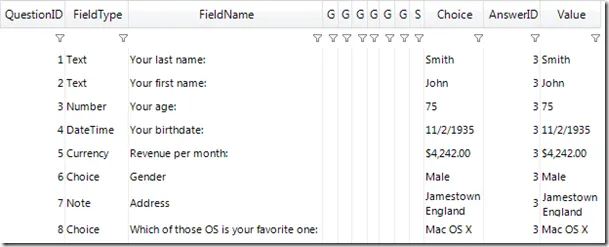
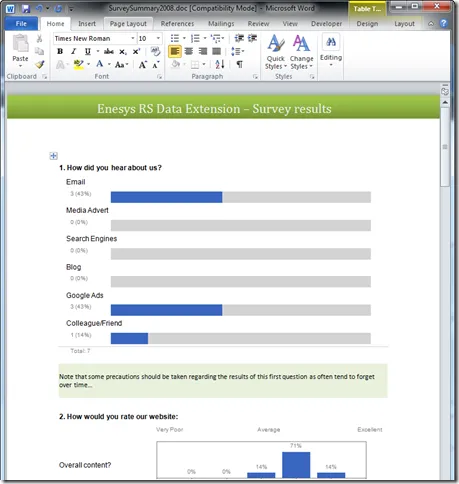
To make this new feature usable out of the box, we are providing a ready-made report that mimics the look and feel of the Graphical Summary view available within SharePoint. The following screen shot displays the generic report in preview mode within Business Intelligence Development Studio.
There are several reasons why you may be interested in building a report from a Survey list:
- You can export the report into PDF format so that it can be sent to anyone that does not have access to the SharePoint survey list. A PDF document may also be easier, during a meeting, for discussing the results of the survey.
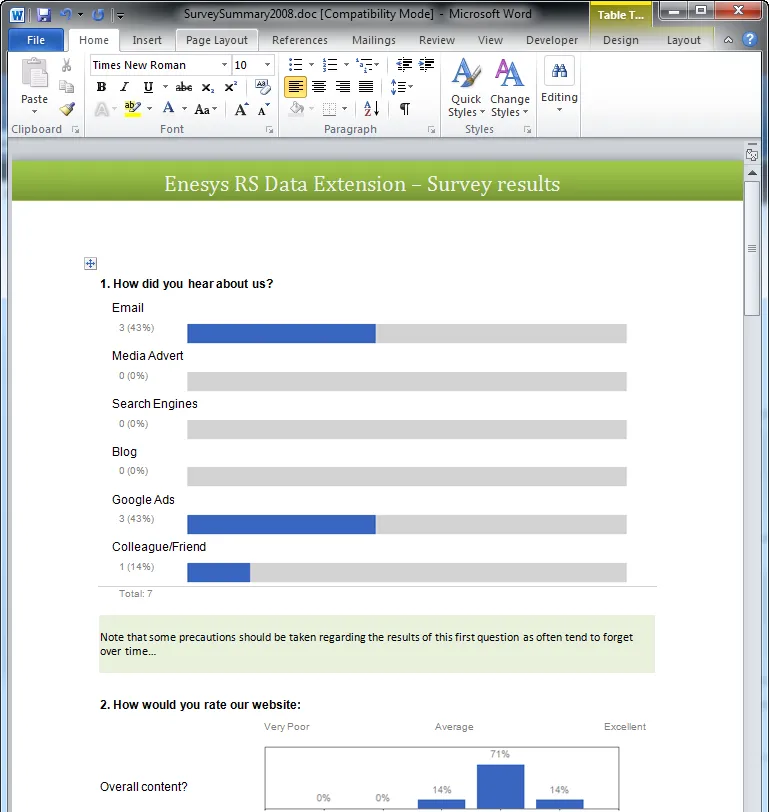
- You can export the report into a Word document in order to add comments/remarks that can put the results into perspective as shown in the following screen shot:
Oracle support
SharePoint makes it easy to create lists of events, tasks or issues, that can be used to track (or document) items that live in a database or an ERP.
When creating reports out of those SharePoint lists, it can be convenient to display additional information coming from your database.
Enesys RS Data Extension 3.5 already lets you do that with SQL Server databases:
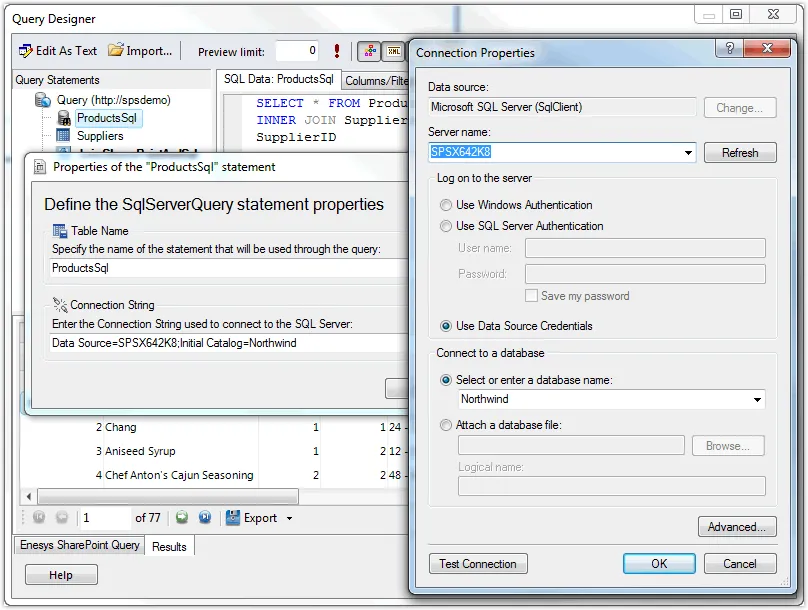
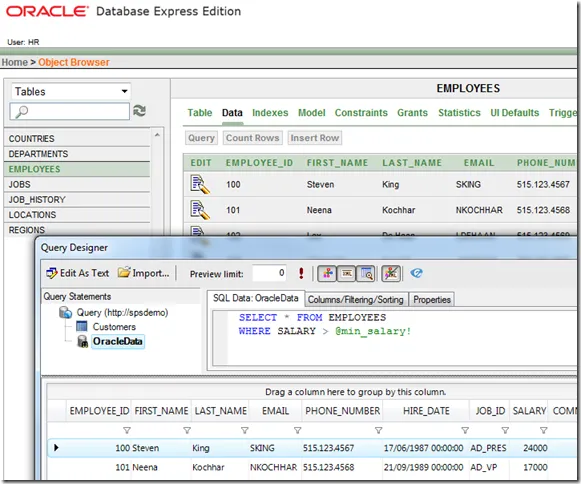
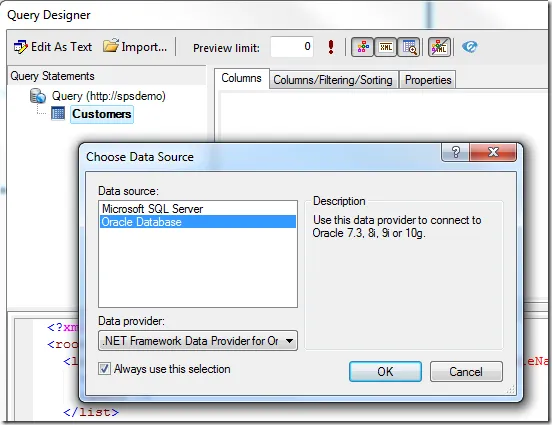
In version 3.6, we have extended this feature by adding support for Oracle databases as shown in the following screen shots.
Selecting database type:
Connection properties:
Querying data from an Oracle database:
Of course, this is not one database or the other. Within the same query, you can join data from SharePoint lists, SQL Server and Oracle databases all together.
Specify list name as a report parameter
With Enesys RS Data Extension 3.5, it is already possible to use a report parameter for specifying the relative site URL of the SharePoint site containing some list you would like to use in a report. Said another way, you can decide at report run time the SharePoint site that will be used in your report.
However, it is not possible to specify the list name using a report parameter. You have to know the list name at design time. That means that you can use the same report on different lists located in different sites until the list has the same name. This is obviously not always practical.
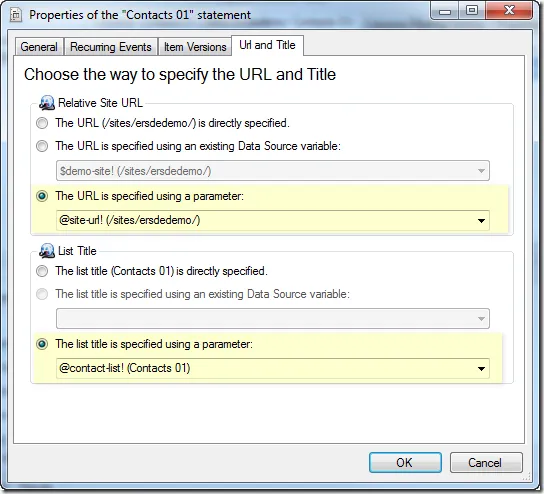
With Enesys RS Data Extension 3.6, it is possible to specify the list name using a report parameter. We have also worked on removing the annoyances associated with the use of a report parameter for specifying the relative site URL and have provided a user interface within the query designer.
User Interface
In version 3.5, it was necessary to switch from the Visual Editor to the XML editor in order to specify a report parameter for the relative site URL, as shown in the following screen shot:
In Enesys RS Data Extension 3.6, this is not necessary anymore. The Visual Editor now offers the possibility to specify a report parameter for both the list title and the SharePoint site URL:
Parameter prompting
We have also worked on an annoying side effect of using a report parameter for the relative site URL (and the title in version 3.6). A few background information is necessary:
When designing a report, it is necessary to get the schema of the lists being used within your report at various stages of the design process. When using a report parameter for specifying the SharePoint site where the list is stored, there is no way to get the schema without being provided real URL where the list can be found. This is why you are being prompted to enter the parameter value in various occasions while designing the report. Moreover, because of some limitations of BIDS, the values are not cached and you need to enter them each time it is necessary to access the list schema.
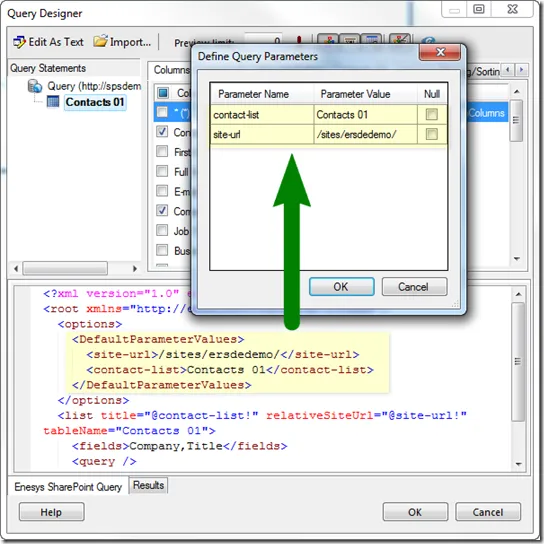
In order to overcome this limitation and to provide a much improved user experience while designing reports that use report parameters for specifying the SharePoint site URL and/or list title, Enesys RS Data Extension now keeps the default parameter values within the query. Those values are used automatically when the query designer needs to access the list schema and will save you the need to enter the values each time:
Improved User Interface
Various aspects of the user Interface has been improved.
Adding a “list” statement
The dialog box for selecting a list has been completely revamped as shown in the following screen shot:
![image_thumb8[1]](/_astro/image_thumb8_1__bac6dae7-3b8a-4d0e-9e68-84137bcd4b9b.BT1kgwRf_Zeu86Y.webp "image_thumb8[1]")
Key improvements:
- You can directly use a data source variable to specify the relative site URL.
- You can filter lists by type or visibility.
- For even greater flexibility, a dynamic search box is available for filtering lists to those that contain the text you enter.
Roll-up statement
The roll-up statement lets you aggregate multiple lists (having the same name) in an entire site collection.
Until now, when adding a roll-up statement in a query, Enesys RS Data Extension Query Designer will display all the lists in all sites within the collection so that you can chose one. The reason to display all the lists is that the list you want to aggregate is not necessary located in the site from which you want to start rolling up. It could be in a sub-site or even in a sub-sub-site. However, this approach has a serious drawback in term of performance. With large site collection, you may end up waiting a very long time for the list to display.
If this sounds familiar to you, you will certainly like version 3.6. We came up with a solution to this problem by providing a way to navigate within the sites as shown in the following screen shot:
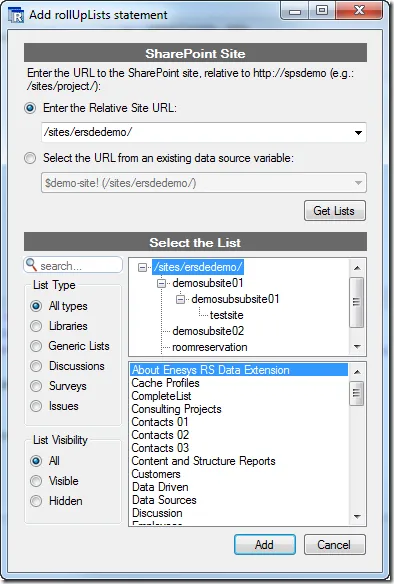
When adding a “roll-up lists” statement, Enesys RS Data Extension Query Designer will display the site hierarchy and only retrieve the lists available in the root site. If the list you are looking for is not located in the root site, you can navigate in the site hierarchy. Lists from a specific site are loaded the first time you select a site. The whole approach results in a much faster experience.
SharePoint List Columns
SharePoint lists may have numerous columns. Finding the desired columns amongst the internal names and display names mixture is not always easy. We have taken care of making things easier in this new version:
![image_thumb5[1]](/_astro/image_thumb5_1__c8af77d5-3741-4875-b0aa-af0ff52c5f6b.BcIdaj0P_Z1oH75n.webp "image_thumb5[1]")
-
You can dynamically filter the columns based on some text (title on the screen shot). The filter will act on both internal and display names. Therefore, you’ll always find what you want with a few keystrokes.
-
You can display or hide hidden columns in just one click.
-
You can select/unselect all displayed columns in just one click.
Major Intellisense Enhancement
SqlQuery statement is central to Enesys RS Data Extension innovative approach for building sophisticated queries. If you are not familiar with the concept of “statement” within Enesys RS Data Extension, you can read the following article. SqlQuery statements lets you further manipulate the resulting data from other statements by using SQL SELECT syntax.
Enesys RS Data Extension 3.5 already provides limited intellisense features when using a SqlQuery statement. Version 3.6 ass major enhancements in this area.
Extended Statement Support
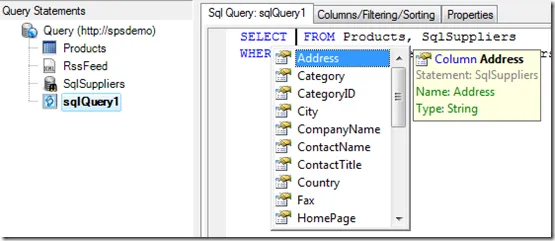
In version 3.5, when joining a SharePoint list and the result of a SQL Server query, intellisense is provided for the SharePoint fields only. You need to enter the SQL columns manually.
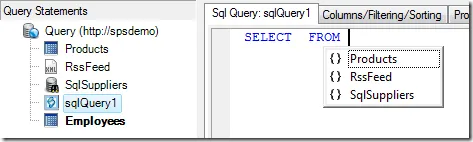
Version 3.6 will add support for XmlQuery, SqlData and SqlQuery statements and provide their fields/columns as part of the intellisense support.
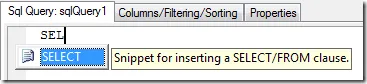
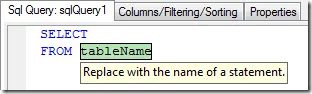
SELECT Snippet
A “SELECT” snippet for inserting a SELECT clause with a FROM clause that selects a single statement is now available.
JOIN Snippet
A “Join” snippet for inserting a JOIN clause is also provided:

![image54_thumb[2]](/_astro/image54_thumb_2__3802187b-67cf-4e14-897e-192f82d97942.qmpy1twS_CsB38.webp "image54_thumb[2]")
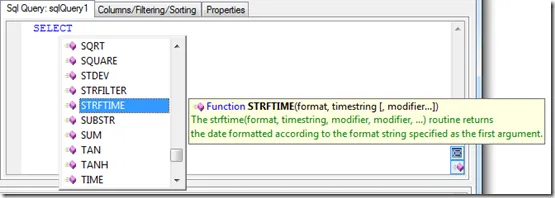
SQL Functions Support
SQL functions are listed with their associated parameters and a brief description:
Better Contextual Support
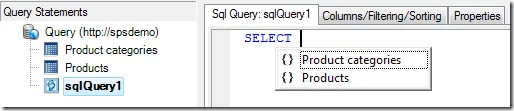
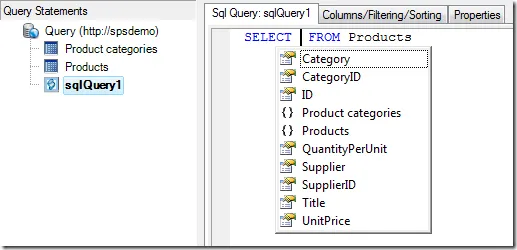
Real time query parsing has been much improved in order to provide contextual intellisense support.
Two statements are available (“Product categories” and “Products”), but none is selected inside the current SQL query. Therefore, no fields are proposed for selection:
Fields from Products list are available for selection:
Fields from both Products and Product categories lists are available for selection:
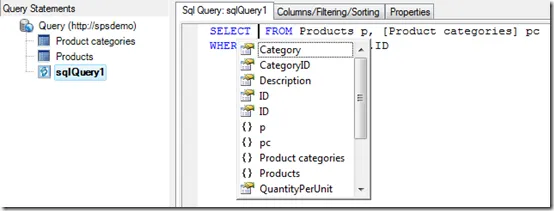
Table aliases are supported as well:
![image85_thumb[4]](/_astro/image85_thumb_4__0d2cbef3-3bfb-462f-b10e-98d440ada92f.K8RY9E3Q_2jpaJW.webp "image85_thumb[4]")
Download
You can get Enesys RS Data Extension version 3.6 from our Downloads page.
Hope you enjoy the new features.