Introduction
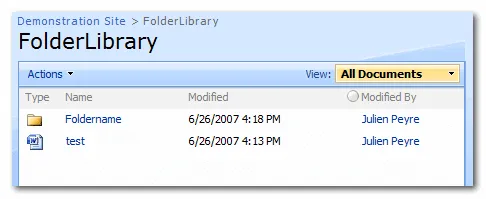
For our demonstration, we will create a report that displays documents from a SharePoint document library named “FolderLibrary”.
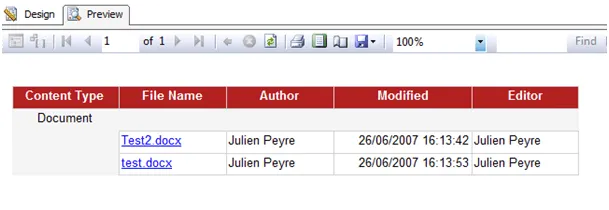
When running the report, the user will be able to click on the file name to open the file.
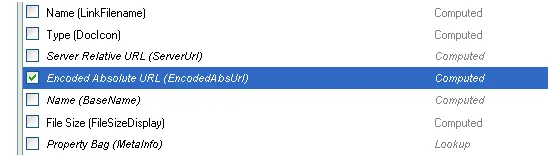
Any SharePoint document library has a hidden column named “EncodedAbsUrl” that contains the absolute URL to the file.
All we have to do here is to retrieve this column as part of the dataset so that it can be used in conjunction with the “Jump to URL” feature of Reporting Services.
Creating the query using Query Builder
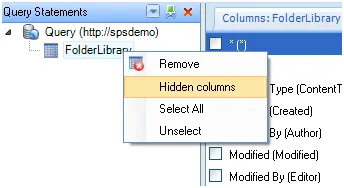
By default, Enesys Query Builder will not display Hidden columns. You will need to enable
For displaying hidden columns in the “Columns” panel, follow these steps:
- Launch Enesys Query Builder
- Add a list statement that points to your document library.
- Double click on your list statement to display the columns available. By default, hidden columns are not displayed.
- Right click on the list statement.
- Select “Hidden columns” in the contextual menu to display hidden columns.
- Select all the desired columns as well as the “EncodedAbsUrl” column.
Your query is now ready. You can test it directly within the query builder.
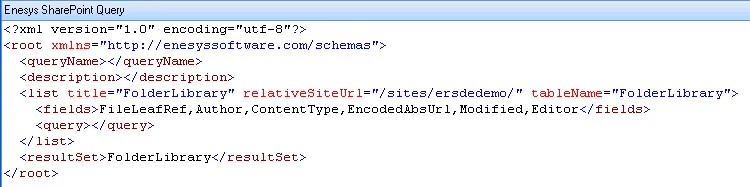
In our example, we have selected the columns “FileLeafRef”, “Author”, “ContentType”, “EncodedAbsUrl”, “Modified” and “Editor”:
Creating the report
Starting from the query you have just created using Enesys Query Builder, create a report using either BIDS 2005 or 2008. For adding a link to the document stored in SharePoint, follow the instructions below:
Using Business Intelligence Development Studio 2005
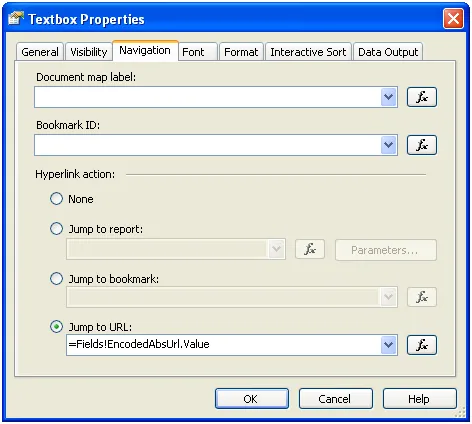
- Right click on the cell containing the value that will be linked to the document (the file name in our example) and choose “Properties”.
- Go to the “Navigation” tab.
- Choose “Jump to URL”.
- In the text box, choose the following column “=Fields!EncodedAbsUrl.Value”
Using Business Intelligence Development Studio 2008
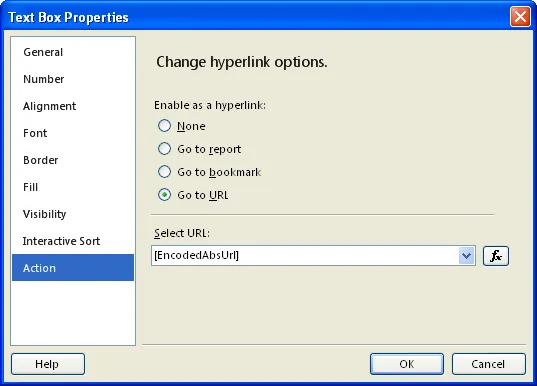
- Right click on the cell where the link will be and choose “Text Box Properties”.
- Go to the “Action” tab.
- Choose “Go to URL”.
- In the “Select URL” text box, choose “[EncodedAbsUrl]”
Running the report
When running your report, it will now be possible to click on some column (the file name in our example) to open the associated document.
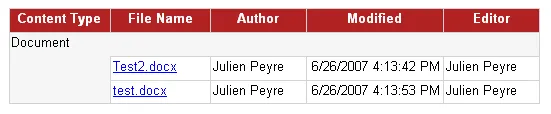
Please note that the “Jump to URL” feature will not automatically format your column’s value so that they look like a “link”. It is up to you to change the style so that it displays as blue and underlined as in our example (or any style you like).
- Applies toEnesys RS Data Extension 3.x
- Last Updated2009-01-01T00:00:00.000Z
- CategoriesHow-to