Though the approach described here is still valid on a technical standpoint, the new features introduced in version 3.5 make it unnecessary in most cases.
Retrieving item versions is a time consuming operation. The main reason for this is the limitation of current SharePoint web services that only allow retrieving versions for a specific field of a particular item. Therefore you can easily imagine the number of calls that need to take place depending on the number of items and the number of field your have selected.
That said, in many scenarios (not all of course), retrieving item versions is mostly useful for retrieving comments that have been added to a specific item.
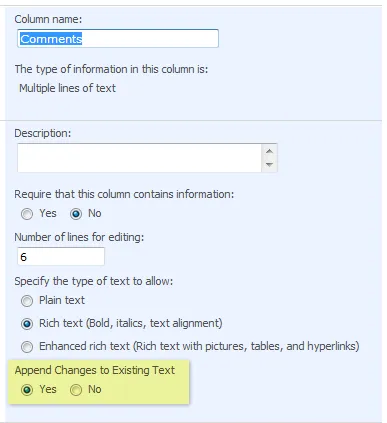
In those scenarios, the approach taken by Enesys RS Data Extension to retrieve versions for all items you have selected in your list is not very efficient considering that only the versions of a specific field is needed.
In Enesys RS Data Extension version 3.5, it will be possible to specify the specific fields for which you need to retrieve version information. Without any doubt this will significantly improve the overall performance of your query.
In the meantime however, you can simulate this approach by using a sub-report that will be used to retrieve version data for the specific fields you need. We will demonstrate how to implement this when reporting over some task/Issue list.
As you can see from the following report, the idea is to display a list of tasks/issues as well as the various comments that have been added for each issue.
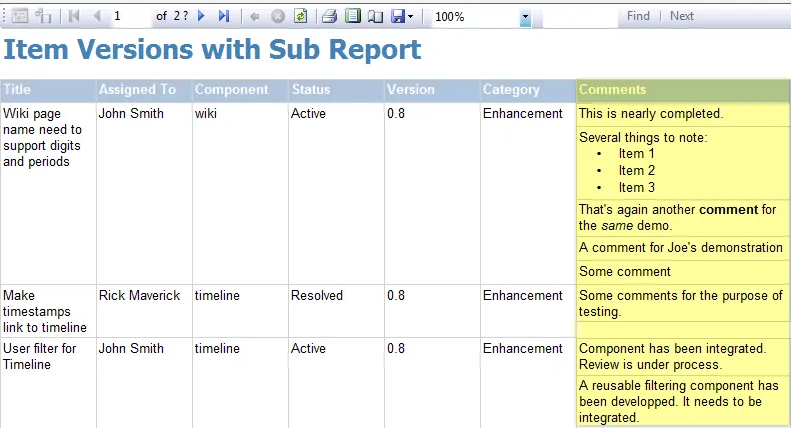
Instead of retrieving items and all versions of those items, in the main report, we will just retrieve current items in the main report and use a sub-report for specifically displaying Comments history, that is retrieving versions specifically for the Comments field.
Building the sub-report
The easisest approach is to start to create the report that will be used as the sub-report. As you can see in the following screen shot, the report contains a table with a single column used to display our “Comments” field:
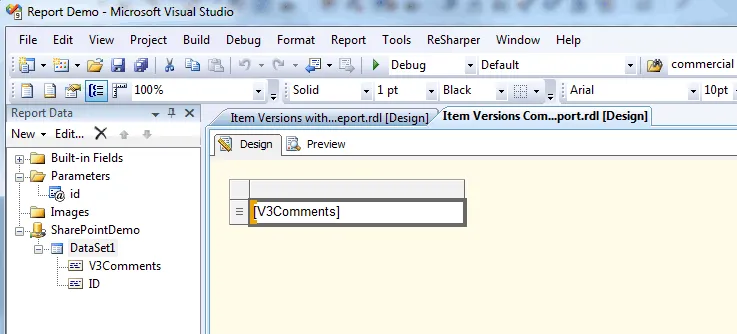
The query we are using for this sub-report will only retrieve Comments and ID fields from the SharePoint Issue list. You will note however that we are filtering items based on their ID using a report’s parameter (named “id” in our sample). The reason for this is that the sub-report will be called for each item in our main report and we need to limit the “comments” to the specific item for which the report is called.
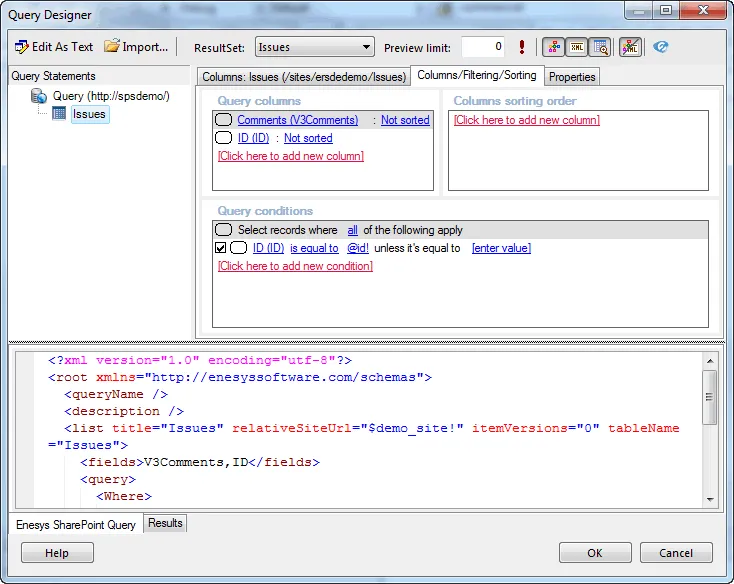
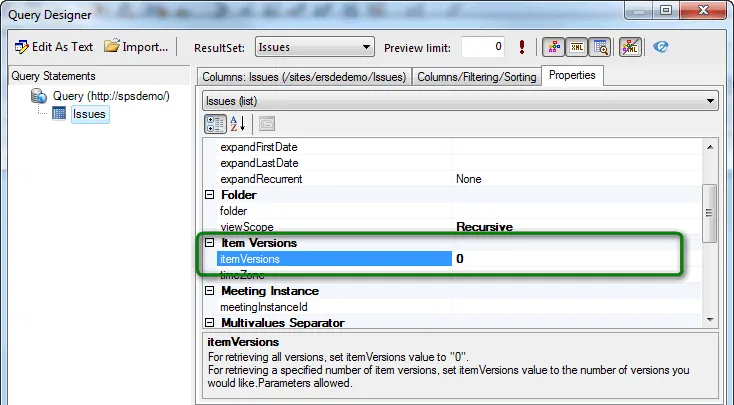
In this sub-report we will also ask for retrieving item versions in order to get the complete history of the comments associated to a specific issue. As shown in the following screen-shot, we can retrieve all versions by setting the ItemVersions property to 0.
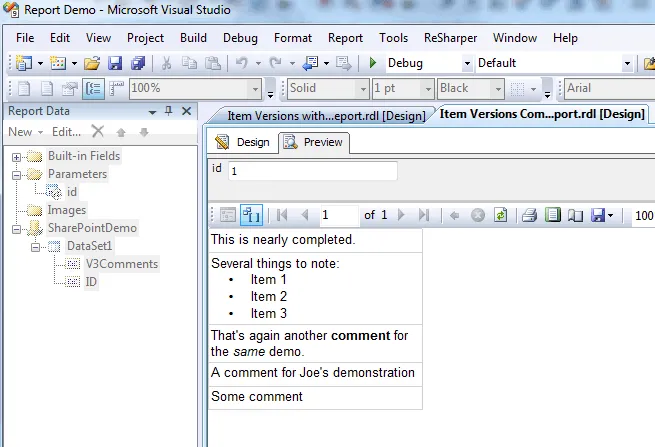
In the end if you execute your sub-report, you will get something that looks like this:
Building the main report
Our main report is rather straightforward. We will use a very simple query for retrieving items from our Issue list. In this report, we don’t need (and we don’t want) any item versions (the sub-report will handle this):
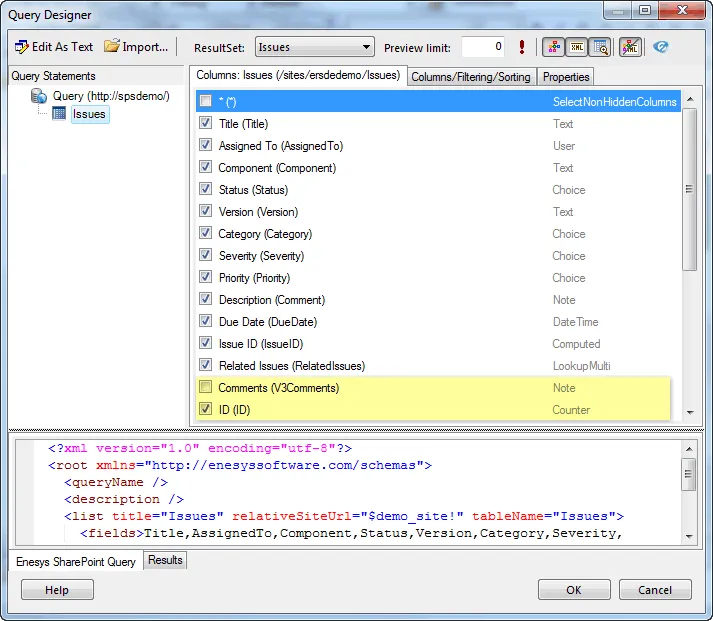
Note that we do not need to retrieve the “Comments” field at all. However, we will need the ID in order to pass the value to our sub-report.
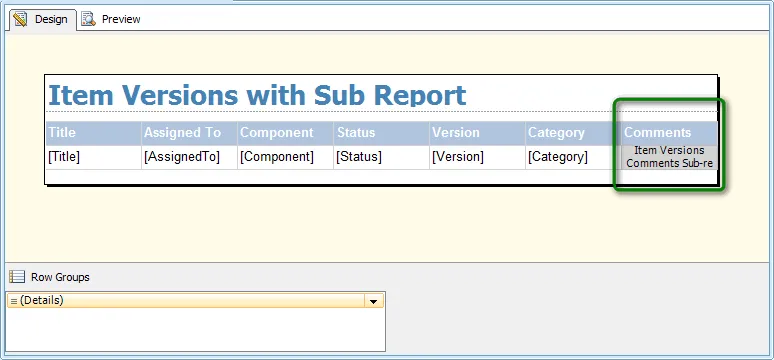
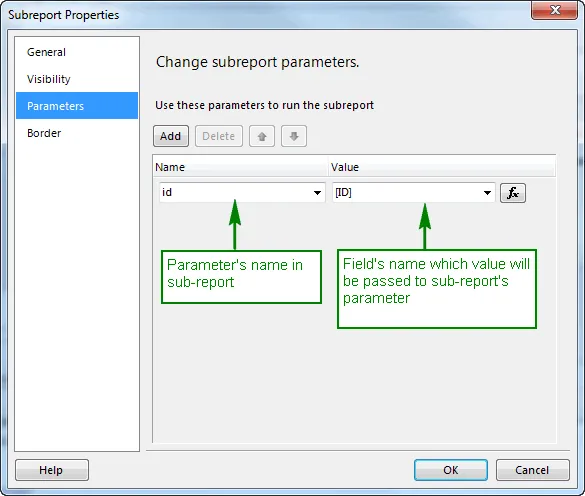
We are using a simple table design for the report. For dislaying “Comments” history, we will be using a sub-report that points to the report we have previously created. In the sub-report properties dialog box, you need to specify the value that will be passed to sub-report parameters…
Conclusion
If your scenario is similar to what is explained in this article and if you need to retrieve many fields, this approach is worth a try. In some real world scenario where a customer had a list with many fields and needed to retrieve all fields for exporting to Excel, using this approach proved to be 4 times faster.
- Applies toEnesys RS Data Extension
- Last Updated2010-07-19T00:00:00.000Z
- CategoriesHow-to