Sample Survey Reports
We have prepared a couple of reports that can be used with any SharePoint Survey list.
In order to use the reports:
- Download the reporting solution zip file.
- Unzip in any folder.
- Open the solution.
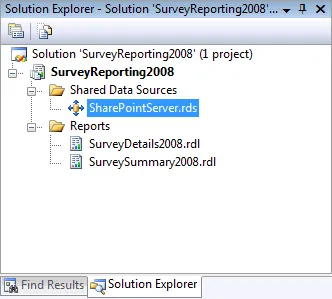
- Modify the Shared Data Source connection string to point to your own SharePoint server.
As you can see from the previous screen shot, the solution contains two reports:
- The SurveySummary report displays a summary report from any Survey list.
- The SurveyDetails report displays the details of a single answer from any Survey list.
SurveySummary report
The SurveySummary is a report with a look and feel similar to the “Graphical summary” that is available through SharePoint web interface.
However, using the power of Reporting Services, you can export the results into PDF, Excel or Word. You can also customize the report to better suit your needs…
When running the report:
- Enter the relative site url to the Survey list:

- Press the “Tab” key, in order to get all the Survey lists within the specified site:

- Select the appropriate list title and click on View Report.
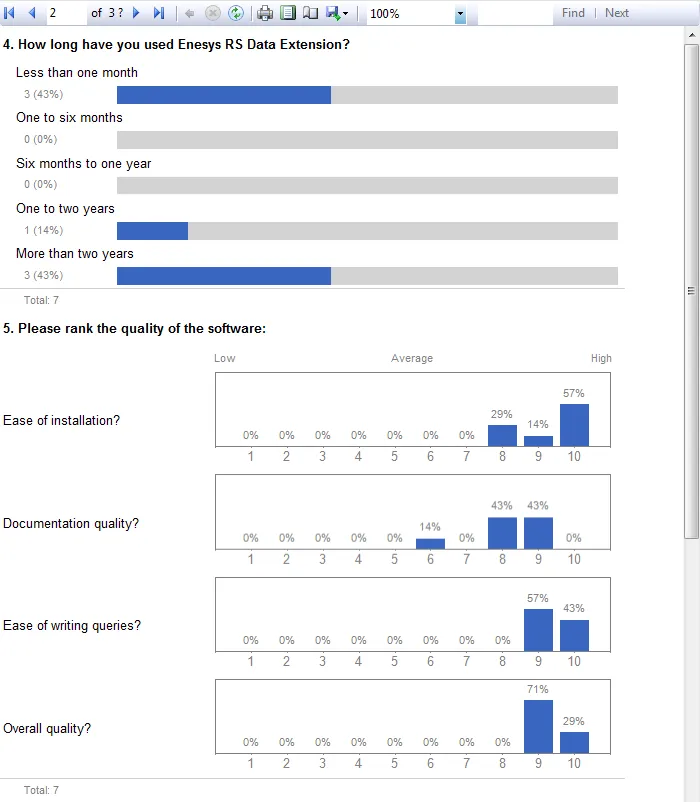
Here is an example of the report with a “Choice” question and a “Rating Scale” one:
SurveyDetails report
The SurveyDetails report is a report that lets you display a specific response.
When running the report:
- Enter the relative site url to the Survey list:

- Press the “Tab” key in order to get all the Survey lists inside the specified site:

- Select the appropriate list title. All the answers of this Survey will be retrieved from SharePoint so you can choose the answer you want details from:
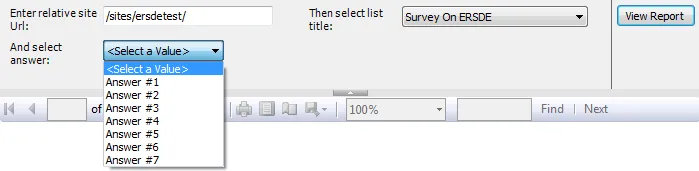
- Select the answer you want details on.
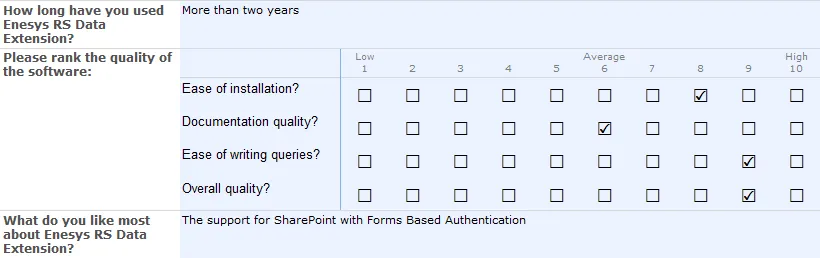
Here is a sample of the report, with a “Choice” question, a “Rating scale” question and a “Several lines of text” one:
Those reports are generic enough so that they can be run on any Survey list (if we have missed something, do not hesitate to contact our support).
However, you are not limited to use those generic reports. The rest of the article provides step-by-step instructions on how to build the generic report. This should provide the necessary information to build your own reports or customize the ones available in the downloadable solution.
Building your own Survey report
We will detail step by step the creation of the SurveySummary report, that tries to mimic the “Graphic summary” wiew available within SharePoint.
This will allow you to see the important steps that are necessary for creating a report on top of Survey data.
Designing the query
The first step will be to design the query using the Query Designer.
The query is straightforward and only needs a single statement for querying the Survey data:
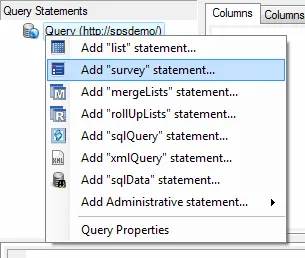
- Add a new survey statement:
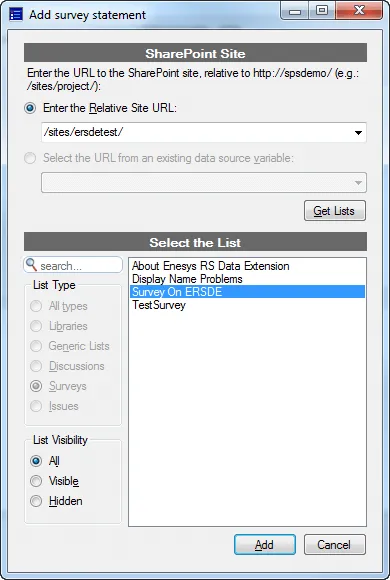
- Enter the URL to the SharePoint site and click on the “Get Lists” button. All the Survey lists from the specified site will be displayed. Select the desired list and click on the “Add” button:
The survey statement doesn’t require much configuration; you can execute the query within the designer to see the results:
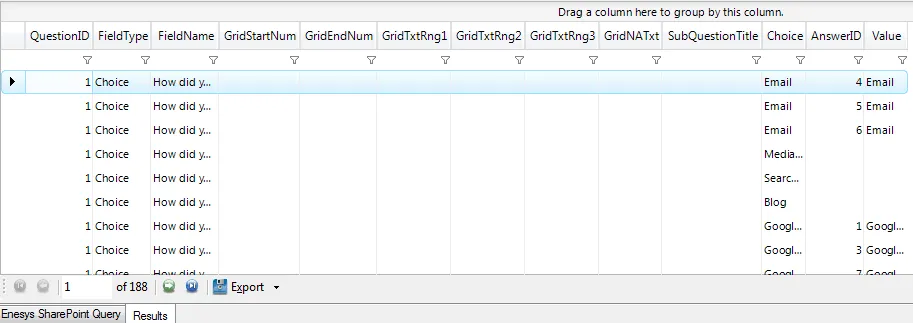
The format returned by the survey statement can be disconcerting; you can find more information about it inside the Enesys SharePoint Query manual.
We will now design a report using the data returned by the Survey statement.
Designing the report
The report is a bit more complex than most reports because we want it to work with any survey list. Several steps will be necessary:
Preparing the report
We will add a Table (or Tablix with BIDS 2008 and later) to the report layout and configure a few properties.
- Add a new Table/Tablix to the report.
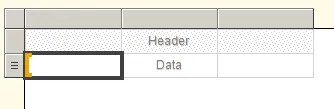
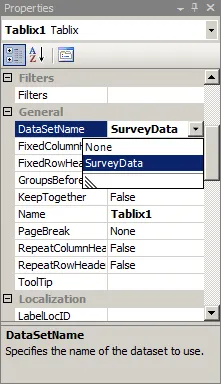
- Set the DataSetName property of the table to use the dataset containing the Survey data:
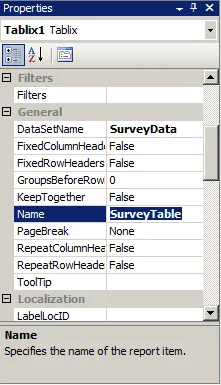
- Rename the table to “SurveyTable” so that we can later reference the table within some expressions:
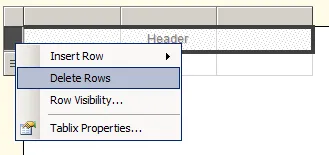
- Remove the header (and footer if present) rows:
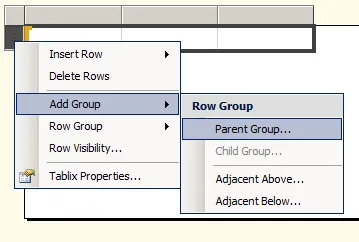
- Each question has several rows of data associated to it. We will first group the results by question.
Right click on the Details row and add a Parent Group:
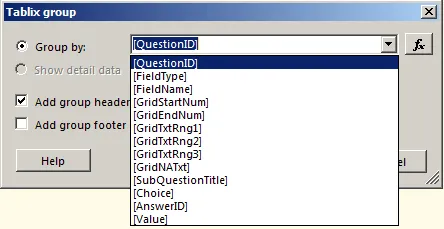
- Select the QuestionID field, and check the “Add a group header” checkbox:
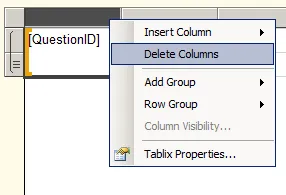
- Depending on your BIDS version, a column may be added with the QuestionID field, delete it if this is the case:
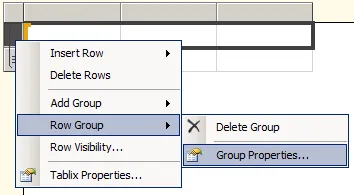
- Right click on the newly created row and edit its group properties:
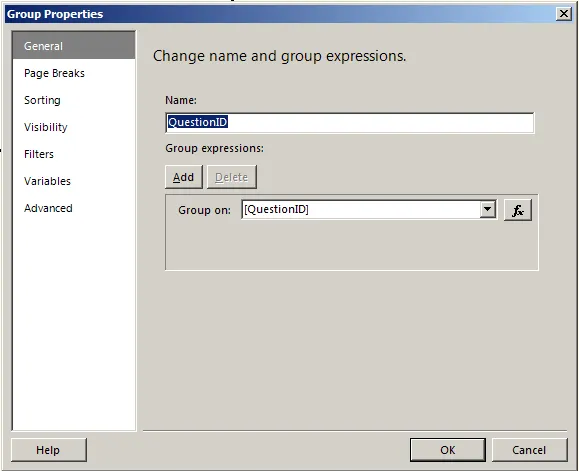
- Change its name to “QuestionID” (this name will be used in expressions later):
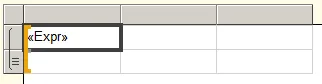
- Edit the first cell expression to concatenate the QuestionID and FieldName fields:
=Fields!QuestionID.Value & ". " & Fields!FieldName.Value
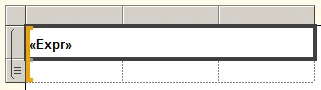
With some more work on enhancing the appealing of the table:
- Removing the borders of all the cells
- Merging the three cells of the QuestionID group row
- Setting the QuestionID row font weight to Bold
- Adding some space before and after the QuestionID row (SpaceBefore & SpaceAfter properties)
Here is what the report design looks like:
If you look at the SharePoint Summary report, you can see that there are two different designs for the questions:
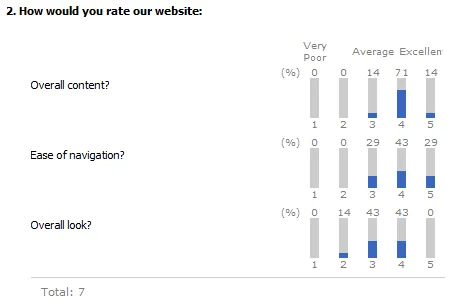
- For the Rating Scale questions, it uses vertical bars:
- For all the other questions, it uses horizontal bars:
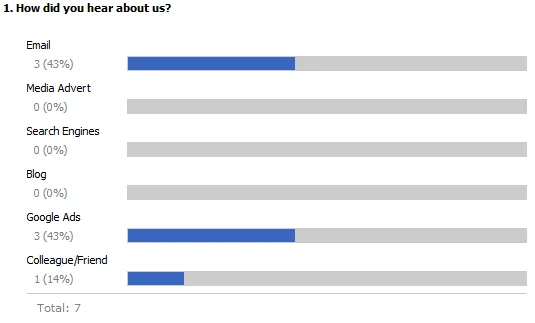
This imposes us to manage the Rating Scale question type and the other question types differently.
In a first step, we will design the “other” question types.
Designing the answer rows
We will try to replicate the SharePoint design:
We already have the question title (FieldName), so for each question, we will need three more rows of data:
- A group on each available Choice, that contains two lines:
- One for the Choice value (e.g.: Email)
- One for the percentage and a small bar graphic (e.g.: 3 (43%) and the graph)
- And at the bottom, a row that contains the total number of answers for this question.
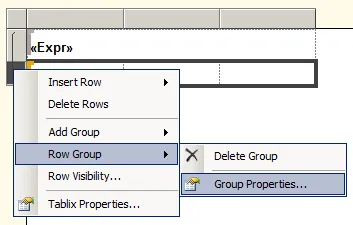
We will then add the group for displaying the choices and their graph. This group will have two rows and will be grouped by Choice. This group will only be visible when the question type is not a Rating Scale (e.g.: “GridChoice” question type).
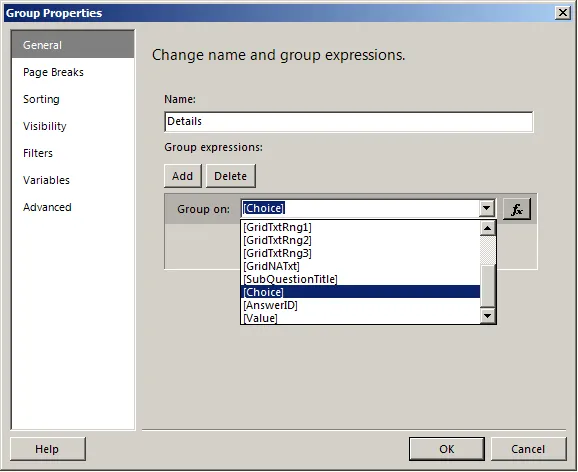
- Edit the “Details” row properties to group on the Choice column:
- Then switch to the Visibility tab and select whether to show or hide the group based on an expression:
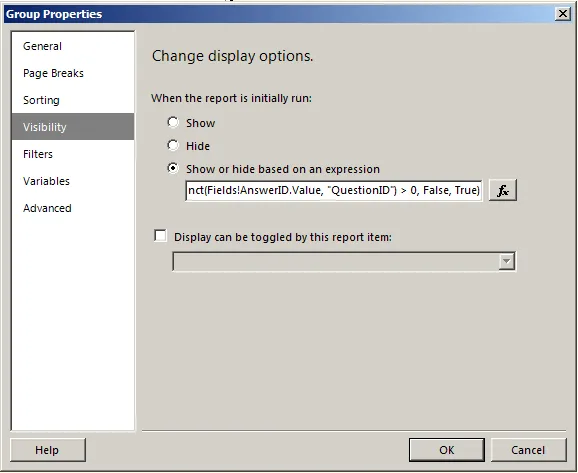
The following expression allows to show this group only when the field type is not a Rating Scale and that there are at least an answer for this question:
=IIF(Fields!FieldType.Value <> "GridChoice" And CountDistinct(Fields!AnswerID.Value, "QuestionID") > 0, False, True) - Add a second row to the Details group
- Set the Choice column inside the first row of the Details group, and merge the three cells:
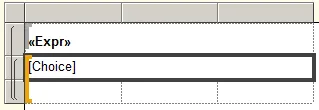
- Add an expression to the first cell of the last line:
=Count(Fields!Value.Value) & " (" & FormatPercent(Count(Fields!Value.Value) / Count(Fields!Value.Value, "QuestionID"), 0) & ")"
The QuestionID string represents the name of the parent group that we changed at the 9th step of the previous chapter. - Now, merge the second and third cells and add a new graph of type “Bar”:
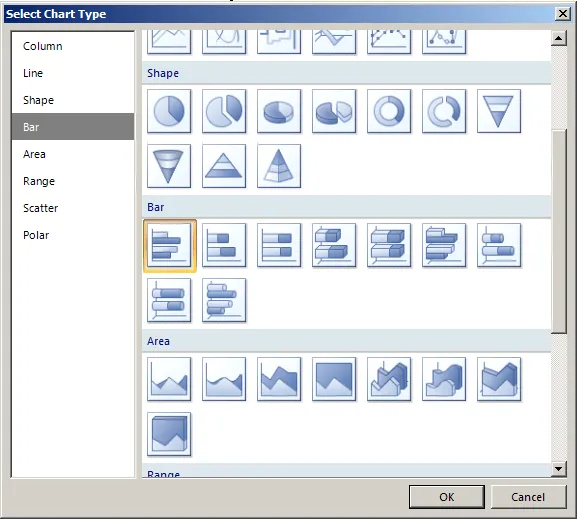
With BIDS 2008R2, you can use the new “Data Bar” report item instead, that is the same as the Bar graph, without most the visual modifications that we will remove anyway (title, legend, axis titles…). - Augment the row height and width so that we can see a full chart, as we need to make some modifications.
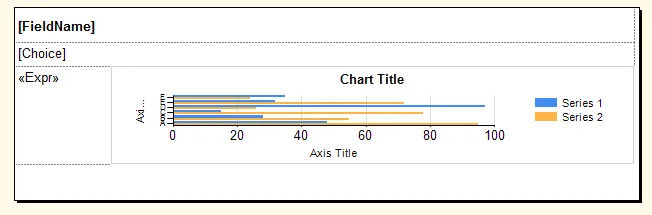
- Add the Value field as a data field:
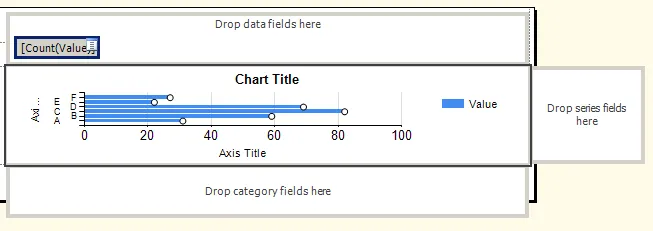
- And edit its properties so that the value represents the percentage of times this value was chosen:
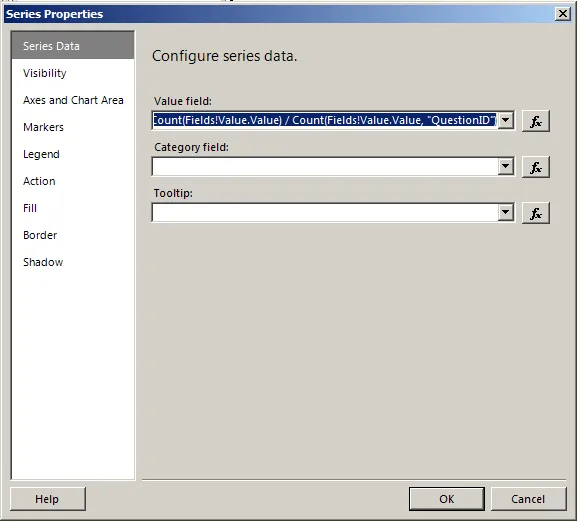
The expression of the “Value field” is:
=Count(Fields!Value.Value) / Count(Fields!Value.Value, "QuestionID") - With BIDS 2008R2, a Category group is automatically added when you add a Graph, you can delete it:
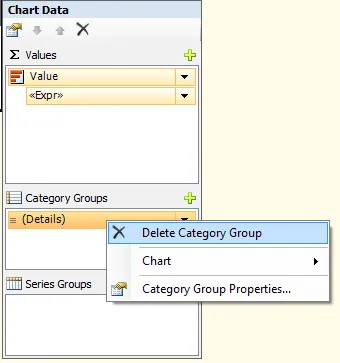
We will now make some adjustments to the chart:
- Hide the chart title
- Hide the X-Axis and Y-Axis titles
- Hide the Legend
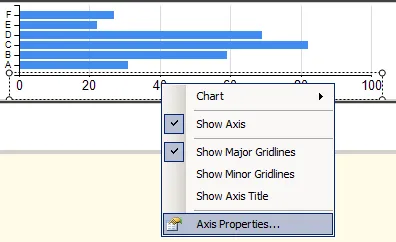
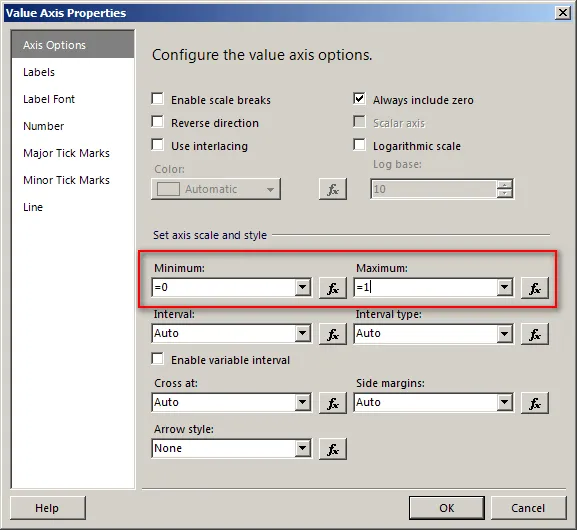
- Edit the X-Axis properties to only shows the values between 0 and 1 (the minimum and maximum percentage values):
- Edit the Y-Axis properties in order to remove the side-margins:
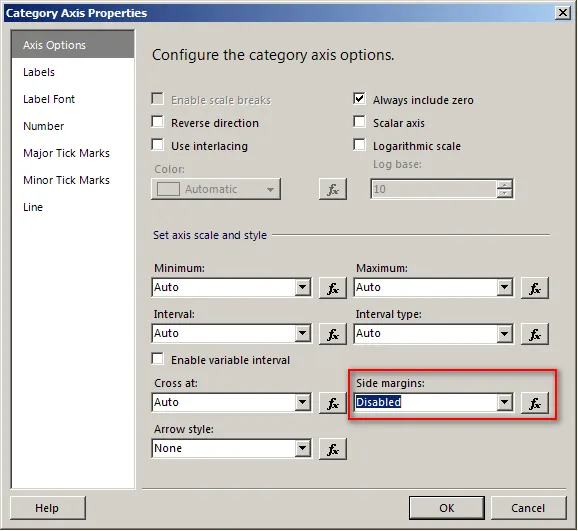
- Hide both X-Axis and Y-Axis.
- Reduce the height of the row to match its previous height. Here is what the report looks like when previewed:
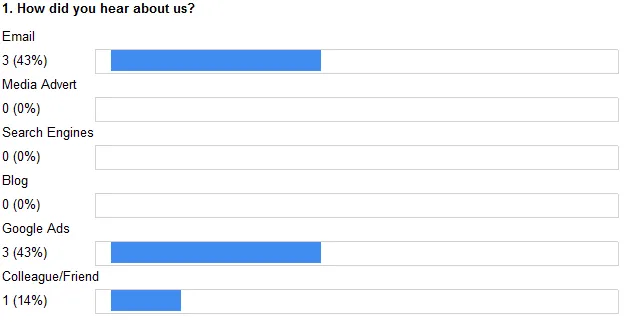
Make the following modifications to match the SharePoint design:
- Remove the border around the graph
- Add a gray background to the graph area
- Modify the series color
- Modify some font sizes and colors
- Add some left indent
And here is what it looks like:
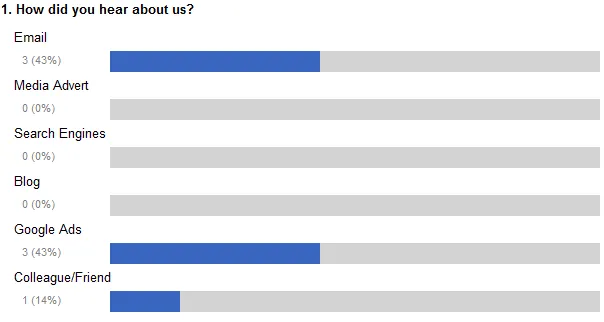
Now that we have handled the “other” question types, we will need to manage the Rating Scale question type.
Handling Rating Scale questions
The SharePoint summary survey report looks like this for Rating Scale questions:
We will have two columns, one for the “sub question” title and one with a vertical graph displaying all the answers (from GridStartNum to GridEndNum, with an optional value for the N/A, set if GridNATxt is not null).
We add a second row group, adjacent to the “Details” row group. This group would only be displayed when the current question is a Rating Scale question.
BIDS 2005 doesn’t allow you to have adjacent groups. You can simulate this by creating a “middle” group so that:
- Its parent group is the QuestionID group
- Its child group is the Details group
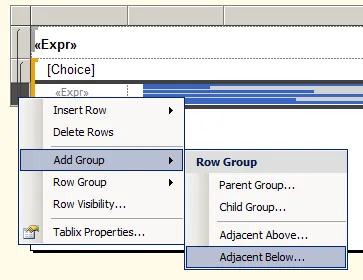
- Add a second group, adjacent to the Details row group:
- For the Rating Scales, we need to group on the SubQuestionTitle field that contains the title of the sub-question:
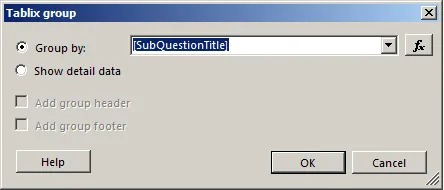
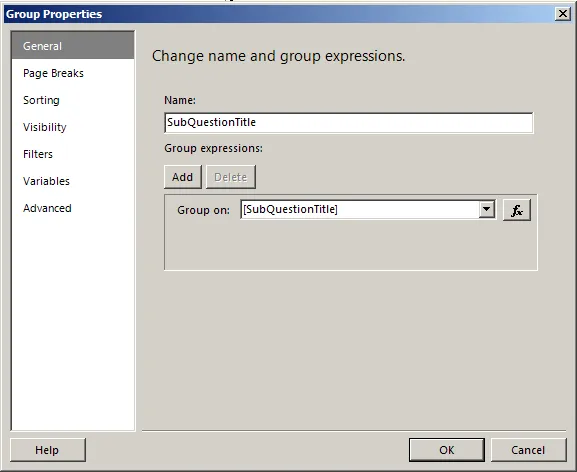
- Set the name of the group to SubQuestionTitle so that we can reuse the group name in expressions:
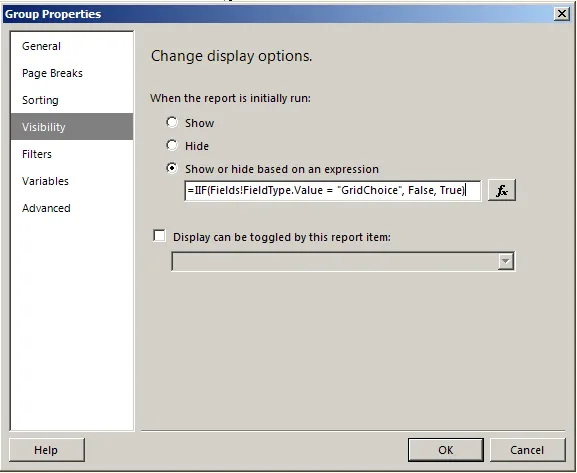
- Switch to the Visibility tab and set that it should only be visible when the current question is a GridChoice:
=IIF(Fields!FieldType.Value = "GridChoice", False, True)
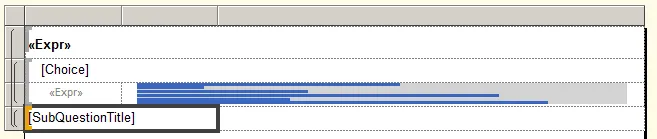
- Merge the first and second cells of the newly created row, and set its value to the SubQuestionTitle field:
- Now, add a graph of “Column” type inside the third cell:
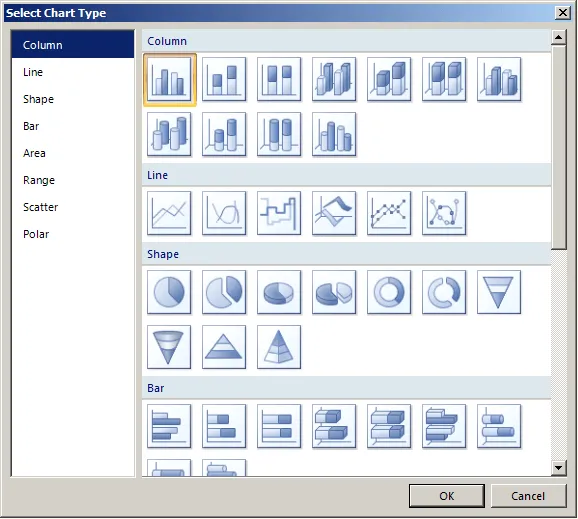
And augment the row height so that you can fully see the graph. - Add the Value field to the data fields:
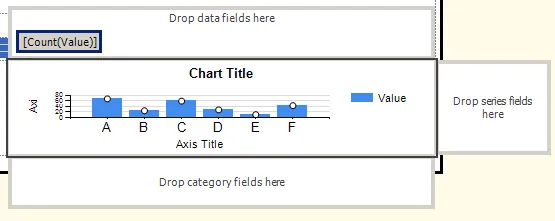
- Right click on the field to edit its properties, and set the “Value field” to:
=Count(Fields!Value.Value) / CountDistinct(Fields!AnswerID.Value, "SurveyTable")
The SurveyTable string represents the name of the Table that we changed at the beginning of the article.
And set the “Category field” of the series to:
=IIF(Fields!Choice.Value = Fields!GridEndNum.Value + 1 And Not(IsNothing(Fields!GridNATxt.Value)), Fields!GridNATxt.Value, Fields!Choice.Value)
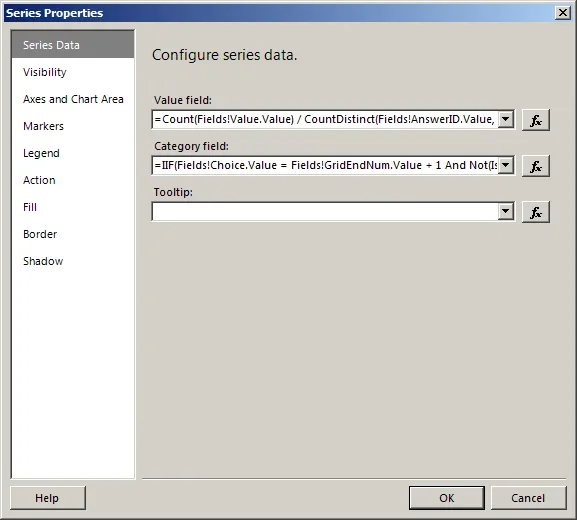
- Add a category group on the Choice column:
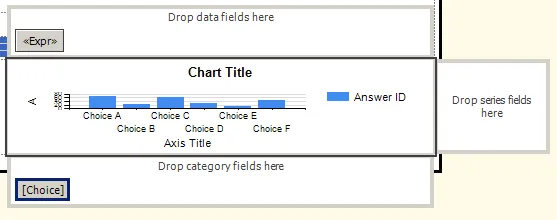
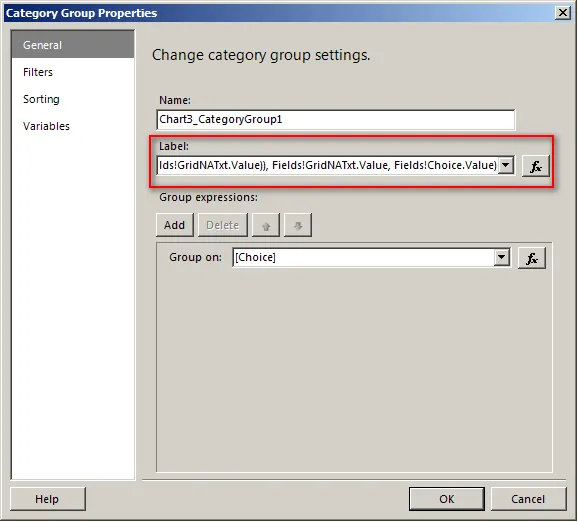
- Then edit its properties, and set the Label property to:
=IIF(Fields!Choice.Value = Fields!GridEndNum.Value + 1 And Not(IsNothing(Fields!GridNATxt.Value)), Fields!GridNATxt.Value, Fields!Choice.Value)
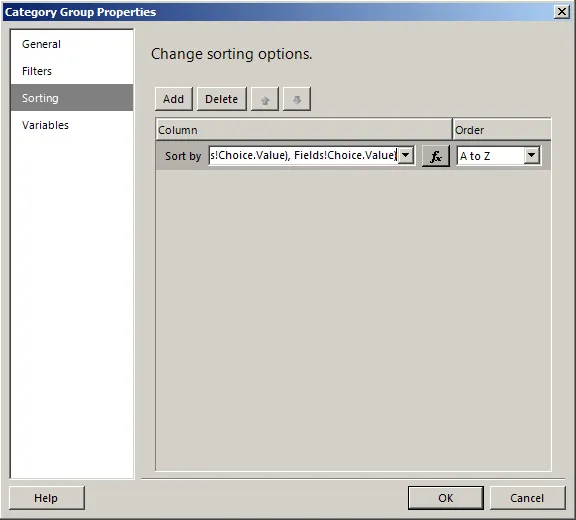
- And, inside the Sorting tab, set the following sort:
=IIF(IsNumeric(Fields!Choice.Value), Val(Fields!Choice.Value), Fields!Choice.Value)
We will now make some adjustments to the chart:
- Hide the chart title
- Hide the legend
- Hide the titles for both X and Y axis.
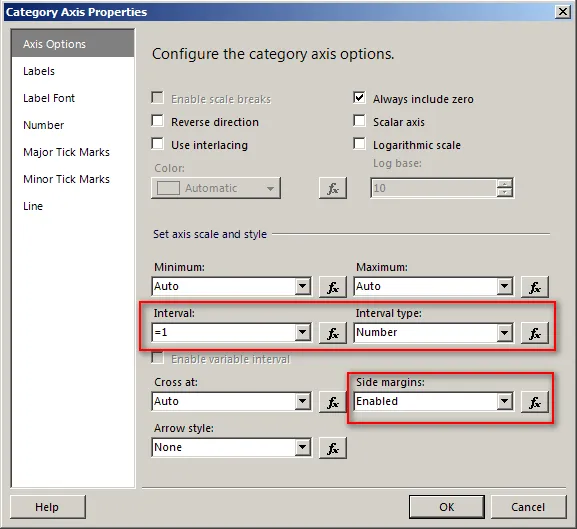
- Edit the X-Axis properties:
- Set the Interval value to =1
- Set the Interval type to Number
- Enable side margins
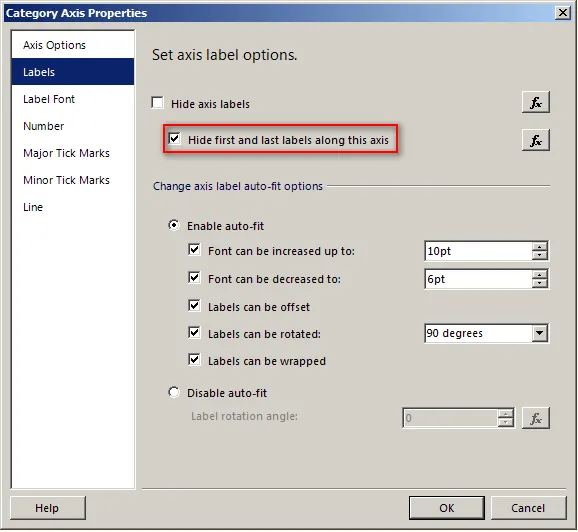
Then, switch to the Labels tab and check the “Hide first and last labels along this axis” option.
- Edit the Y-Axis properties to set the Minimum and Maximum to properties to 0 and 1:
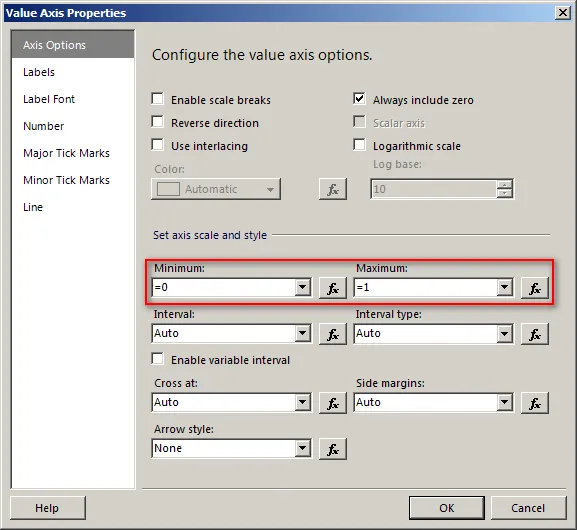
- Hide the Y-Axis
You can now preview the report and see the current visual aspect of Rating Scale questions:
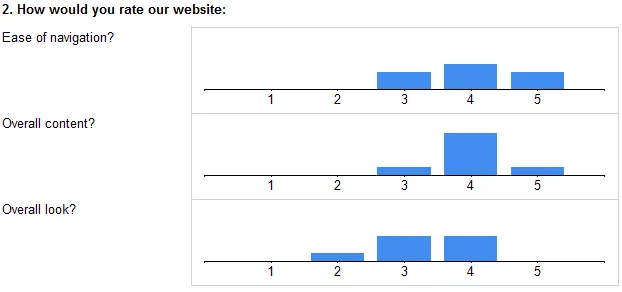
Make the following modifiations to the design:
- Vertically centering the sub-question titles (not working with BIDS 2008)
- Changing the Axis colors (labels, major ticks and line) from Black to Gray
- Changing the series color
- Adding a Gray border to the Chart Area
- Showing data labels and setting their Format to “0%” and their Color to Gray
- Removing the chart border
Here is what it looks like once those modifications were done:
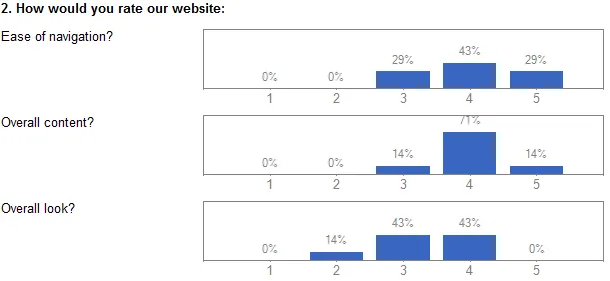
There are two more things that need to be done:
- Adding a row that displays the total number of answers for a question
- Adding a visual clue of the value for Rating Scale questions (the “Very poor”, “Average” or “Excellent” values that you can see inside the SharePoint report)
Adding a total row
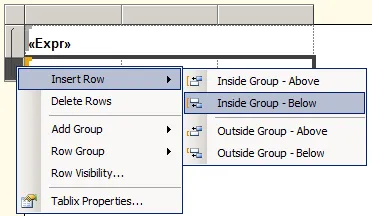
The total row must be displayed once for each question, so we will add a new row inside the QuestionID group at the end of the table.
- Right click on the last line, and insert a row outside the group – below:
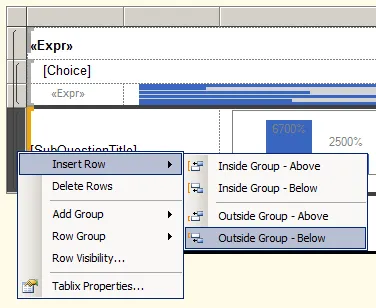
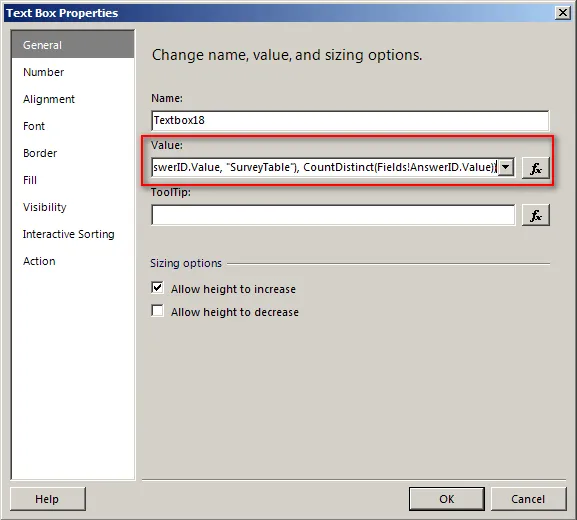
- Edit the first textbox properties and set this expression as its Value:
="Total: " & IIF(Fields!FieldType.Value = "GridChoice", CountDistinct(Fields!AnswerID.Value, "SurveyTable"), CountDistinct(Fields!AnswerID.Value))
This will count the distinct number of answers for the current question.
Modify the row visual properties:
- Merge the three cells
- Edit the cell properties:
- Add a top-border
- Add some left indent
- Set the VerticalAlign property to Middle
- Decrease the font size
- Set the color to Gray
Here is what the report looks like with those modifications:
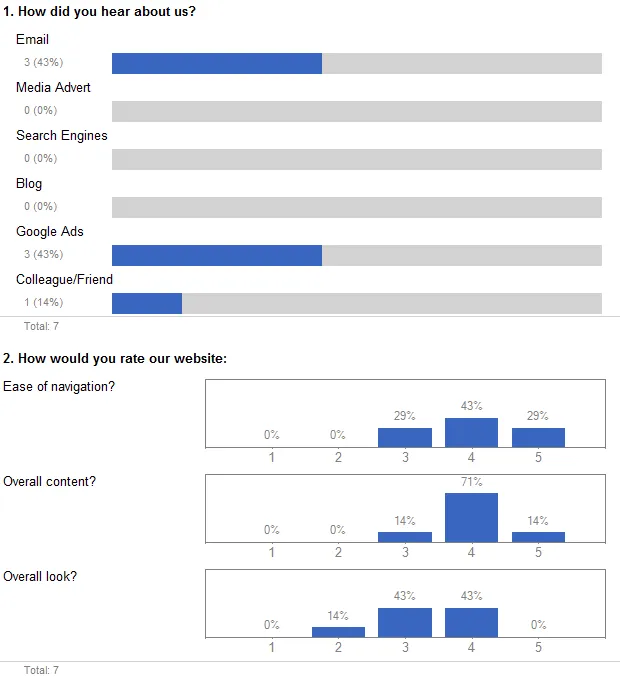
The last thing left to do is to add the visual clues about the Rating Scale values.
Adding Rating Scale value clues
For this, we will add two more columns to the report that we will display just before the first chart of each Rating Scale question. This will give us three columns that will display the minimum value text, the middle value text and the maximum value text, that we get with the GridTxtRng1, GridTxtRng2 and GridTxtRng3 fields.
- Right click on the table header and add 2 columns:
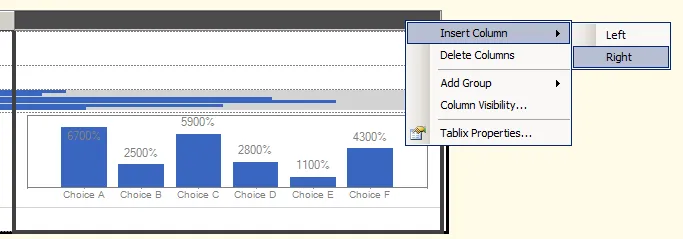
- Add a new row inside the QuestionID group, just above the SubQuestionTitle group:
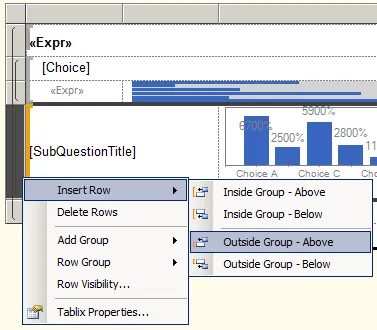
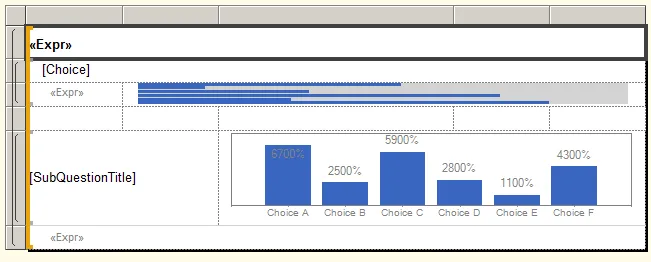
- Now merge the cells of the two new columns with all their previous cells, except for the newly created row:
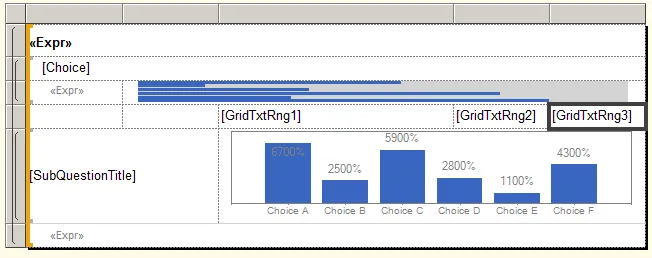
- And put the three GridTxtRng1, GridTxtRng2 and GridTxtRng3 columns into those cells:
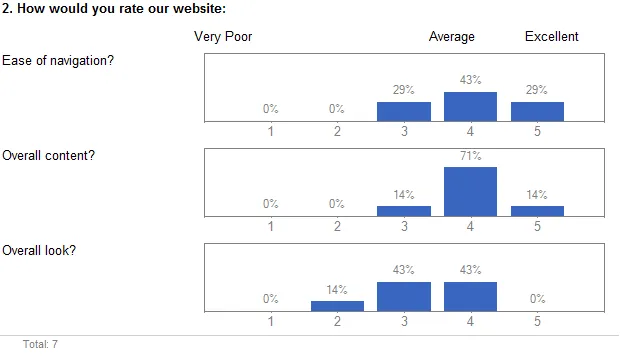
Here is what the report looks like now:
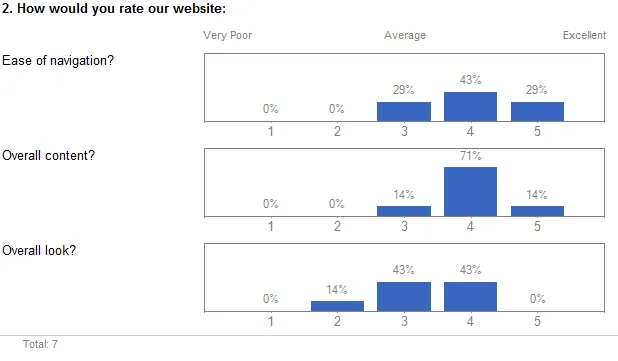
By making the necessary adjustments to the three cells:
- Centering the middle text
- Aligning the left and right text to the graph bounds
- Changing font size and color
We get the result shown in the following screen shot:
- Applies toEnesys RS Data Extension 3.6
- Last Updated2011-06-06T00:00:00.000Z
- CategoriesHow-toSamples