When running SharePoint’s out of the box workflows like “Collect user feedback”, user’s feedback will be stored in a task’s column named “ExtendedProperties”.
You can retrieve this column using a query such as the following:
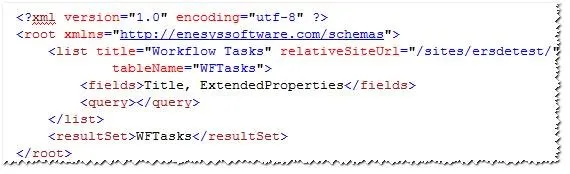
However, you will soon realize that the column value contains various extended properties including the user’s feedback (“ows_Comments” property).
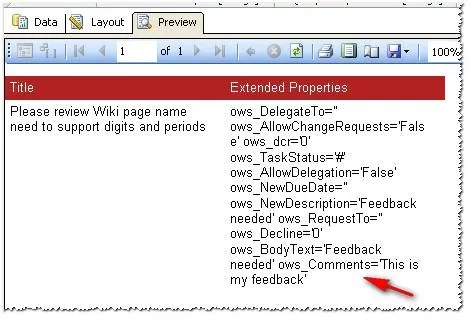
In order to get user’s feedback (or any other property) the easy way, we will write some custom code that makes use of Regular Expressions.
You can write custom code in the Code panel available in Report Properties:
1. On the Report menu, select Report Properties.
2. Select the Code tab and write custom code in Custom Code text area.
We will write a function called GetExtendedPropertyValue that will return the value of a specified property from some string that conform to ExtendedProperties convention (in short you will pass the value of the ExtendedProperties column to the function) as shown in the following screen shot:
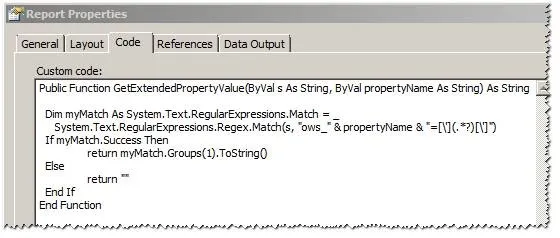
We won’t go into Regular expressions details.
Now that you have this function, you can use it anywhere you can use an expression in your report. In order to display user’s feedback in a column of your report, you will just need to write an expression as shown in the following image:
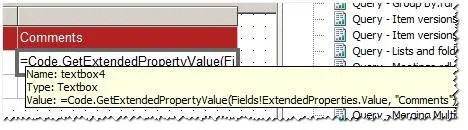
Our custom “GetExtendedPropertyValue” function is called by prefixing it with “Code.”. We pass to the function, the value of “ExtendedProperties” column and the name of the property which is “Comments” in that case.
By running our report, we can verify that we are retrieving the appropriate value:
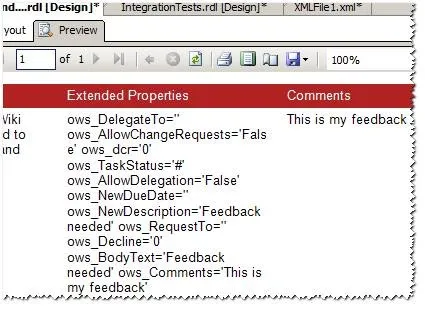
We have included the source of the report so that you can more easily copy the custom code for your own use. For testing purposes, you can run it over your own workflow task list by changing the data source and modifying the relativeSiteUrl and title attributes of the list statement.
- Applies toEnesys RS Data Extension
- Last Updated2008-10-13T00:00:00.000Z
- CategoriesHow-to