Reporting Solution - Current and Next assignments from a Project Tasks list
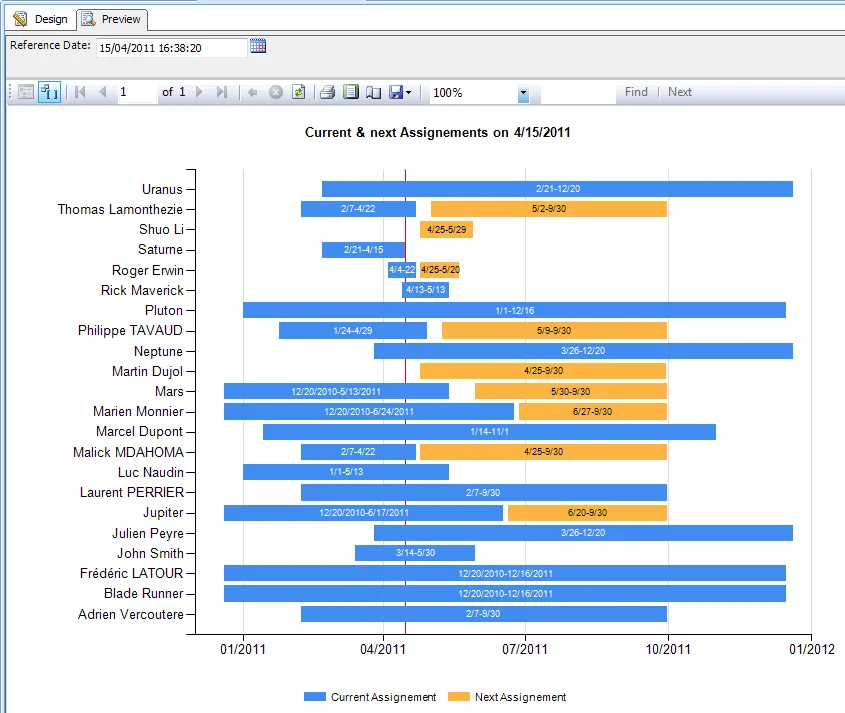
The reports we are providing in that solution will let you have an overview of the current and next assignments by users at a specific date based on the data of some Project Task list.
Current and Next assignments are displayed in a timeline fashion using a horizontal bar chart.
To get a better idea, the following screen shot shows the resulting report:
Downloading and configuring the solution
- Download the reporting solution zip file.
- Unzip in any folder.
- Open the solution.
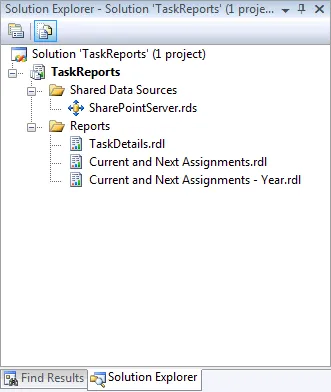
- Double click on the SharePointServer shared data source and makes the necessary modifications as shown in the following screen shot.
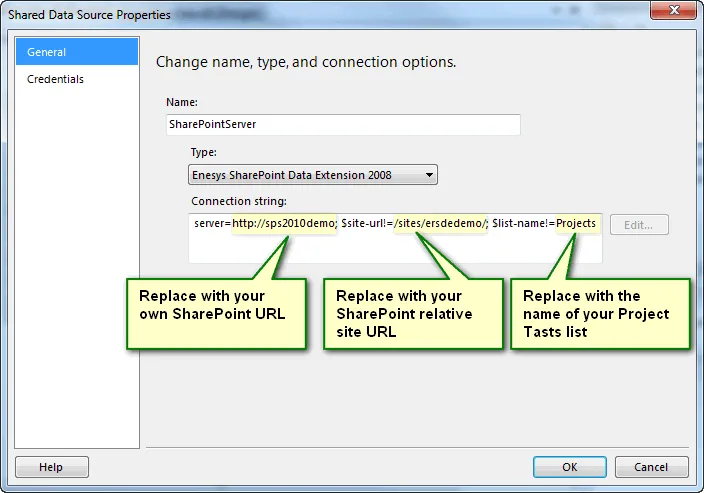
As you can see, the use of data source variables, makes it easy to configure a report so that it can run in another environment without having to change neither the query nor the report. “Data sources variables” is a concept specific to Enesys RS Data Extension.
Using the reports
The following reports are available in the solution:
- Current and Next Assignments
This report displays user’s current and next assignments at the date you specify when running the report.
The X-Axis begins at the beginning of the first current task, and it ends at the end of the last next task. Depending on the average duration of your tasks, this approach may be useful to give a good overview of respective tasks duration. However, it can be more difficult to read if some tasks span over multiple years when other tasks only last a few days or month.
An example of this report is shown in the following screen shot:
- Current and Next Assignments - Year
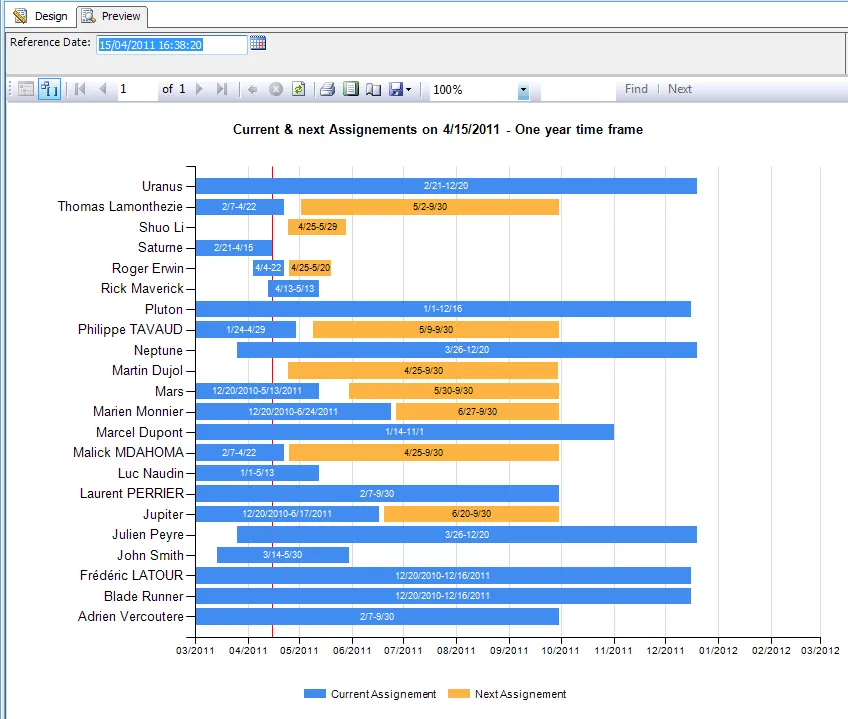
This report displays user’s current and next assignments at the date you specify when running the report.
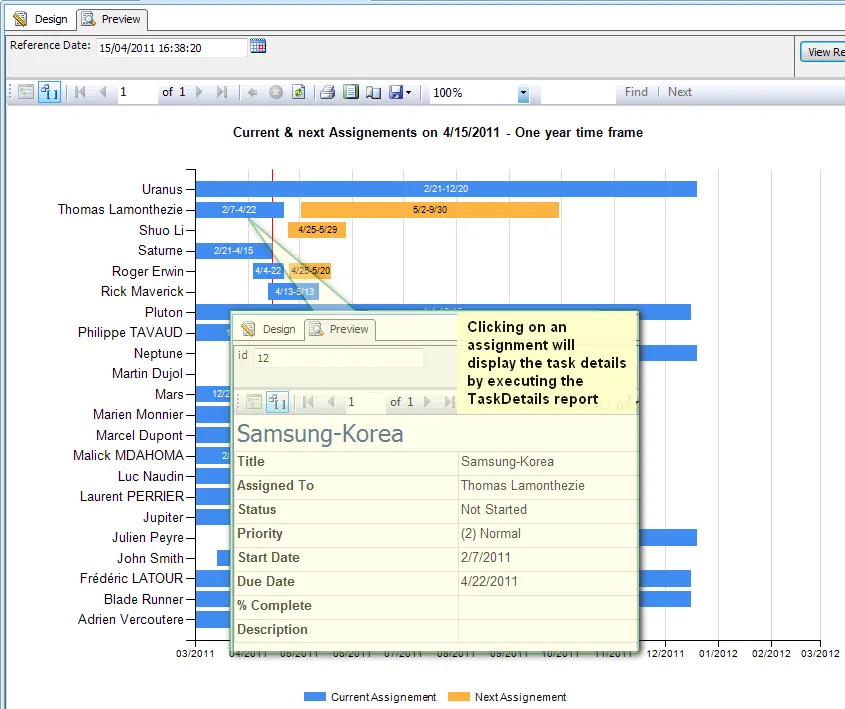
However, the X-Axis displays a one year time frame starting one month before the selected date. Contrary to the “TasksTimeline” report, having a mixture of very long and short tasks does not affect the readability of the report. However, it’s not possible to have a visual overview of respective tasks duration because tasks can span outside the one year time frame displayed.
An example of this report is shown in the following screen shot:
- TaskDetails
This report is not meant to be executed directly. It is used to display the details of a specific task when you click on an assignment within either the “TasksTimeline”. The design of this specific report is simplistic. The idea was mostly to show how you can execute some other report when clicking on some assignment in the main chart. Instead of executing another report, you could point to the task details directly within SharePoint.
Conclusion
The reports available in this solution rely on standard fields used by the SharePoint 2010 Project Tasks list. You can therefore run the solution “as-is” with any Project Tasks lists.
Starting from those reports, you can also make the necessary modifications to address your own needs.
- Applies toEnesys RS Data Extension
- Last Updated2011-07-07T00:00:00.000Z
- CategoriesSamples