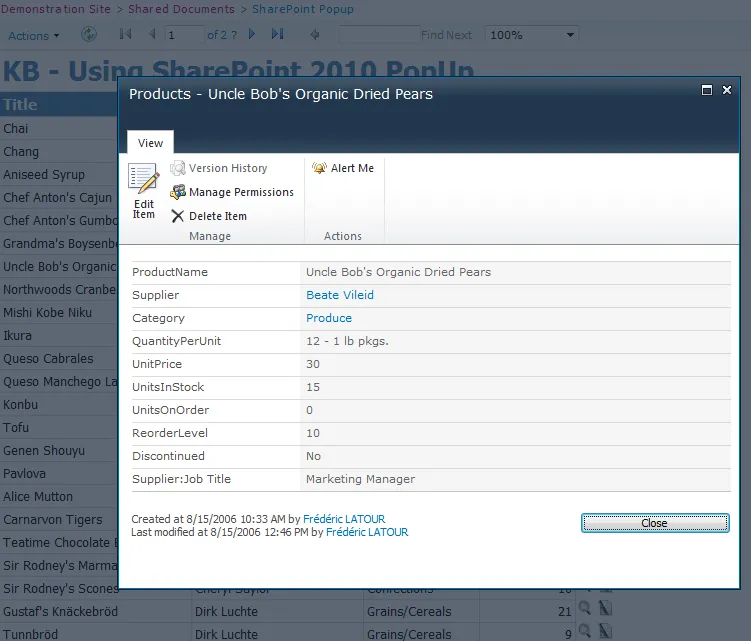
With SharePoint 2010, Microsoft added the possibility to view and edit list items without leaving the current page, by using a popup mechanism as shown in the following screen shot:
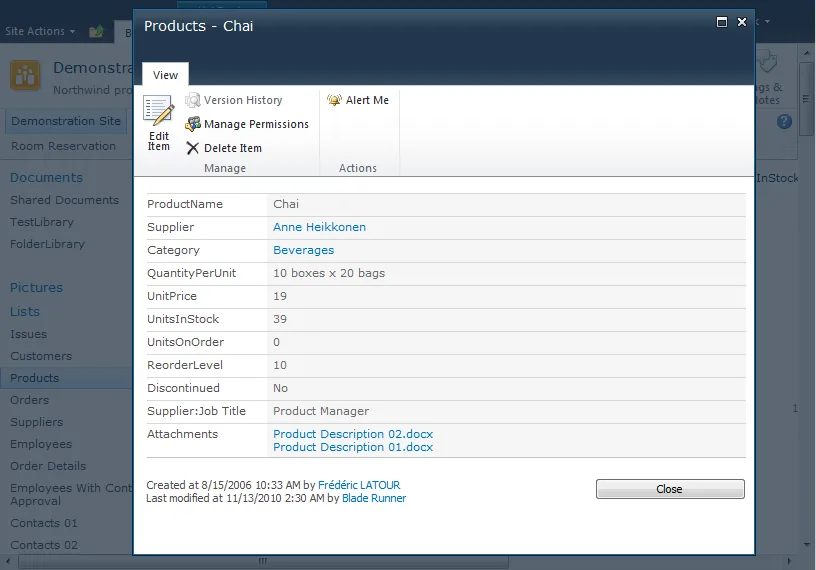
The same approach can be taken so that you can view and edit the List items without leaving the report.
The general idea is to use the “Go to URL” Reporting Services action in combination with the window.OpenPopUpPage(url) javascript function available when running Report Viewer in SharePoint Integration Mode. Do not worry, if that seems confusing at this stage. The rest of the article will provide detailed information on:
- How to generate the proper URL for viewing/editing a specific item,
- Add a “Go to URL” action within your report that uses the window.OpenPopUpPage function.
Generating the necessary URL for viewing or editing an item
The first thing to do is to come up with the proper URL to view (or edit) the item. This URL has the following form:
http://_your-server_/Lists/_your-list_/DispForm.aspx?ID=_your-item-id_
For editing the item, you will use EditForm instead of DispForm.
In order to make the necessary URL, you will need to use several fields from your list. Let’s see how by creating a query:
- Add a new List statement to query your list:
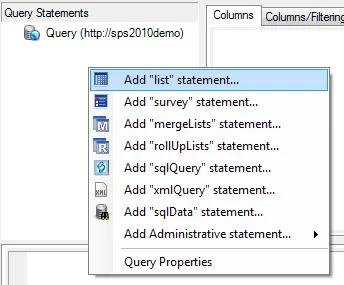
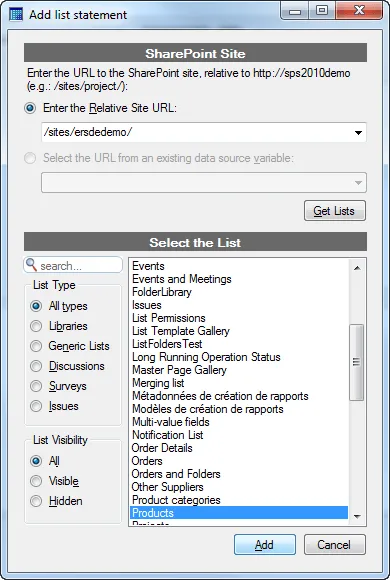
- Select the desired list (we are using “Products” list in our example but it could really be just any list) :
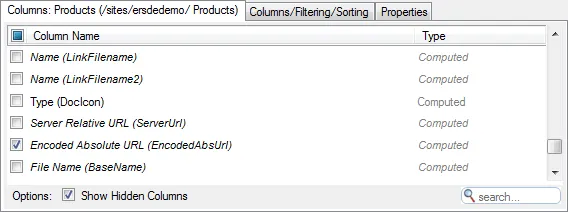
- Select any fields you like. However, for the URL you will need the following fields: ID, EncodedAbsUrl and FileLeafRef:
- Add a new sqlQuery statement.
SqlQuery statement is extremely powerful because it lets you use all the manipulation power of the SELECT statement over your data. The following screen shot shows the expressions we are using to compose the URL that is needed to view and edit an item:
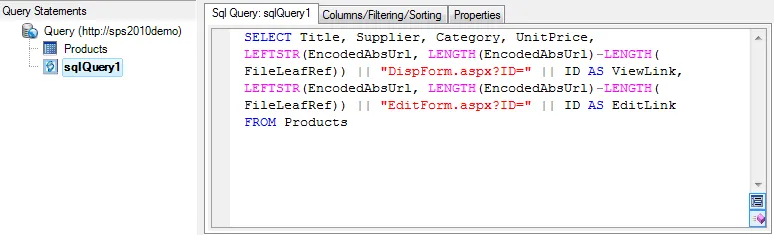
- You can preview the query and see that the correct URLs are generated:
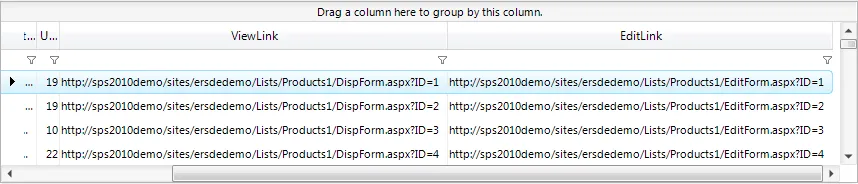
Adding a “Go to URL” action
Now that we have our dataset defined and, as part of the dataset, two fields that contains the URL to view and edit an item, we are ready to implement the actions on the report.
We won’t go into the details of designing the report. Starting from an existing design, we will explain how to add a “Go to URL” action on a report element in order to view or edit an item inside a SharePoint pop-up.
In our sample, we have inserted two images, that when clicked will open a pop-up for viewing or editing the item:

Let’s add our action:
- Right click on the element that will be associated the action of viewing the current item. Select properties, and, more specifically, the “Action” tab:
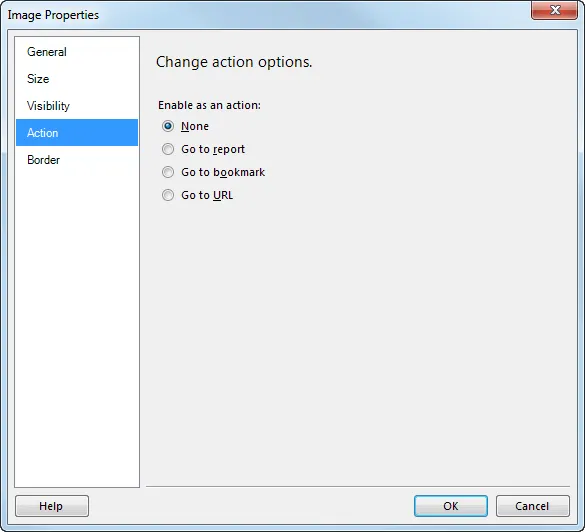
- Select the “Go to URL” action. Then click on the “Expression” button, and set the value to the following expression:
="javascript:window.OpenPopUpPage('" & Fields!ViewLink.Value & "');" - Once done, validate the modifications.
- Repeat the same operation with another report element if you would like to be able to edit the item as well.
Testing your report
When previewing the report within BIDS, clicking on the report element (the images in our sample) doesn’t work because the “window.OpenPopUpPage” function is not available outside of SharePoint.
You will have to deploy the report to SharePoint 2010 first.
Now, go to your SharePoint site and run the report you have just deployed:
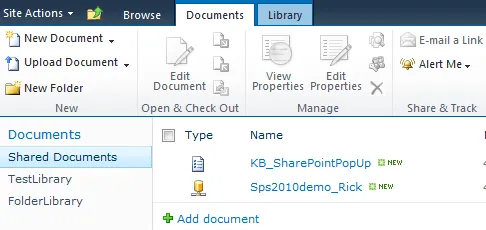
Our sample report will display like this:
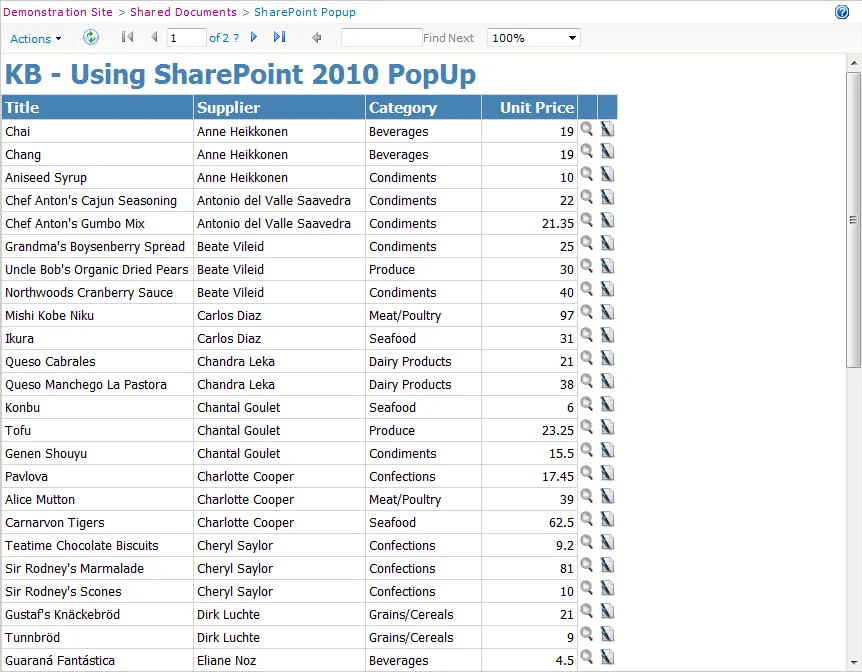
When clicking on an image to view the item details, the pop-up is displayed as shown in the following screen shot:
Sample Reporting Solution
Based on the information we provided, we have prepared a very simple report as part of a sample reporting solution.
The sample report can be run on any list because, besides the mandadory fields for composing the URL, it will only display the Title field available with any SharePoint list.
It can serve as a starting point for your own reports or for ensuring that it is working properly on your side.
In order to use the report project:
- Download the reporting solution zip file.
- Unzip in any folder.
- Open the solution.
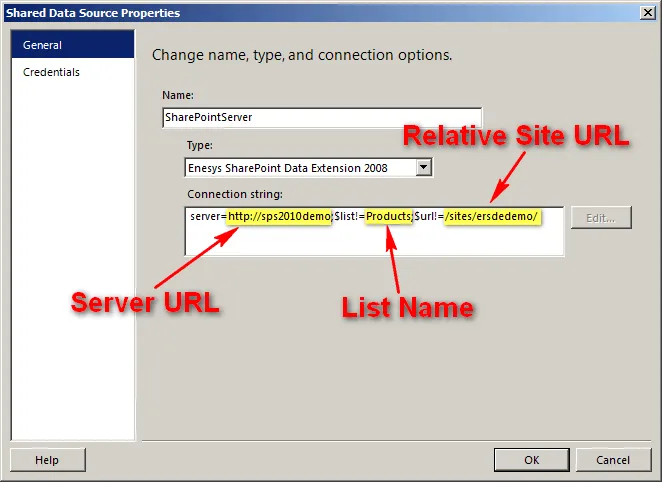
- Edit the SharePointServer datasource to set your server URL, list name and relative site url:
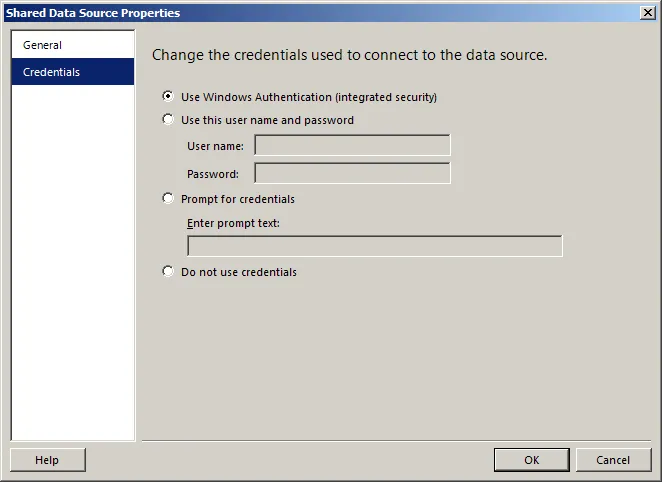
- Switch to the Credentials tab and set your credentials:
- Preview the report within BIDS just to ensure your modifications are working properly. However, as indicated previously, you won’t be able to open a SharePoint pop-up until the report is deployed within SharePoint.
- deploy your report to SharePoint and launch it to ensure that it works.
- Applies toEnesys RS Data Extension 3 / SP 2010 / SSRS Integration Mode
- Last Updated2011-05-12T00:00:00.000Z
- CategoriesHow-to