Introduction
Starting with Enesys RS Data Extension 3.1 (Standard and Enterprise edition only), a new set of statements is available for retrieving administrative data from your SharePoint sites. For a better under understanding of “statement” concept in Enesys RS Data Extension queries, please refer to the following article:
The following table lists the available statements:
| Statement | Description |
|---|---|
| aListCollection | Information about lists in the specified sites. |
| aListColumns | Information about the columns in the specified lists. |
| aListPermissiosn | Permissions on the specified lists. |
| aSiteCollection | Information about specified sites in a site collection. |
| aSiteCollectionGroups | Information about site collection’s groups |
| aSiteColumns | Information about Site Columns in the specified sites. |
| aSiteContentTypes | Information about content types available in the specified sites. |
| aSitePermissions | permissions on the specified sites. |
| aUserCollection | Information about specified users or users in the specified group. |
In order to demonstrate the use of these new statements, Enesys RS Data Extension 3.1 includes a sample reporting solution that includes a complete set of reports that you can easily reuse with your own SharePoint installation.
We will first describe the reporting solution. We will then explain what are the necessary (or optional) modifications for using it over your own SharePoint installation.
Admin Report Samples presentation
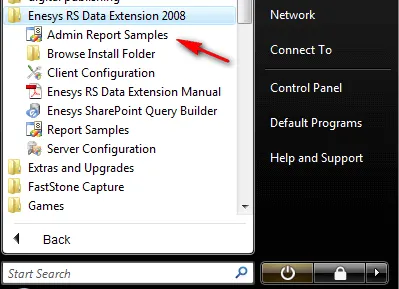
Unless you have decided otherwise during installation, the sample report solution should be available as a short cut from your start menu as shown in the following image:
If you open the solution, you will see various reports available:
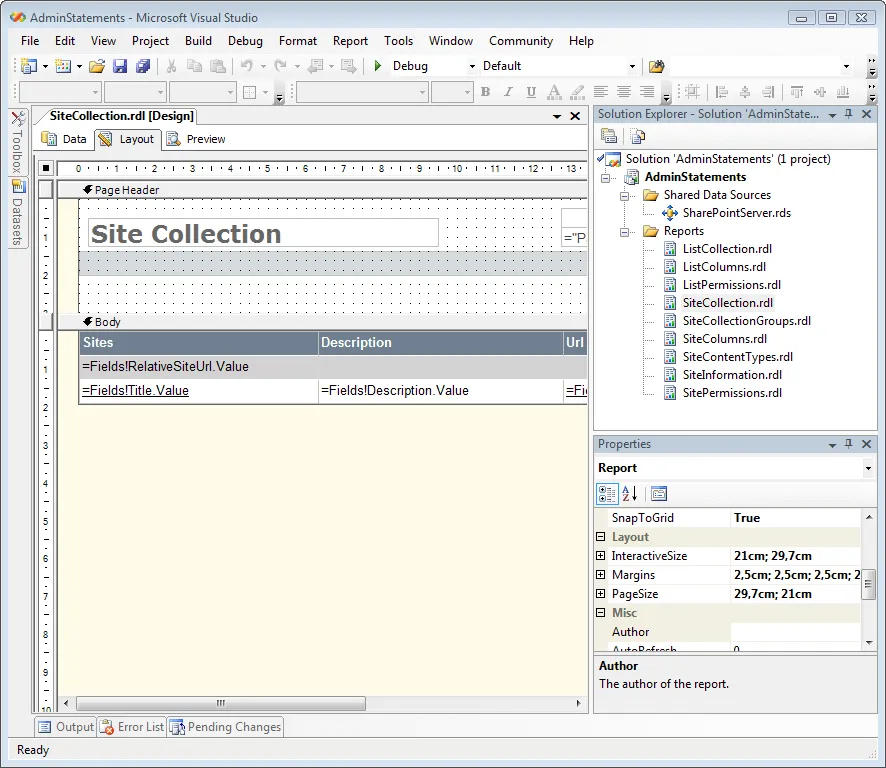
All reports are linked together so that you can retrieve related data from a specific site in a site collection.
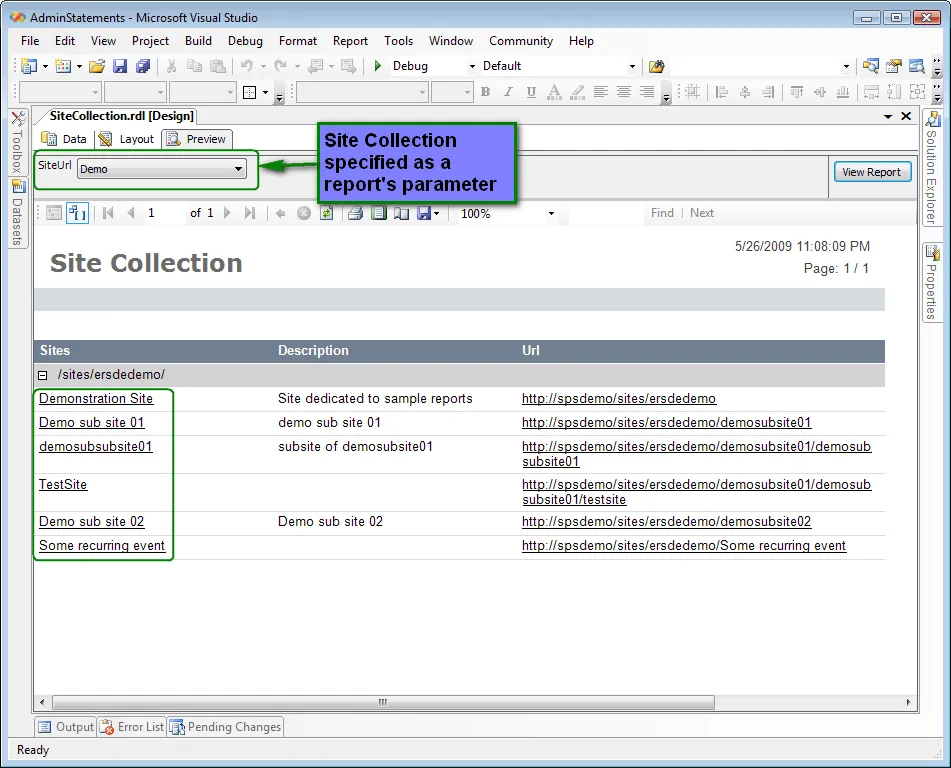
The master report is “SiteCollection”. It will display all the sites available within the site collection that is selected when running the report:
When you click on the name of the site, the report “SiteInformation” is automatically executed. It will display information about the site you have selected and let you get other information related to the site. As you can see in the following screen shot, we have mimic the look of buttons in order to access other reports that will display information about the specific site:
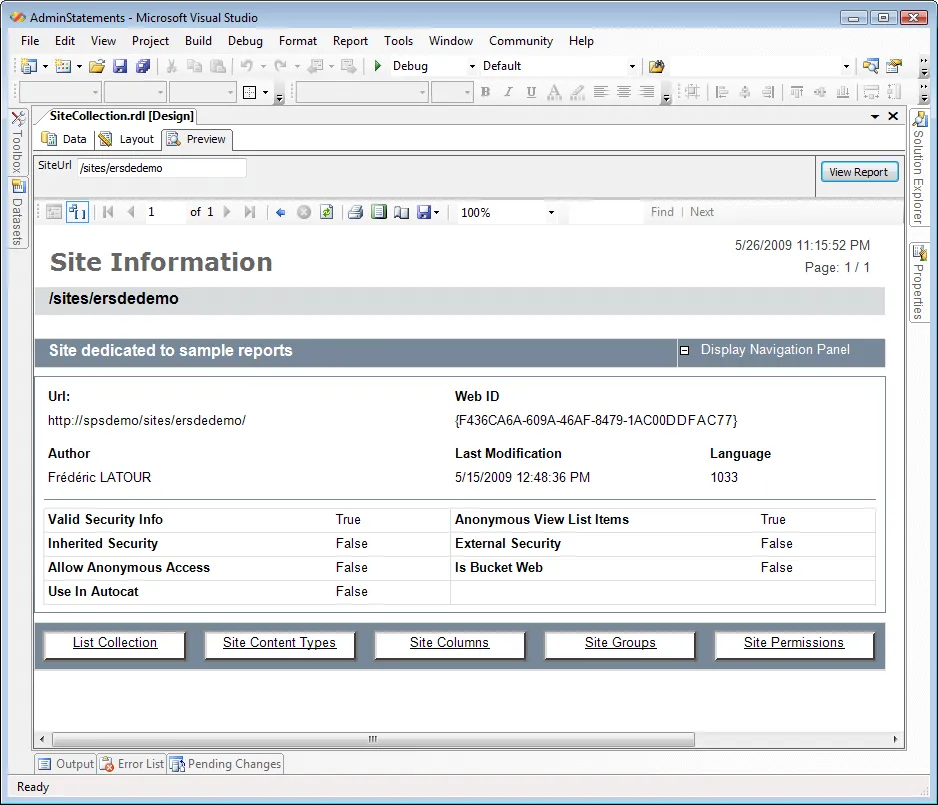
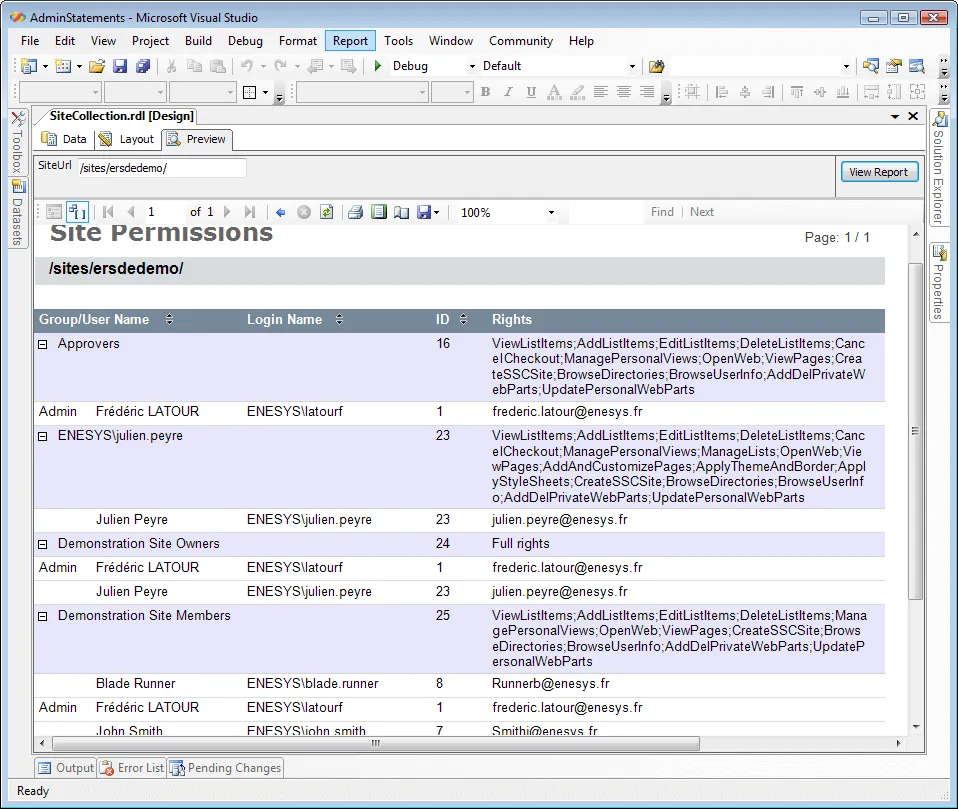
Let’s start by the Site Permissions (pseudo) button. It will execute “SitePermissions” report and display the permissions on the selected site. The users pertaining to a SharePoint group that has been assigned permissions will also be displayed as you can see in the following screen shot:
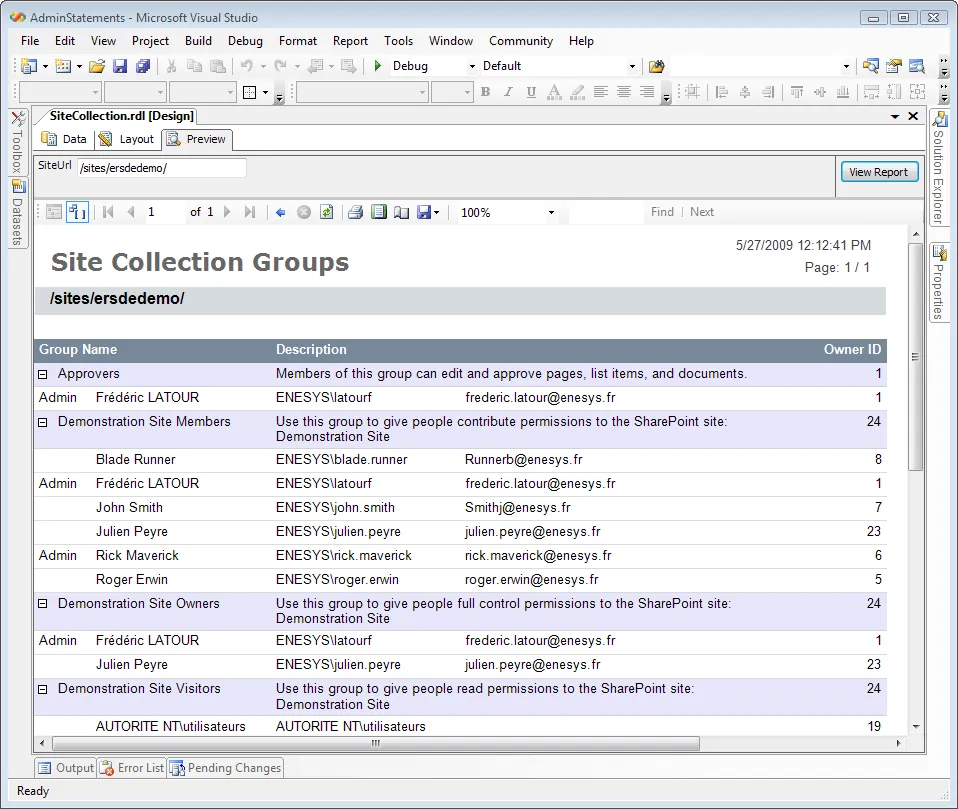
Site Groups will execute “SiteCollectionGroups” report and display the SharePoint groups available in the site collection to which the specific site pertains. Considering that SharePoint groups are global to a site collection, it could have been a better choice to propose this option directly from the master report. Just know that whatever the site in the same collection, this report will give the exact same result. Groups’s users are also displayed in the report:
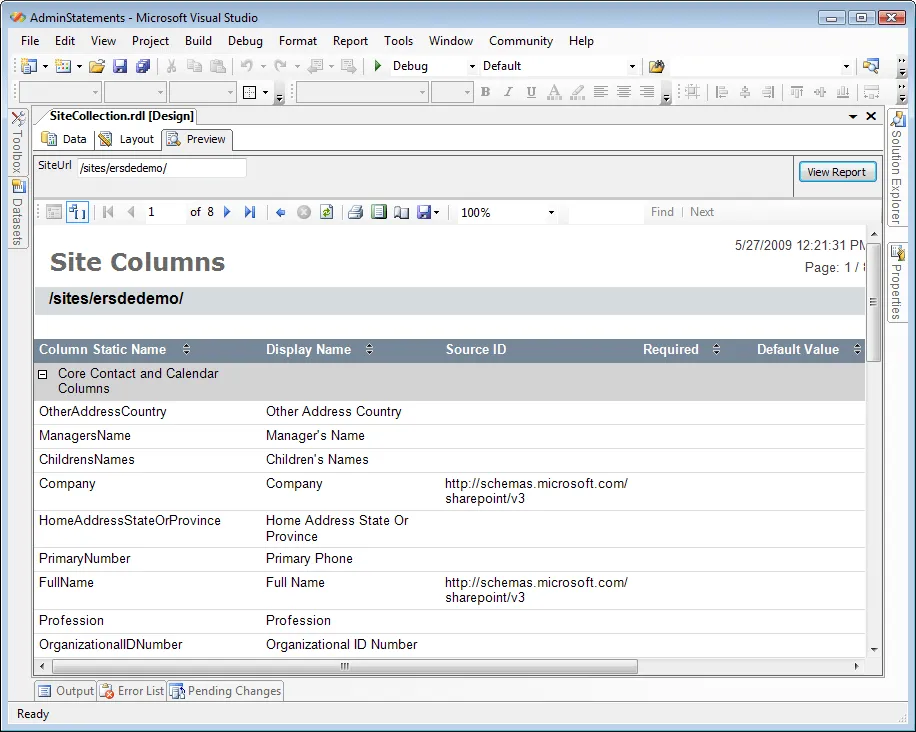
Site Columns will execute “SiteColumns” report. This report will display all the Site Columns available for the selected site:
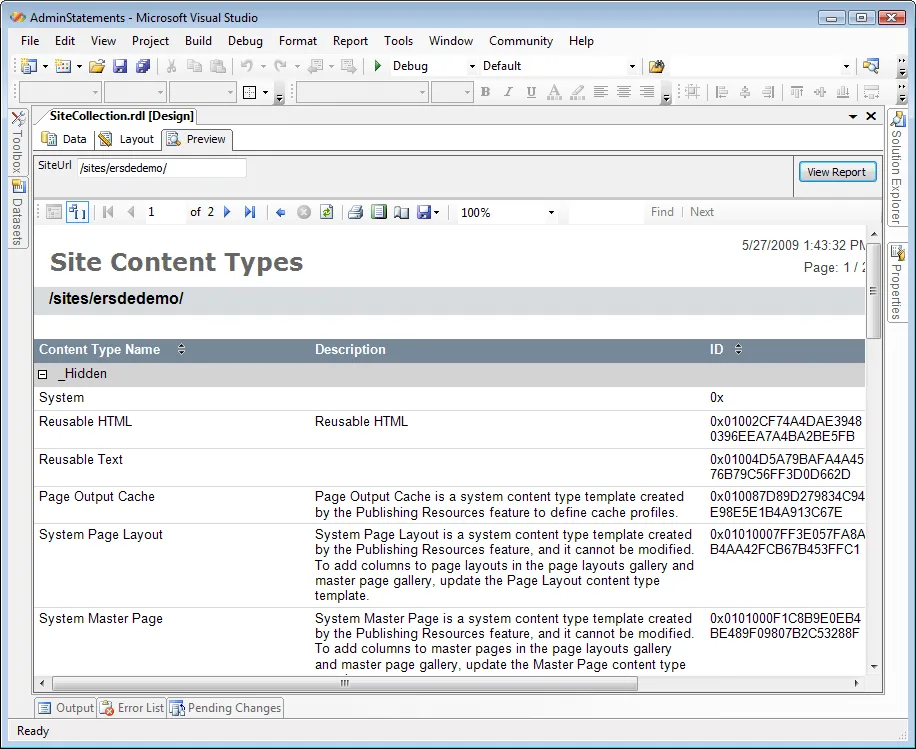
Site Content Types will execute “SiteContentTypes” report. As you would expect, this report will display the Content Types available on the selected SharePoint site:
List Collection, the very first button in our “Site Information” report, will execute “ListCollection” report. This report will display the list collection for the selected site.
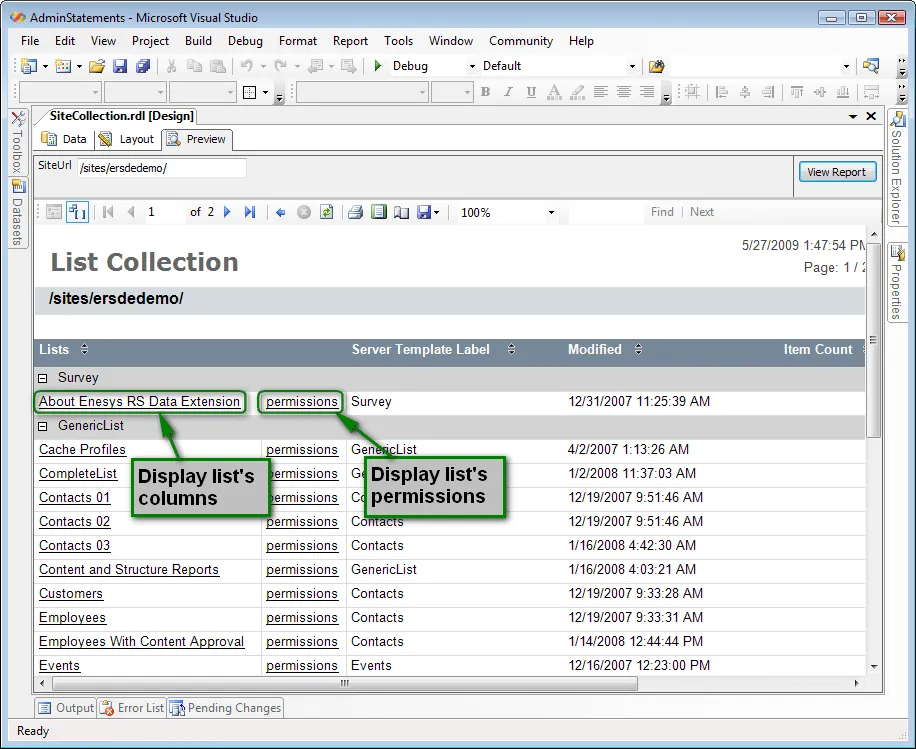
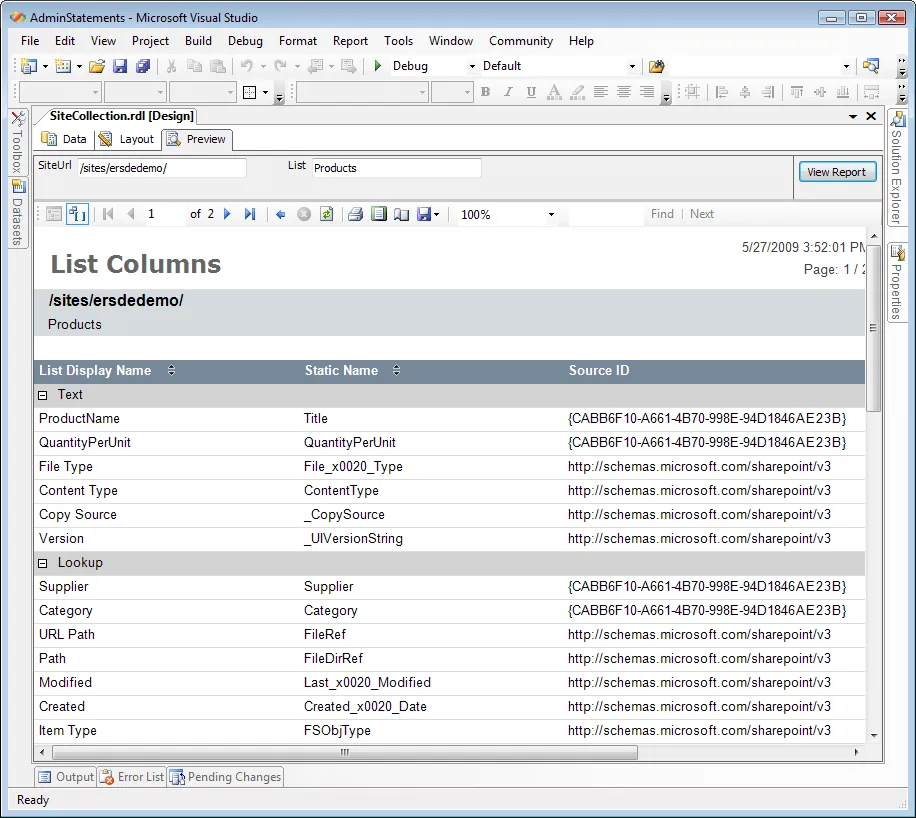
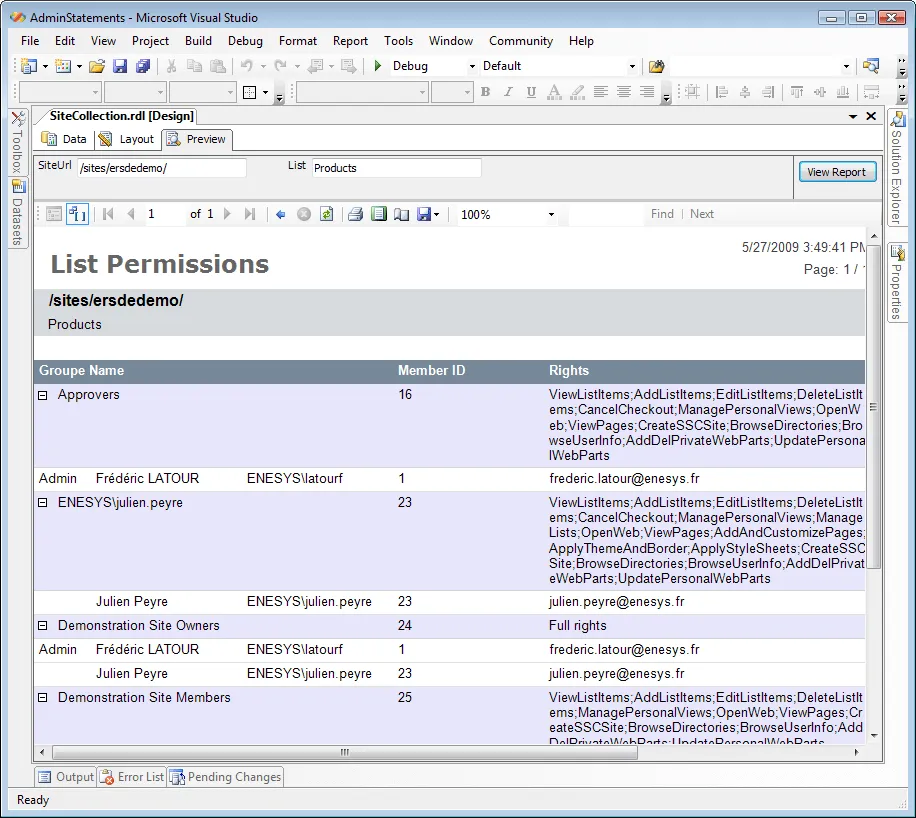
From this report you can execute two other reports by clicking on list’s name or on “permissions” link for displaying list’s columns or list’s permissions as shown in the following screen shots:
Configuring the Report Solution for your own SharePoint
It can’t get any easier.
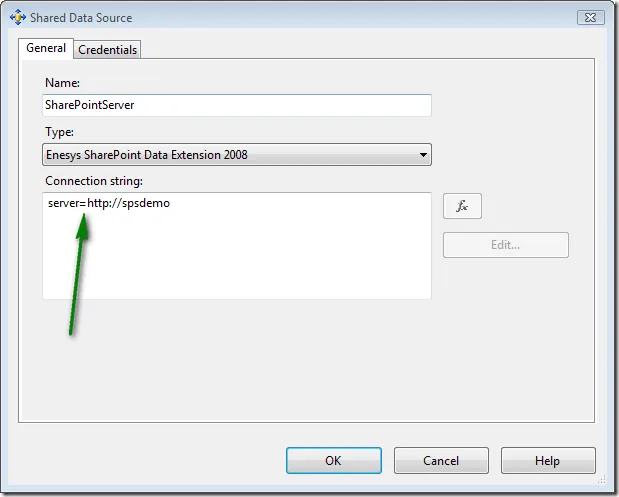
Change the shared Data source connection string so that it points to your own SharePoint URL.
- Double click on SharePointServer.rds shared data source in the solution explorer
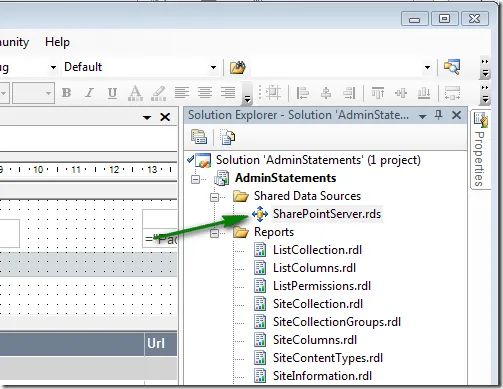
- In the Shared Data Source dialog box, change the connection string with your SharePoint server’s URL.
Change SiteUrl report’s parameter in SiteCollection report
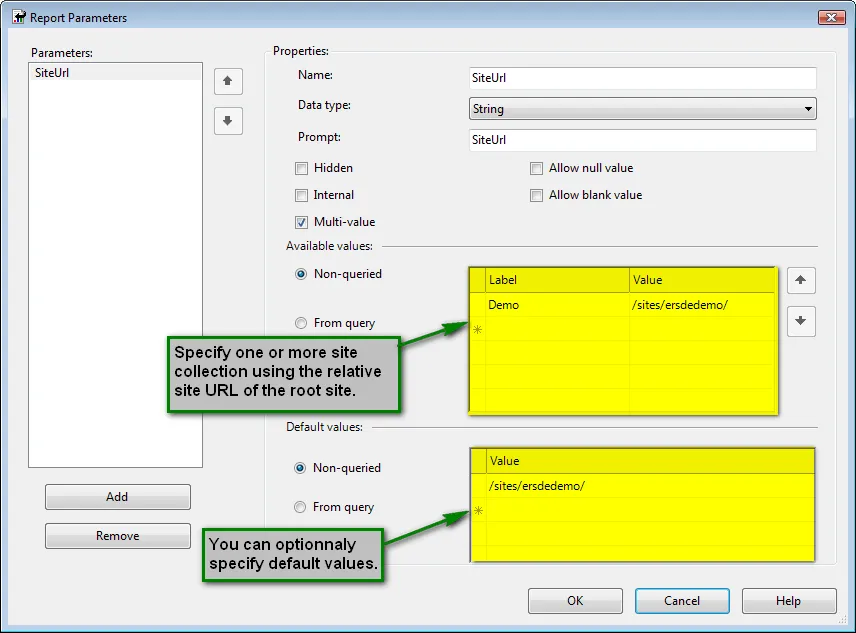
Because all reports are linked together, you will only have to change the master report. The report has been designed so that the user will select one or more Site collection from a drop down lists when the report is executed. The list of “Site collections” is provided through a report’s parameter. Therefore, you will just need to change the values in the parameter’s definition.
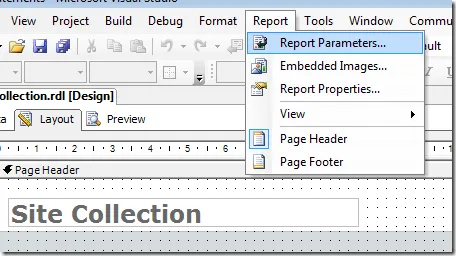
- Open the report “SiteCollection” in the solution.
- Select Report, Report Parameters… in the menu:
- Modify the SiteUrl parameter at your convenience by specifying one or more site collection that can be selected when the report is executed. You can also specify one or more default values if you would like the report to be run by default with specific site collections.
That’s all there is to be for running all the other reports over your SharePoint sites.
Conclusion
This reporting solution has been designed to demonstrate the use of the various administrative statements provided with Enesys RS Data Extension 3.1. It constitutes, however, a complete working solution that you can use for your own need with minimal modification. It can also be considered as a starting point for builder more specific reports.
We will soon provide other ready-to-use sample reports involving more sophisticated queries. Stay tuned.
- Applies toEnesys RS Data Extension 3.1 (Standard and Enterprise edition only)
- Last Updated2009-05-27T00:00:00.000Z
- CategoriesSamples