Installation and upgrade
System Requirement
Section titled “System Requirement”| Software | Description |
|---|---|
| Microsoft SQL Server Reporting Services Standard or Enterprise version 2005, 2008, 2008 R2 and 2012. | Enesys RS Data Extension (ERSDE) must be installed on an installed Reporting Services server in order to run reports built using ERSDE Data source. Please note that ERSDE is not compatible with SQL Express, Workgroup or Web editions. Custom data extensions are not supported by those editions. Enesys RS Data Extension 3 is compatible with both 32bits and 64bits version of SQL Server 2005/2008/2008 R2 and 2012. |
| MOSS 2007, WSS V3, SharePoint 2010. | Enesys RS Data Extension will let you build and run Reporting Services’ reports over MOSS 2007 and SharePoint 2010. |
| Business Intelligence Development Studio | Reports are built using Microsoft Business Intelligence Development Studio which is a subset of Visual Studio 2005 (2008/2010). BIDS is provided as part of SQL Server installation. It can be installed along an existing Visual Studio 2005 (2008/2010) installation and will complement it with additional project types including Reporting Services projects. With SQL 2012, the new name of BIDS is SQL Server Data Tools (SSDT), for simplicity, only the name “BIDS” will be used inside the documentation. |
Installation
Section titled “Installation”Overview
Section titled “Overview”In order to design and run reports from Business Intelligence Development Studio (BIDS - official Microsoft terminology for the report designer) and run reports from your report server, Enesys RS Data Extension will need to be installed and configured on both your report server and the machine where your BIDS is installed (it can be the same machine though it is not necessarily recommended to install development tools on the server in a production environment). Even if you have installed BIDS on your server, you will need to configure both your BIDS and report server installation.
You will configure BIDS configuration using our configuration tool called “Client Configuration”. You will configure your Report Server installation using the tool called “Server Configuration”. Those tools are provided as part of the Enesys RS Data Extension installation.
Enesys RS Data Extension installation
Section titled “Enesys RS Data Extension installation”Enesys RS Data Extension is provided as an MSI package. You will need to run our installation program on your server in order to configure your Reporting Services server. You will also need to run our installation program on any machine that will be used to build reports using Microsoft report designer (BIDS).
Here is a summary of the Installation steps:
1. Launch EnesysRSDataExtension.msi
Section titled “1. Launch EnesysRSDataExtension.msi”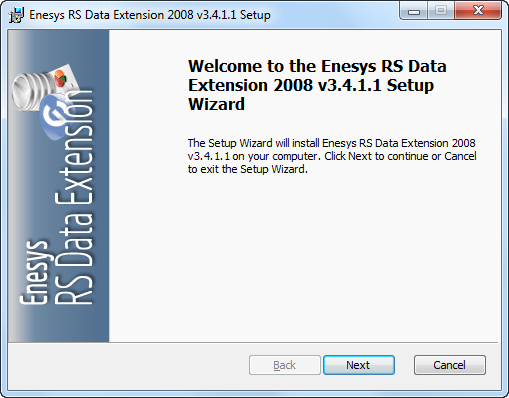
To start the installation click “Next”.
2. License agreement
Section titled “2. License agreement”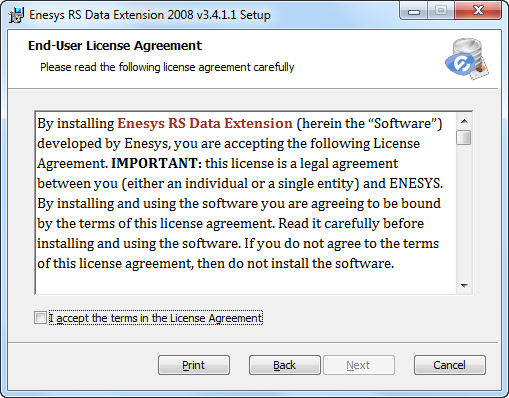
Read the license agreement and check “I accept the terms in the License Agreement” if you accept the terms. Click Next to continue.
3. Select the installation location
Section titled “3. Select the installation location”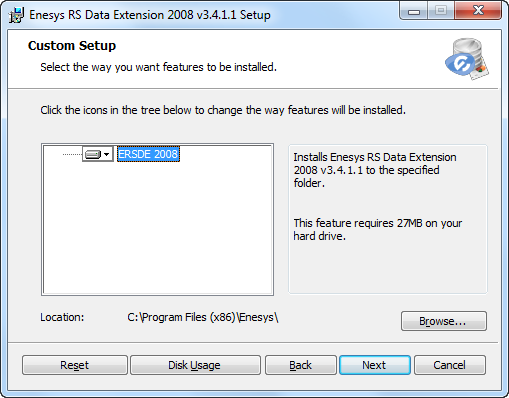
ERSDE 2008 feature installs core Enesys RS Data Extension files to the specified location. Configuration tools to help you configure your BIDS and Report Server installation are provided as part of this feature.
4. Add shortcuts
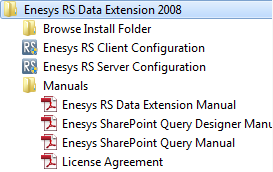
Section titled “4. Add shortcuts”On the next page, you will be able to decide whether you want to add shortcuts in the current user program menu folder. We recommend adding shortcuts for easily accessing configuration tools.
When checked, the following shortcuts will be installed:
5. Configuring BIDS and your Report Server
Section titled “5. Configuring BIDS and your Report Server”At the end of the installation, you will be proposed to launch the “Client Configuration” tool and/or the “Server Configuration” tool.
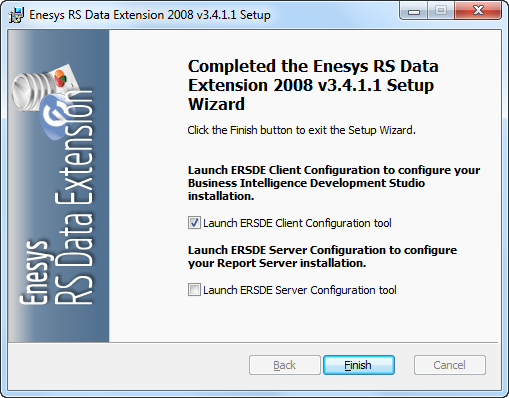
It is necessary to configure your BIDS and your Report Server before you can report over SharePoint data using Enesys RS Data Extension .
If you are using a machine where you installed both a Reporting Services server and BIDS, you will need to run both configuration tools. Most probably, you will need to run only one of this configuration tools depending on whether you are installing Enesys RS Data Extension on your Report Server or on a machine used for building reports.
Note that you can build and preview reports over your SharePoint list’s data using BIDS without installing or configuring a Microsoft Reporting Services server. This approach may be of interest when evaluating “ Enesys RS Data Extension ” and see if it meets your needs before deciding to install a Microsoft Reporting Services Server.
The following chapters explain how to use the configuration tools in order to configure BIDS and your Reporting Services Server installation.
Business Intelligence Development Studio configuration
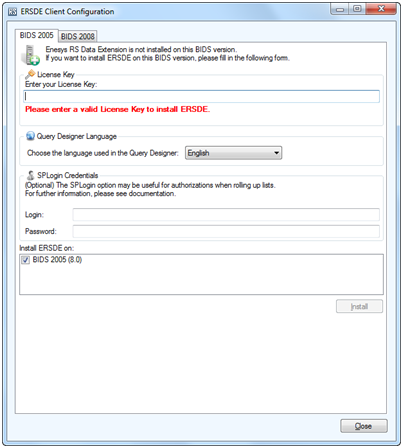
Section titled “Business Intelligence Development Studio configuration”Enesys RS Client Configuration tool displays information for both BIDS 2005 and BIDS 2008 if they are installed on your machine. Depending on the status of your installation, you may be proposed various actions when running the program:
Not installed
Section titled “Not installed”When Enesys RS Data Extension has never been configured on your BIDS installation, you will need to enter your license key, choose on which BIDS versions you want to install the product and click on the install button to configure BIDS. You can also choose the language of the Query Designer and your SPLogin credentials used with rollUpLists statements.
Configuration error
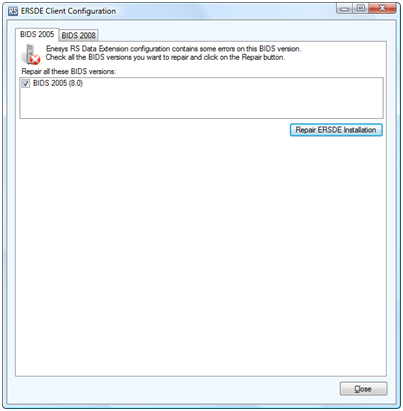
Section titled “Configuration error”When Enesys RS Data Extension is not properly configured you will be proposed to repair the installation as shown in the following screen shot. Click the “Repair ERSDE Installation” button to fix configuration issues.
Update necessary
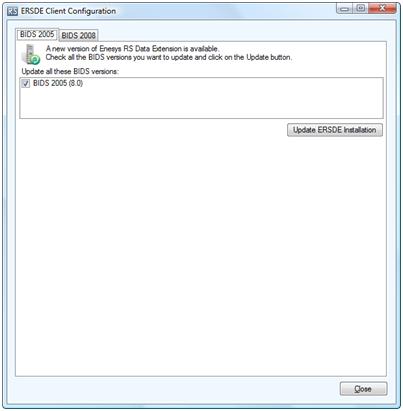
Section titled “Update necessary”The following page is displayed when a newer version of Enesys RS Data Extension is available. You will be proposed to update your installation.
Configuration information
Section titled “Configuration information”When your BIDS installation is properly configured, Enesys RS Client Configuration tool will display important information about your configuration as shown in the following screen shot.
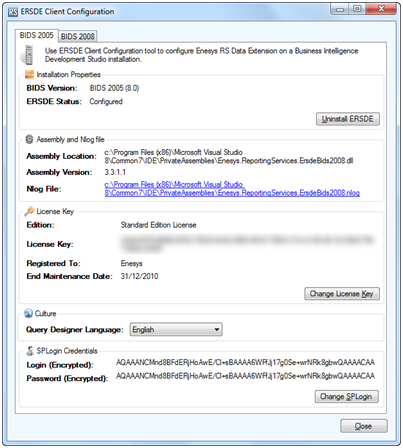
With a properly configured installation, you may change the following elements:
Change product key
Section titled “Change product key”Click on the “Change License Key” button.
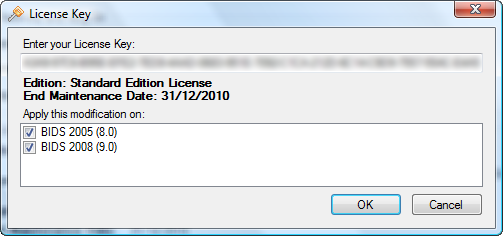
Enter your new license key and choose the BIDS versions you want to apply this modification to.
Change the Query Designer language
Section titled “Change the Query Designer language”Choose the language you want to use inside the Query Designer and it will be directly saved.

We currently support English, French and Russian languages. If you want to translate the product in another language, please contact us using our support email address and we will give you the data to translate. Once translated, we would be pleased to add it to the next version of our product.
Configure SPLogin credentials
Section titled “Configure SPLogin credentials”If you want to configure or to change your SPLogin credentials, click on the “Change SPLogin” button.
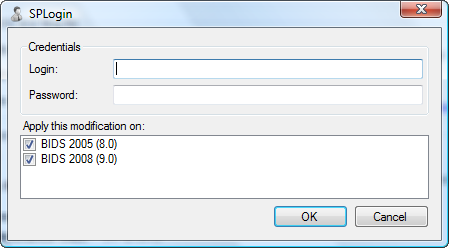
Enter the user’s login and password that will be used to enumerate SharePoint sites when using rollUpLists statement.
Logging errors
Section titled “Logging errors”Enesys RS Client Configuration enables you to copy the default log file to the folder, by clicking on the link “Copy the default nlog file to the PrivateAssembly folder”.
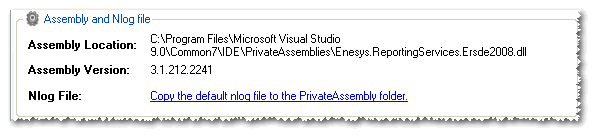
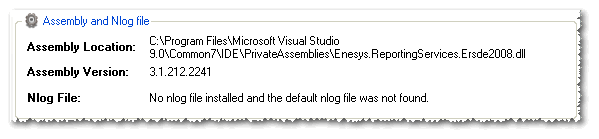
If a message indicates that “No log file installed and the default log file was not found”, the default log file which should be located in the “ConfigFilesReportDesigner” folder was not found.
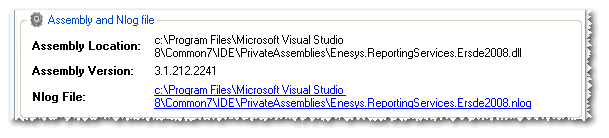
If a link to the log file is displayed, you can open the log file by clicking on it.
Report server configuration
Section titled “Report server configuration”To configure your Report Server, launch the Enesys RS Server Configuration tool, and select the Reporting Services instance on which you would like to configure Enesys RS Data Extension .
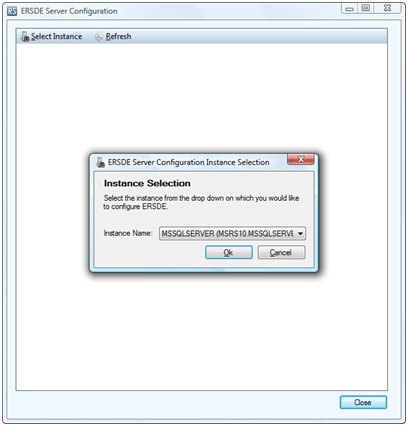
Depending on the state of the selected instance, you may have 4 different pages:
Instance not configured
Section titled “Instance not configured”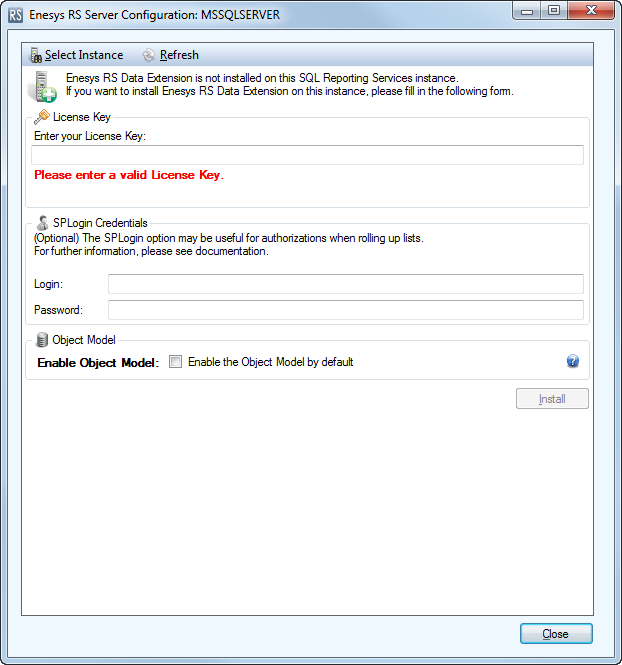
This instance is not configured to work with Enesys RS Data Extension . Enter your product key and the optional SPLogin credentials, and click on the Install button to configure Enesys RS Data Extension on this instance.
Instance with a configuration error
Section titled “Instance with a configuration error”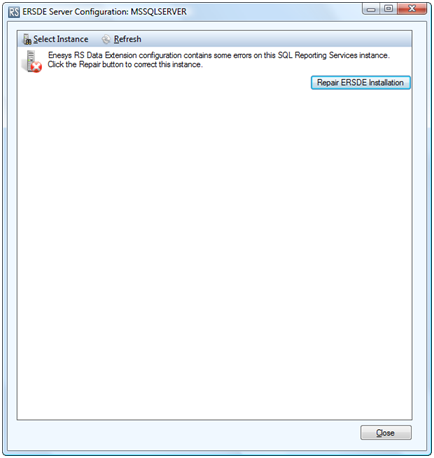
If your Reporting Services instance is not properly configured, Enesys RS Server Configuration will propose you to fix the configuration by clicking on the “Repair ERSDE Installation” button.
Update necessary
Section titled “Update necessary”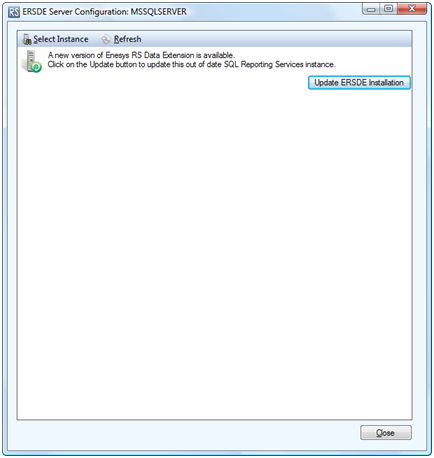
If Enesys RS Data Extension was already installed on this instance, you will be proposed to update your Reporting Services instance if a newer DLL is available (e.g.: you have run a newer version of our installation program).
Configuration information
Section titled “Configuration information”If your Reporting Services instance is properly configured, Enesys RS Server Configuration will display detailed information about your current configuration.
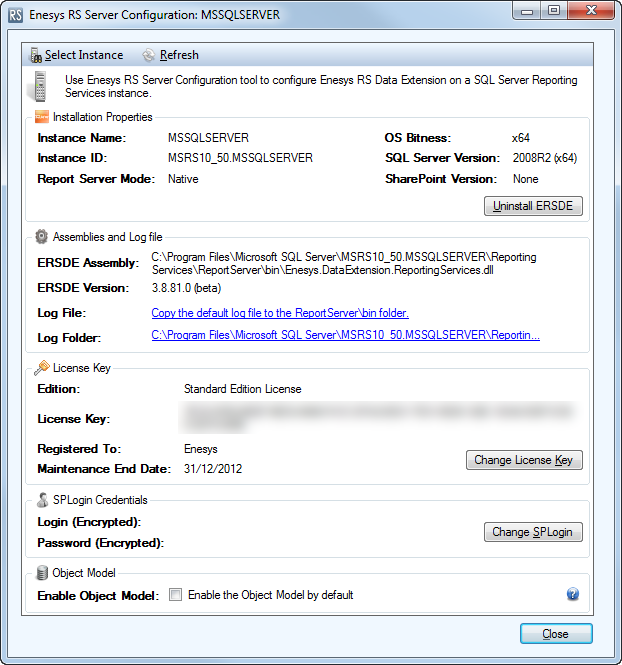
You may further configure your installation by taking the following actions:
Change product key
Section titled “Change product key”If you want to change your product key, click on the “Change License Key” button.
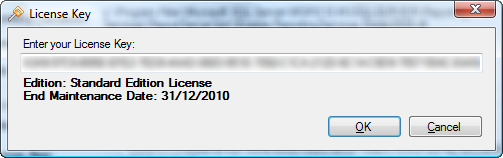
Enter your new license key and click on OK to validate.
Configure SPLogin credentials
Section titled “Configure SPLogin credentials”If you want to configure or to change your SPLogin credentials, click on the “Change SPLogin” button.
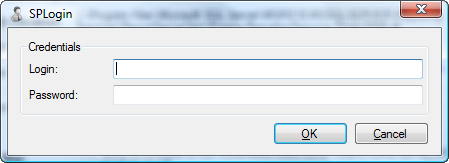
Enter the user’s login and password that will be used to enumerate SharePoint sites when using rollUpLists statement. Those credentials are encrypted and saved into the rsreportserver.config file.
Set the default EnableObjectModel value
Section titled “Set the default EnableObjectModel value”Starting from Enesys RS Data Extension v3.8, you can set the default EnableObjectModel value inside the Server Configuration tool.

When checked, Enesys RS Data Extension will try to use the SharePoint Object Model if it is available.
Note
The SharePoint Object Model is only available on servers on which SharePoint is installed (a Standalone server, an Application server, a WFE).
There are however some points to take into consideration when using the SharePoint Object Model:
- When the Report Server is configured in Native mode, using the Object Model requires the Service Account to have specific permissions on the SharePoint databases.
- When using Reporting Services 2005 configured in Integrated mode, the same pre-requisites are valid.
In both of those cases, you have several solutions:
- Disable the use of the Object Model (uncheck the checkbox)
- Use the SharePoint Application Pool user for the Report Server Service Account
- Set specific permissions to the Service Account:
- Member of the WSS_WPG Active Directory group.
- WSS_Content_Application_Pools rights on the SharePoint_Config database
- db_owner rights on the SharePoint_Content database
Please note that this value will be the default value of the enableObjectModel data source variable. You can override this value in any data source.
Sample:
server=http://sharepoint; enableObjectModel=false;
Logging errors
Section titled “Logging errors”Enesys RS Server Configuration enables you to copy the default log file to the folder, by clicking on the link “Copy the default nlog file to the ReportServerbin folder”.
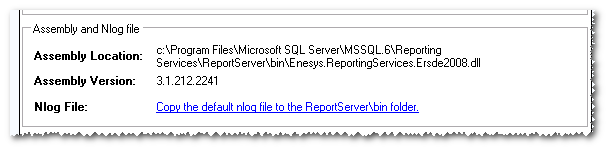
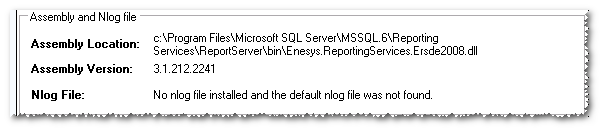
If a message indicates that “No nlog file installed and the default nlog file was not found”, the default log file which should be located in the “ConfigFilesReportServer” folder was not found.
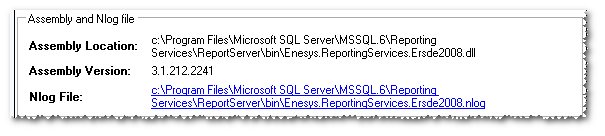
If a link to the log file is displayed, you can open the log file by clicking on it.
Configuration of SQL Server 2012 in SharePoint Integrated mode
Section titled “Configuration of SQL Server 2012 in SharePoint Integrated mode”With SQL Server 2012 in SharePoint Integrated mode, the Report Server is configured as a Service Application inside SharePoint.
The interface of the Server Configuration tool is a little different in this case, as it needs to support several Reporting Services Service Applications, as SharePoint doesn’t limit the Service Applications.
When Reporting Services 2012 is configured in SharePoint Integrated mode, you have another “Reporting Services Service Application” group box that lists all the service applications available on SharePoint.
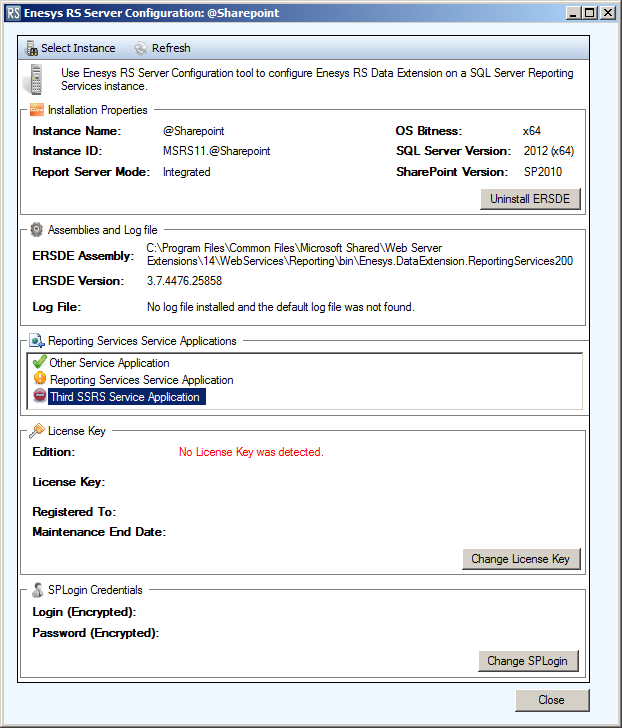
Each Service Application having its own configuration, the Server Configuration tool shows a little icon that represents the current service application state:
- Green tick : Enesys RS Data Extension is correctly configured on this Service Application (installed and the license key is specified)
- Orange warning : the configuration of Enesys RS Data Extension is different from the first valid configuration. To correct this state, you just need to correct the license key and/or the SPLogin credentials. Note that this is not mandatory to correct: you may have different configurations for different service applications.
- Red sign : Enesys RS Data Extension is not installed on this service application (probably because Enesys RS Data Extension was installed before this service application was created) or the license key is not specified. To correct this state, you just need to (re)enter your license key. If Enesys RS Data Extension was not configured on this Service Application, it will be installed too.
Verifying installation
Section titled “Verifying installation”When properly installed and configured in your BIDS environment, Enesys RS Data Extension will be available as a data source type with the name “Enesys SharePoint Data Extension 2008” as shown in the following screenshot:
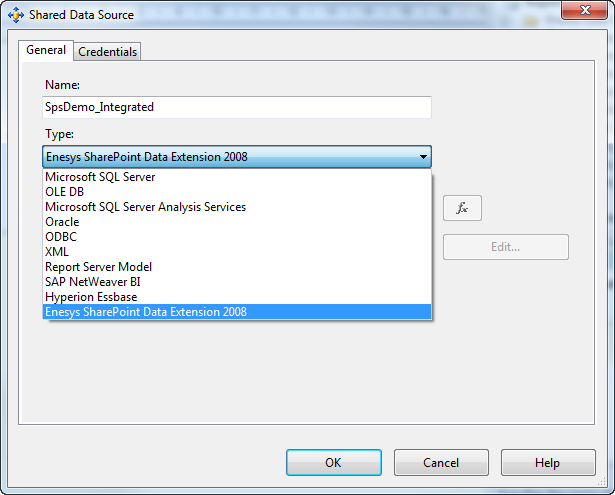
To verify that Enesys RS Data Extension is properly configured on your server, create a data source (using report server manager or SharePoint if running in integration mode) and check that “Enesys SharePoint Data Extension 2008” is displayed in the list of possible data sources type.
Note
Starting from Enesys RS Data Extension v3.7, with Reporting Services 2008 R2 and later configured in SharePoint Integrated Mode, you will have two extensions available on your server: “Enesys SharePoint Data Extension 2008” and “Enesys SharePoint Token Data Extension 2008”.
Upgrading from version 3.x
Section titled “Upgrading from version 3.x”For upgrading your Business Intelligence Development Studio installation:
- Run our installation program.
- Once the installation is finished, run “Enesys RS Client configuration” tool and you will be proposed to update your current installation.
For upgrading your Report Server instance:
- Run our installation program.
- Once the installation is finished, run “Enesys RS Server configuration” tool and you will be proposed to update your current installation.
Note
When upgrading BIDS from version 3.1.247 or less, it may be necessary to reenter your license key and your SPLogin credentials even if it was already configured.
Upgrading from version 2.x
Section titled “Upgrading from version 2.x”Overview
Section titled “Overview”Enesys RS Data Extension version 3 has been renamed for making it possible to install and run it side by side with a previous version. The name that will be displayed when selecting the type of data source has also been changed to “ Enesys SharePoint Data Extension 2008 ” compared to “ Enesys SharePoint Data Extension ” for the previous versions as shown in the following screenshot:
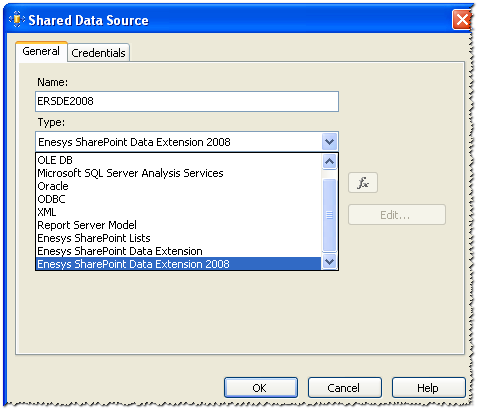
Even though we made our best efforts to keep Enesys RS Data Extension Version 3 compatible with the version 2, there are a few breaking changes and we recommend installing it side by side and to gradually upgrade your reports.
Upgrading
Section titled “Upgrading”Just follow the installation instructions provided in this documentation.
Once you have installed the new version, you will need to do one of the following in order to run reports using Enesys RS Data Extension 3 .
Gradual approach
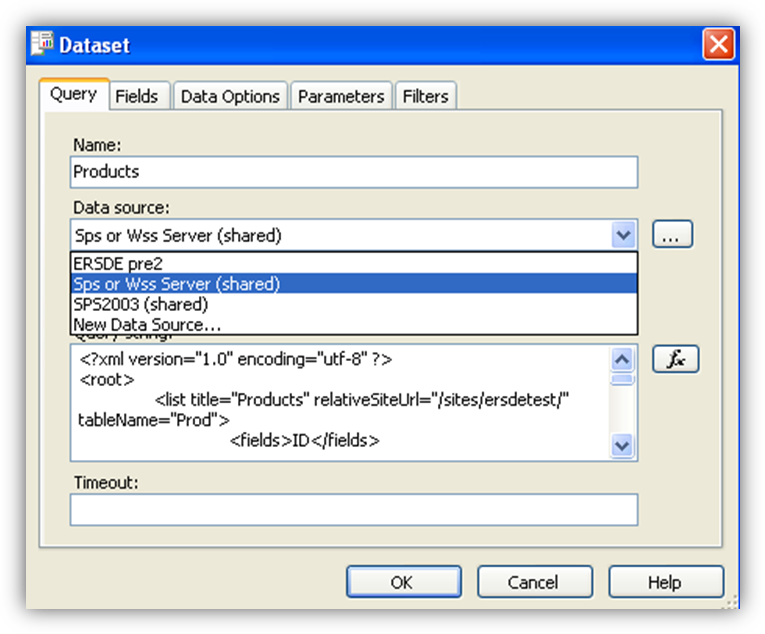
Section titled “Gradual approach”Create a new shared data source of type “Enesys SharePoint Data Extension 2008”.
On a report by report basis, change the data source of the report’s dataset so that it points to the data source using the new version of Enesys RS Data Extension as shown in the following screenshot:
Note
A report may have several datasets defined (especially if you are setting report parameter available values using a dataset). Though it is possible on a technical standpoint to have several datasets using different data sources, it is not recommended to use two different version of Enesys RS Data Extension in the same report.
Straight approach
Section titled “Straight approach”If you would like to use the new version of Enesys RS Data Extension with all of your reports instead of on a report by report basis, you will only need to change the type of your shared data source from “Enesys SharePoint Data Extension” to “Enesys SharePoint Data Extension 2008”.
In any case, you will need to redeploy your reports on your server after having checked they are working properly using the new version of Enesys RS Data Extension .
Compatibility with version 2.x
Section titled “Compatibility with version 2.x”Though all statements ( list , multiList , sqlOp …) available in version 2 are still implemented in version 3, this later version is less relaxed regarding query syntax. Therefore a query that used to run with version 2 may throw an error in version 3.
For instance, version 2 would accept two or more resultSet statements and use only the latest’s one silently ignoring the others. On large queries, this could cause some confusion regarding the resulting data if one had copy and paste inadvertently some resultSet statement while copying some other statement. Version 3 will return an error if more than one resultSet statement is specified as part of the query.
For this reason, you will need to ensure within BIDS (Business Intelligent Development Studio) that the report is valid in version 3 terms and possibly correct some invalid syntax before re deploying it to your server.
Fortunately, Enesys RS Data Extension version 3 can be run side by side with version 2. We “strongly” recommend to use this approach and to upgrade reports progressively or when you need to rework some report.
In this version, some statements, though still implemented, are considered obsolete and should be replaced when reworking a report:
- sqlOp should be replaced by sqlQuery statement
- listCollection should be replaced by aListCollection statement
- listPermissions should be replaced by aListPermissions statement
- webPermissions should be replaced by aSitePermissions statement
- webGroups should be replaced by aSiteCollectionGroups statement
- multiList type = ” RollUpList ” should be replaced by rollUpLists statement
- multiList type = ” MergingList ” should be replaced by mergeLists statement