Retrieving data from InfoPath forms
Starting from the version 3.7, Enesys SharePoint Query lets you retrieve data from both promoted and non-promoted fields of your InfoPath forms.
Introduction
Section titled “Introduction”SharePoint lets you promote InfoPath fields as columns inside your SharePoint list. While it may be sufficient in some cases, in other cases, you may need to retrieve data directly from the XML file, for example, if you want to do a 1-n relation or if you don’t want to promote lots of fields into your SharePoint List.
With the version 3.6, Enesys SharePoint Query added support for XML Namespaces inside the xmlQuery statement that allowed you to query Infopath forms. However, this approach involves using sub-reports and does not allow manipulating both data as a single dataset.
With the version 3.7, the brand new InfoPath statement allows you to directly retrieve data from promoted fields and any data from the InfoPath form.
Adding an InfoPath statement
Section titled “Adding an InfoPath statement”Adding a new InfoPath statement is similar to any other statement retrieving SharePoint List data:
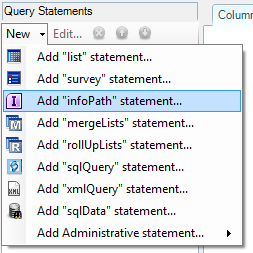
- Add a new InfoPath statement to your query:
- Enter the relative site URL or select an existing data source variable that points to the InfoPath library and click on the “Get Lists” button. Only InfoPath libraries are displayed.
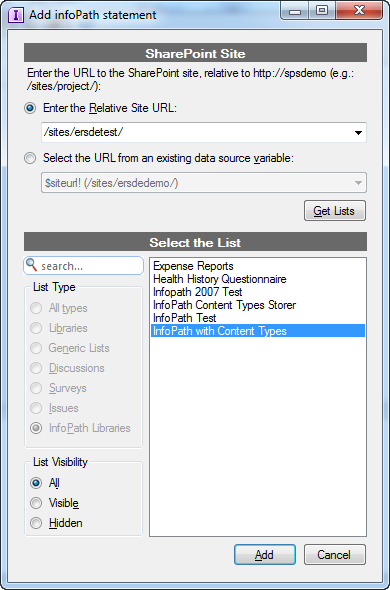
- Select the InfoPath library you want to query and click on the Add button.
Selecting the Content Type
Section titled “Selecting the Content Type”This step is optional and depends whether your SharePoint Library allows the management of Content Types and whether several InfoPath Content Types are available inside the Library.
Indeed, the InfoPath statement only allows you to query a single InfoPath Content Type: all the files that are not InfoPath forms or InfoPath forms associated to another Content Type will not be retrieved.
If the InfoPath Library allows the management of Content Types and several InfoPath Content Types are available inside the Library, you will need to select the Content Type you want to retrieve data from:
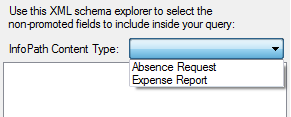
Once selected, the XML schema of this Content Type will be parsed and displayed inside a tree view for allowing you to select the non-promoted fields to retrieve.
Selecting the Fields
Section titled “Selecting the Fields”The InfoPath statement allows you to retrieve data from both promoted and non-promoted fields. The Columns tab is divided into two parts to differentiate them:
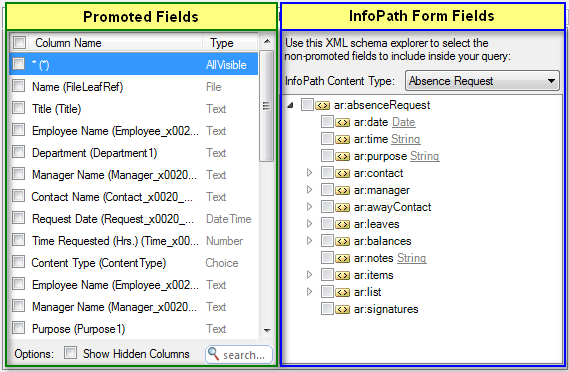
Selecting promoted fields is similar to the selection of List columns, so no further details are given here. You can find more information inside the “ ” chapter.
Selecting the non-promoted fields can be a little tricky. Indeed, the InfoPath statement allows you to handle a single 1-n relation inside your InfoPath Form. This relation represents the “main path” of your query, and is highlighted in bold:
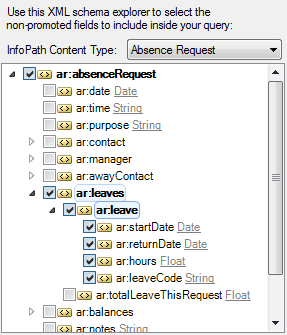
In the previous screenshot, if there are several “leaves” inside the Form, they will all be returned. Whereas, all the selected fields that are not part of this main path will be managed as a 1-1 relation, and only the first item will be retrieved even if there are several items.
For example, in the following screenshot, all the “leaves” will be returned, being part of the main path, while only the first “item” will be retrieved:
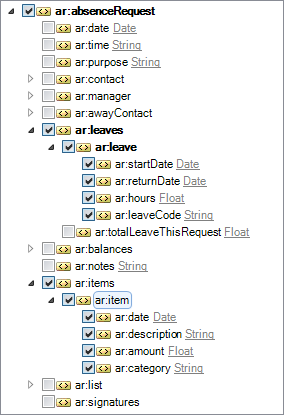
It is for this reason that it is important to always select your 1-n relation first . Once you have selected your 1-n relation, you can select all the additional fields you want.
In the previous sample, if we selected the “items” node first, this would have been our main path: all the “items” would be retrieved and only the first “leave” would have been retrieved.
Note
Even if you are only interested in InfoPath Form Fields, we recommend you to select at least one column from the Promoted Fields. Or else all the SharePoint columns will be returned too.
Specifying the Field Data Types
Section titled “Specifying the Field Data Types”Enesys SharePoint Query relies on the XML schema of the InfoPath form to retrieve the data type of each available field. But it happens that the XML data type is not the type you want to retrieve in the end.
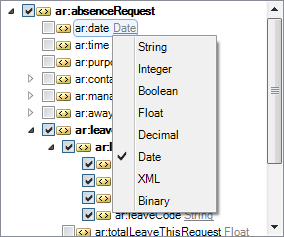
You can change the field data type by clicking on the link just after its name and select another data type: