Joining SharePoint lists and external SQL data
Starting from version 3.4, Enesys SharePoint Query (Standard and Enterprise editions only) makes it possible to join SharePoint data and external SQL data by using the sqlData statement.
You can use the sqlData statement to retrieve data from SQL Server databases or Oracle databases. In the following sample, we will retrieve data from SQL Server, but the process is similar for Oracle.
The sqlData statement lets you query any SQL Server database; the data can be further joined with SharePoint data using sqlQuery statement.
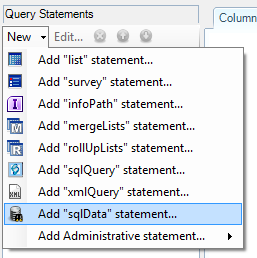
Specify the Connection String
Section titled “Specify the Connection String”Once you added the sqlData statement, you will be asked to choose the Data Source. You can choose between Microsoft SQL Server and Oracle.
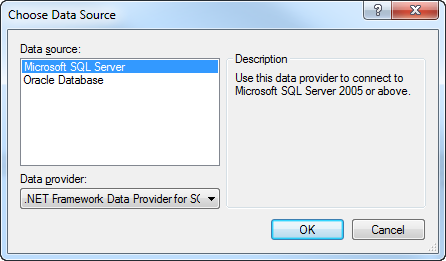
Select the Microsoft SQL Server data source en click on OK to validate.
Then, you need to specify the Connection String used to connect to the SQL Server database.
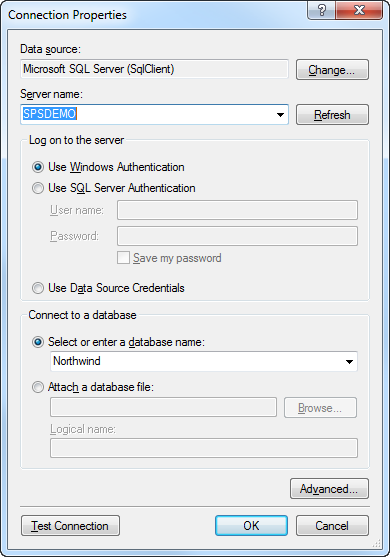
This Connection Properties editor lets you specify the elements of your connection string to use to connect to the SQL Server.
- Enter the name of your SQL server or choose one inside the “Server name” list.
- Choose the credentials to use to connect to the SQL server. You can choose between:
- Integrated Security (Windows Authentication)
- Specified SQL account (SQL Server Authentication)
- Credentials of the current data source (Data Source Credentials)
The last option allows you to always use the credentials specified inside the current data source. If Integrated Security was used at the data source level, the connection to the SQL Server will be made using Integrated Security, if an account was specified at the data source level, this account will be passed to the SQL connection. It also avoids having to specify a login/password as plain text when using SQL authentication.
- Select the database name
- If you need to specify advanced option, click on the “Advanced” button to edit any available option of the SQL Server Connection String.
- Click on “Test Connection” to ensure that the connection is
possible.
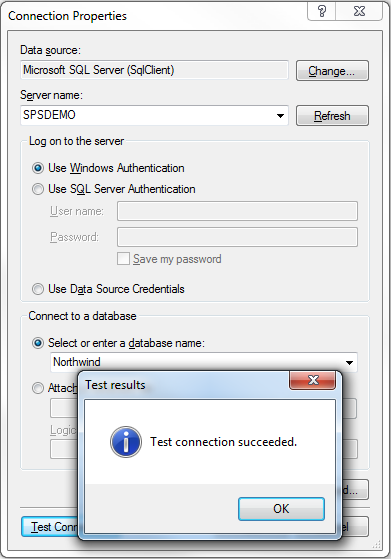
Note that you can further edit this connection string by following these steps:
- Go to the Properties tab of your sqlData statement
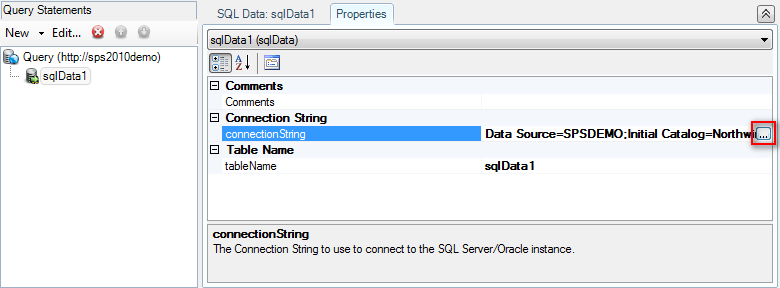
- Click on the “…” button next to the connectionString property in order to display the Connection Properties editor.
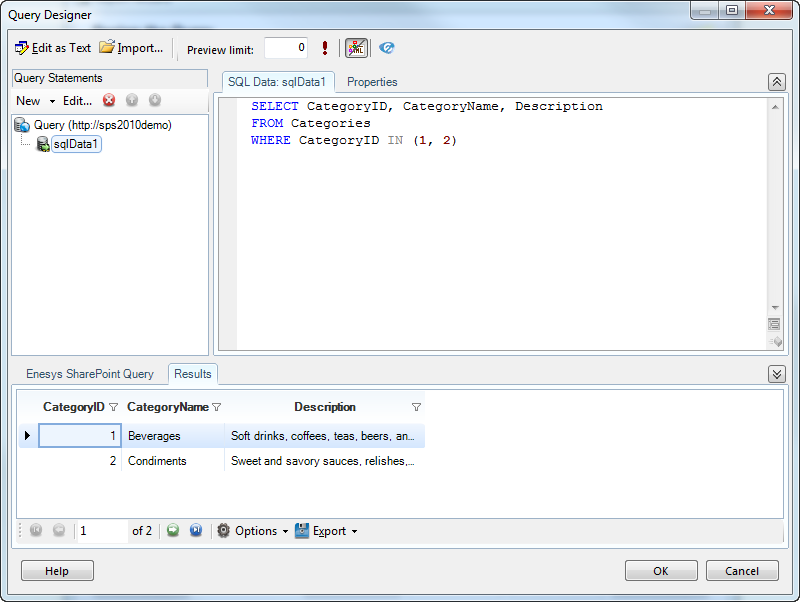
Enter your query string
Section titled “Enter your query string”Once the connection to the SQL Server is done, specify your query string. In this example, we will retrieve data from the Categories table (from the well-known Northwind database).
Joining SQL and SharePoint Data
Section titled “Joining SQL and SharePoint Data”In order to complete the query you will need to add a list statement to retrieve data from a SharePoint list and add a SqlQuery statement for joining both the SharePoint list and the SQL data retrieved using a SqlData statement:
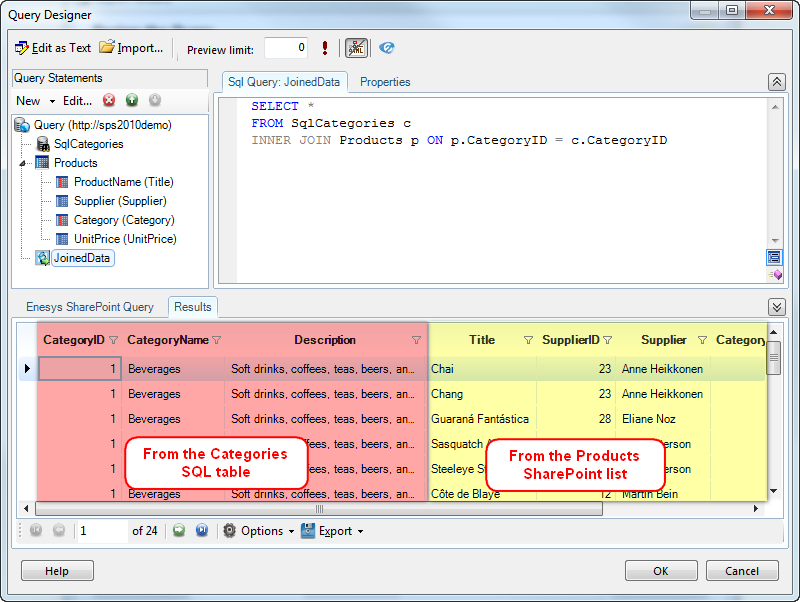
Run the query and you get your data connected together.