List statement
The list statement will let your retrieve items from a specific SharePoint list.
<list title="" listID="" relativeSiteUrl="" tableName="" expandFirstDate="" expandLastDate="" expandRecurrent="" expandMultiValuesColumn="" folder="" itemVersions="" meetingInstanceId="" multiValuesSeparator="" viewScope="" rowLimit="" paging="" stripHtml="" useDisplayName="" timeZone="" distinct=""> <fields>...</fields> <itemVersionFields>...</itemVersionFields> <query>...</query> <statementFilters> <filter field="" LookupId="" statement="" statementField="" /> </statementFilters> <customFields> <field name="" dataType="" op="" groupColumnName="" param="" /> </customFields> </list>List attributes
Section titled “List attributes”Specifies the title of the SharePoint list from which you want to retrieve data.
The title attribute may be specified using a global variable (e.g.: title ="$title!"), or using a query parameter (e.g.: title="@title!").
listID
Section titled “listID”Represents the GUID of the SharePoint list from which you want to retrieve data. Though not specifically self-describing, the list GUID has the advantage of not changing over time even if the list title is modified.
Note that if you specify both title and listID attributes, the later will take precedence.
The listID attribute may be specified using a global variable (e.g.: listID =“$list!“).
relativeSiteUrl
Section titled “relativeSiteUrl”URL of a SharePoint site containing the list. This URL is relative to the SharePoint site as it is defined in the data source. This approach was chosen to make it possible to easily move from a SharePoint test server to a SharePoint production server by simply modifying the data source.
The relativeSiteUrl attribute may be specified using a report parameter (e.g.: relativeSiteUrl =” @url! ”) or a global variable (e.g.: relativeSiteUrl = ” $siteUrl! “).
tableName
Section titled “tableName”This attribute makes it possible to assign a name to the set of data retrieved from your SharePoint list.
Though not extremely useful (but still mandatory) when you retrieve data from a single list, this name will be the basis for applying operations between SharePoint lists.
useDisplayName
Section titled “useDisplayName”Optional Boolean. This attribute lets you indicate that you want to use the display names of the columns rather than their internal names as part of the CAML format query and the fields element.
SharePoint lists columns have both an internal name and a display name. When a column is initially created, the display name and the internal name are identical (except if there are spaces or accent marks). However, the internal name is never modified—even if you change the name of the column. Thus you may end up with a column whose internal name no longer has any connection to the name displayed.
CAML queries use the columns’ internal names. To avoid having to search for the internal name associated with the columns using a complementary tool (CAML Builder or other), you can use the column display names by setting the attribute to true . Before performing the SharePoint Web Service query, the display names will be automatically replaced by the internal names. If you prefer using the internal names of the columns you can set the attribute to “false” or even not define the attribute.
expandRecurrent
Section titled “expandRecurrent”Optional. This attribute makes it possible to expand recurring events. The possible values are:
| Value | Description |
|---|---|
| Automatic | In this mode, the list statement will retrieve events (both non-recurring and expanded recurring events) between dates specified by expandFirstDate and expandLastDate attributes. In that mode, you do not have to specify any CAML query to filter events based on their event and end dates; this will be handled automatically. |
| Standard | In this mode, recurring events are expanded between dates specified by expandFirstDate and expandLastDate attributes. Contrary to Automatic mode, you are responsible for specifying the appropriate CAML query for retrieving the necessary recurring events to be expanded. The Standard mode is available mostly for compatibility with previous versions Enesys SharePoint Query . In this mode, you are free to retrieve events in a given date range and to expand recurring events for another date range It is important to note that SharePoint Web Services (contrary to object model) do not provide any features for retrieving directly the occurrences of a recurring event. For that reason, Enesys SharePoint Query will expand recurring events once they have been retrieved from a SharePoint event list. |
| None | In this mode, recurring events are not expanded and are retrieved as regular single items. This attribute will not have any effect when used with lists other than event’s ones. Default value is “ None ”. |
See also Expanding Recurring Events for more information about using this attribute and its possible values.
expandFirstDate, expandLastDate
Section titled “expandFirstDate, expandLastDate”Dates range for which the recurring events will be expanded. The attributes have no effect if expandRecurrent is None or not defined.
The date format must respect the following format:
AAAA-MM-JJTHH:MM:SS.
A parameter may be used instead of a literal. The parameter used must be either of type DateTime (it will be automatically converted into the appropriate format) or a string respecting the date format as shown above.
stripHtml
Section titled “stripHtml”Optional Boolean. When set to true , specifies that html tag should be stripped from SharePoint columns containing html.
The default value is “false”.
multiValuesSeparator
Section titled “multiValuesSeparator”Optional. Specify a string that will be used as a separator for multiple values columns: Choice, LookupMulti and Person or Group.
The default separator is a comma.
expandMultiValuesColumn
Section titled “expandMultiValuesColumn”Optional. Specify the name of a multiple values column.
Each list item will be duplicated for each value stored in the column ending with a column holding a single value.
Instead of specifying the name of the column as a literal, you may use a report parameter (e.g.: expandMultiValuesColumn =” @UserSelectedFolder!” ).
Valid columns are:
- Lookup columns that allow multiple values (LookupMulti)
- Choice columns that allow multiple selections
- Person or Group columns that allow multiple selections
- Built-in “Attachments” column that may hold several attachment urls.
Note that the column must part of the selected columns either by specifying explicitly the column name in the fields element or by leaving the fields element empty for retrieving all columns.
See “Expanding_multiple_values” for more information about using this feature.
folder
Section titled “folder”Optional. Specify a specific folder from which to return items.
The default behavior of the list element is to return all items of the list without any consideration for folders.
Retrieve subfolders of this specific folder. You can discern between items and folders using the FSObjType column which will be set to “1” for folders and “0” for items.
You can retrieve root items and folders by setting folder value to “/” (slash).
A report parameter may be used to specify the folder attribute.
viewScope
Section titled “viewScope”Optional. Lets you specify the items and folders returned from the query. The possible values are:
| Value | Description |
|---|---|
| Default | Returns only the files and subfolders of a specific folder (default is root). |
| FilesOnly | Returns only the files of a specific folder (default is root). |
| Recursive | Returns all files of all folders starting from the specified folder (default is root). |
| RecursiveAll | Returns all files and all subfolders of all folders starting from the specified folder (default is root). |
rowLimit
Section titled “rowLimit”Optional. Specify the number of items returned by the list query statement.
Using rowLimit attribute may be useful when you want to build a report showing most important items (e.g.: top sales …). Of course, you will have to order the list accordingly using the appropriate CAML query.
paging
Section titled “paging”Optional. The paging attribute lets you specify how many items at once should be retrieved from a SharePoint list. Enesys SharePoint Query will retrieve list’s items in chunks of the number of specified items by the paging attribute.
By default, Enesys SharePoint Query will retrieve items from a SharePoint list in chunks of 2000 items. However, if you want to put less pressure on your SharePoint server, especially if you are retrieving a large number of columns, you may want to specify a lower number.
Please note that the paging attribute overrides the rowLimit attribute. Therefore, it is not possible to specify a rowLimit attribute when specifying a paging attribute. It is however possible to mimic the rowLimit feature at the list level by adding a sqlQuery statement as shown in the following sample that shows a query returning 1500 items from the product list:
Sample
    <root xmlns="http://enesyssoftware.com/schemas">     <list title="Products" relativeSiteUrl="/sites/ersdedemo/" paging="1000" tableName="Products">      <fields>*</fields>      <query></query>     </list>
     <sqlQuery tableName="LimitSample">       SELECT * FROM Products       LIMIT 1500     </sqlQuery>    </root>
itemVersions
Section titled “itemVersions”Optional. Specify the number of item versions you would like to retrieve. Setting the attribute to “0” will retrieve all item versions.
Due to SharePoint Web Services limitations, retrieving item versions is a very time consuming process. In order to improve performance, it is recommended to specify explicitly the SharePoint fields that need to be retrieved rather than keeping the field child element empty, thus retrieving all fields (even hidden ones).
Specifying a Caml query within the query child element for filtering items, when possible, will also help to improve performance when retrieving item versions.
meetingInstanceId
Section titled “meetingInstanceId”Optional. Lets you specify an integer value where a positive number represents a specific meeting instance (e.g.: 20080114). In order to retrieve all instances of the associated series, you have to set the attribute value to -1.
timeZone
Section titled “timeZone”Optional. Lets you specify a time zone name to convert dates from item versions to the specified time zone. Time zones are listed in the following webpage: http://www.castlesoftware.biz/SpotLight/Spotlight002.htm in the chapter “The World’s Time Zones”.
distinct
Section titled “distinct”Optional. Lets you specify that returned items should be distinct.
| Value | Description |
|---|---|
| CaseSensitive | A case sensitive distinct is made. For example “value” is considered different from “Value” or “VALUE”, and they would all be returned. |
| CaseInsensitive | A case insensitive distinct is made. For example “value” is considered equal to “Value” and “VALUE”. A single entry would be returned for those three. |
Note that the distinct option supports UTF-8 characters.
For example, with CaseInsensitive, “énergie” is considered equal to “Énergie”. Or “буква” is considered equal to “Буква”.
fields element
Section titled “fields element”The fields element lets you specify the columns you would like to retrieve from the SharePoint list. Each column name must be separated by a comma. Depending on the value of the attribute useDisplayName , the column’s display name or internal name must be used.
Sample
<list title="Customers" relativeSiteUrl="/demo/" tableName="SomeName"> <fields>Title, Company</fields> <query></query> </list>Instead of specifying a column, you may write a ‘*’ (star) to retrieve all non-hidden columns as shown in the following sample:
Sample
<list title="Customers" relativeSiteUrl="/demo/" tableName="SomeName"> <fields>*</fields> <query></query> </list>When specifying a ‘*’ for retrieving all non-hidden columns, you may also specify some hidden columns by using a comma to separate them as shown in the following sample:
Sample
<list title="Customers" relativeSiteUrl="/demo/" tableName="SomeName"> <fields>*, ServerUrl, owshiddenversion</fields> <query></query> </list>If you do not enter any columns, all list’s columns, even hidden ones, will be returned. This approach is not recommended in most cases because it may have a significant impact on performance.
Lookup and Person or group columns
Section titled “Lookup and Person or group columns”SharePoint Lookup columns are specific columns that point to another list item. Though this is transparent when using sites through SharePoint web interface, SharePoint keeps internally the ID of the item in the target list.
SharePoint Person or group columns are similar except they point to items in a specific “UserInfo” list which is available with every site.
For those columns, Enesys SharePoint Query will create two columns in the data set resulting from a list element. One column with the exact same name as the SharePoint column will hold the actual value. Another column with the name of the SharePoint column suffixed with “ID” will hold the ID of the item in the target list. For example, a lookup column which name is “Supplier” will result in two columns:
A “Supplier” column which will hold the actual value of the column in the target list
A “SupplierID” column which will hold the ID of the item in the target list.
Please note that for multiple values “Lookup” or “Person or group” columns, the corresponding “<columnName>ID” column will not hold any value unless you have expanded the multiple values column using the expandMultiValuesColumn attribute.
Attachments column
Section titled “Attachments column”The “Attachments” column holds item’s attachments URL. When there is more than one attachment, URLs are separated using the separator specified by multiValuesSeparator attribute or a comma if the attribute is not specified.
“ Attachments” is a valid column for the expandMultiValuesColumn attribute thus allowing displaying each attachment individually.
itemVersionFields element
Section titled “itemVersionFields element”Starting from version 3.5, you can now specify for which fields you want to retrieve version information. Based on the fact that retrieving item versions is a time consuming process and that you may not need version information for all the fields you select, we added the possibility to specify the fields for which to retrieve version information.
The itemVersionFields element works the same way as the fields element, please see the “ ” chapter just above for more information.
Please note that the ‘*’ (star) has not the exact same behavior as with the fields element, as it retrieves all non-hidden columns that are specified in the fields element.
The following sample returns all the items from the specified list and only returns version information for the V3Comments field:
Sample
<list title="Issues" relativeSiteUrl="/demo/" itemVersions="0" tableName="Issues"> <fields>Title, AssignedTo, Component, Status, V3Comments</fields> <itemVersionFields>V3Comments</itemVersionFields> <query></query> </list>query element
Section titled “query element”The query element is used to specify a “SharePoint CAML query” for filtering data returned from the SharePoint list.
CAML stands for Collaborative Application Markup Language which is a generic term for designing an XML-based language which is used in various ways within the context of SharePoint and not only to filter data (which may sometimes cause some confusion). Within the context of Enesys SharePoint Query , and more specifically within the query element of a list , syncList , mergeLists or rollUpLists statement, we are only interested with part of the CAML language that deals with data filtering and ordering at the list level.
Though writing some conditions using CAML Query is not the most natural thing, it is not really complicated either. For example the following CAML Query fragment would only return products whose category is “Beverages”:
Sample
<list title="Products" relativeSiteUrl="/sites/demo/" tableName="Products"> <fields>*</fields> <query> <Where> <Eq> <FieldRef Name="Category" /> <Value Type="Text">Beverages</Value> </Eq> </Where> </query> </list>This documentation does not provide a tutorial or a reference about CAML Query language but you can refer to the documentation available on Microsoft Web Site and the numerous articles available on the Internet.
If you do not feel comfortable with CAML Query language syntax, you can use Enesys SharePoint Query Designer (provided as part of the installation) to build queries using a Graphical Interface.
One may wonder what is the point of using some CAML query fragment within the context of a list statement when it is possible to use a SqlQuery statement which provides the possibility to use a more natural and powerful SQL SELECT query syntax for filtering, grouping, joining, etc?
The reason is that a CAML Query specified within a List (or SyncList , MergeLists and RollUpLists ) element will be directly interpreted by SharePoint which will only return those items that conform to the conditions specified by the CAML Query fragment. On the other hand, when filtering using a SqlQuery statement, all items must be retrieved from SharePoint server before being filtered and manipulated. For small lists, it won’t usually make a big difference. However, for large lists, pre-filtering using a CAML Query (even if further manipulation using a SqlQuery statement is necessary) will have a significant impact in term of performance.
Additional functionalities have been added on top of the standard CAML Query syntax in order to benefit from Enesys SharePoint Query features.
Column’s display name
Section titled “Column’s display name”Normally, internal column names should be used within CAML Queries (e.g.: FieldRef Name =” internal name ”).
If you have set useDisplayName attribute to true , you will be able to use column display names instead of internal name.
Parameters
Section titled “Parameters”Parameters may be used within the CAML query element for filtering out data based on user provided values.
The following list statement will only return products whose Category is equal to the value of the parameter “category”. The value of the parameter is provided when the report is executed.
Sample
<list title="Products" relativeSiteUrl="/sites/demo/" tableName="Products"> <fields>*</fields> <query> <Where> <Eq> <FieldRef Name="Category" /> <Value Type="Text">@category!</Value> </Eq> </Where> </query> </list>In operator
Section titled “In operator”In operator makes it possible to retrieve items whose specified column matches one value amongst multiple values specified.
The In operator is used in conjunction with report’s multi-value parameters as shown in the following image:
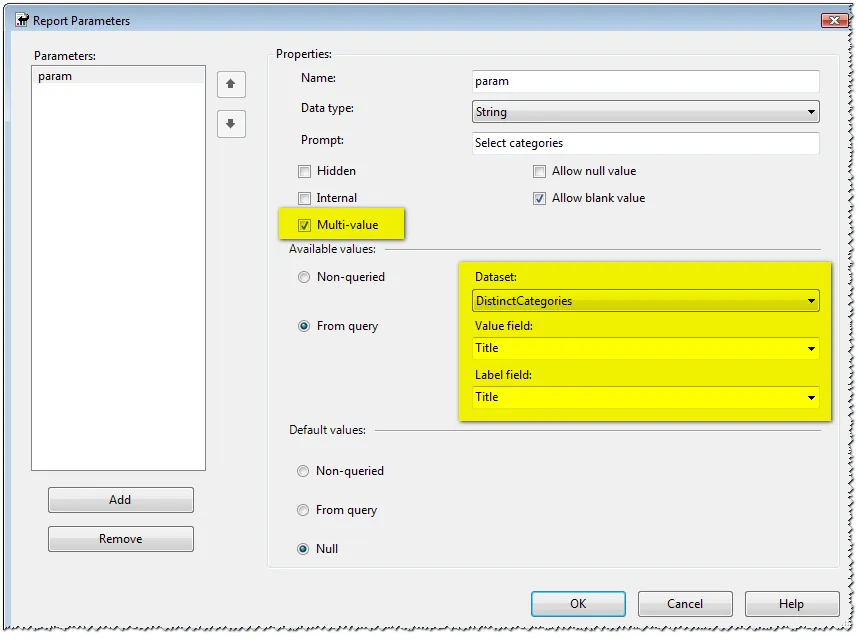
The following query will return Product’s list items whose Category is any of the value specified using a multi-value report’s parameter when running the report:
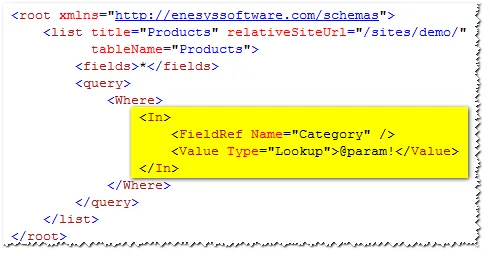
When using a single value parameter instead of a multi-value parameter, the In operator will be equivalent to an Eq (equal) operator.
When using a literal value, the literal value is considered a single value. Therefore, In operator will give the same result as when using Eq operator.
NotIn operator
Section titled “NotIn operator”NotIn operator makes it possible to return all items for which some column is not equal to one of the values specified by a multi-value parameter.
It is used exactly the same way as the In operator.
IfNot Element
Section titled “IfNot Element”IfNot element acts as a modifier for the Eq element. It makes it possible to retrieve items for which some column is equal to a given value, unless the given value is equal to the IfNot value.
To make it clearer, the IfNot element addresses the scenario where you would like to return either all items or items for some specific category. This is usually implemented by adding “All” as a literal value to the list of values that the user can select from a drop-down list as shown in the following screen shot:
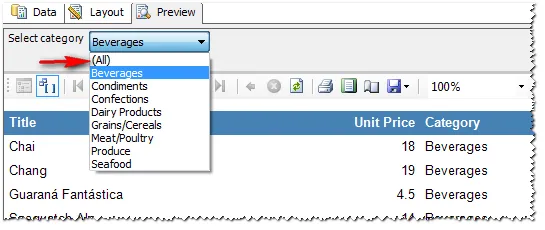
The following query will return items whose “Category” is equal to the value specified by the parameter “param”, unless parameter’s value is “(All)” in which cases all products will be returned.
Sample
<list title="Products" relativeSiteUrl="/sites/demo/" tableName="Products"> <fields>*</fields> <query> <Where> <Eq> <FieldRef Name="Category" /> <Value Type="Lookup">@param!</Value> <IfNot>(All)</IfNot> </Eq> </Where> </query> </list>Obviously, IfNot modifier makes sense when used in conjunction with some parameter. Enesys SharePoint Query will however accept a literal value.
IncludesAll operator
Section titled “IncludesAll operator”Starting from v3.8, Enesys SharePoint Query allows you to add a filter on a multi-values column to ensure that returned items contain all the selected values.
You can for example choose to only returns Students who speak both English and French:
<IncludesAll> <FieldRef Name="Spoken_x0020_language" /> <Value Type="MultiChoice">@languages!</Value> </IncludesAll>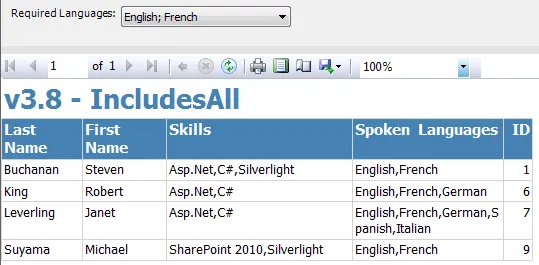
statementFilters element
Section titled “statementFilters element”The statementFilters element is a container for a filter element used to specify a filter on a column, based on the results from another statement.
The filter takes all the values from the other specified statement, and applies a filter on the values before querying the values from SharePoint.
This filter is particularly useful when retrieving data from a large list, data that can be filtered by the results of another small list. The most items will be filtered out, the quicker the query will be (which is not true when not applying the filter).
Please note that the current version of Enesys SharePoint Query only supports a single filter.
filter attributes
Section titled “filter attributes”Contains the name (internal or display name, depending on the useDisplayName attribute) of one of the field from the current list, on which the filter will be applied.
LookupId
Section titled “LookupId”Determines whether the comparison will be done using the lookup ID or the lookup value.
Possible values are true (lookup id) and false (lookup value).
statement
Section titled “statement”Contains the name of the previous statement from which the values will be taken to apply the filter.
statementField
Section titled “statementField”Contains the name of the associated statement’s field. This field should have the values to apply for the filter.
customFields element
Section titled “customFields element”The customFields element is a container for field elements used for specifying columns holding a running value (future versions of ERSDE may add other types of columns).
<customFields> <field name="" dataType="" op="" groupColumnName="" param="" /> </customFields>field attributes
Section titled “field attributes”Name of the custom column added to the result set.
dataType
Section titled “dataType”Data type of the column that will be holding the running value (System.Int32, System.Decimal…).
Function used for calculating the running values. The following values may be used:
- Sum
- Min
- Max
groupColumnName
Section titled “groupColumnName”Optional. Specify the name of the column for which the running value will be reset each time its value changes.
Specify the column name containing the value.
syncList statement
Section titled “syncList statement”The syncList statement lets you retrieve the last changes that occurred in a SharePoint list since the last synchronization that was made. It stores a token in an SQL table for being able to only retrieve the last changed items.
Its usage is similar to the list statement:
<syncList title="" listID="" relativeSiteUrl="" tableName="" expandFirstDate="" expandLastDate="" expandRecurrent="" expandMultiValuesColumn="" folder="" itemVersions="" meetingInstanceId="" multiValuesSeparator="" viewScope="" rowLimit="" paging="" stripHtml="" useDisplayName="" timeZone="" distinct=""> <fields>...</fields> <itemVersionFields>...</itemVersionFields> <query>...</query> </syncList>The only difference with the list statement is that the viewScope attribute has no effect, as its value is forced to RecursiveAll for retrieving both items and folders.