Merging a variable number of lists
Starting from version 3.8, Enesys SharePoint Query allows you to merge a variable number of lists in a single operation using the listsMerge statements. All the lists to merge should be enumerated in another statement. The statement may be of any type (an aListCollection statement, a sqlQuery statement…), as long as it returns the two mandatory columns for merging the lists:
- Title : contains the list name
- RelativeSiteUrl : contains the relative URL to the SharePoint site
In the following sample, we will merge the items from all the document libraries of a specific site.
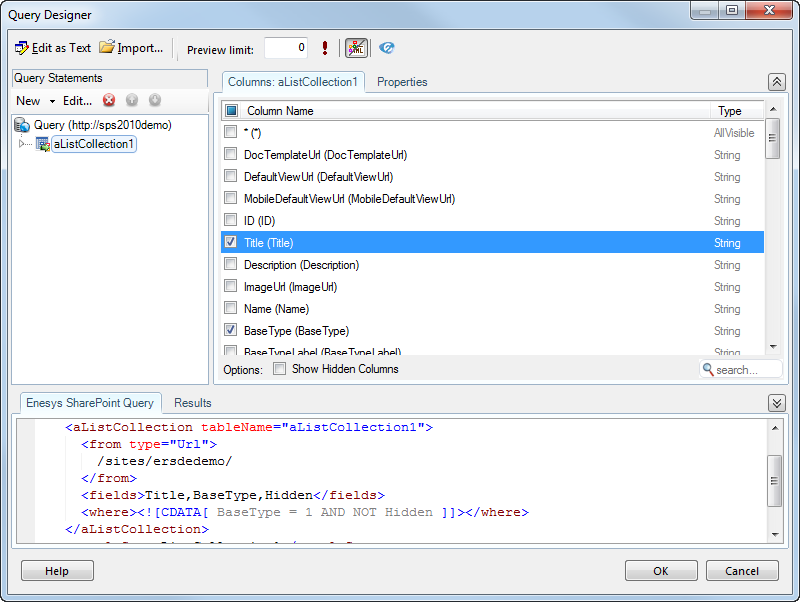
We will consider that an aListCollection statement is already configured to retrieve the list of all the document libraries of our site ( /sites/ersdedemo/ in the sample):
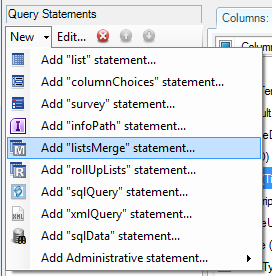
Add a new listsMerge statement:
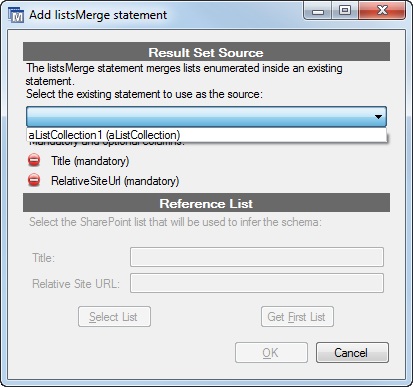
Inside the “Add listsMerge statement” form, select the statement that will be used as the data source. In our sample we only have a single statement:
After a quick verification to ensure that the statement has the 2 mandatory columns (Title & RelativeSiteUrl), you are now able to select the reference list that will be used to infer the schema.
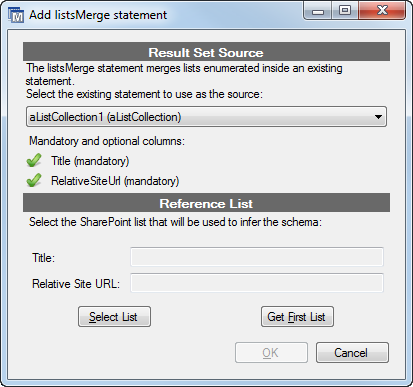
The reference list is directly stored inside the statement representation, and you need to specify a list at the statement creation. In order to select this list, you have two possibilities:
- Either you can click on the “Select List” button which will display a form for selecting a list, similar to the classic “Add list statement” form:
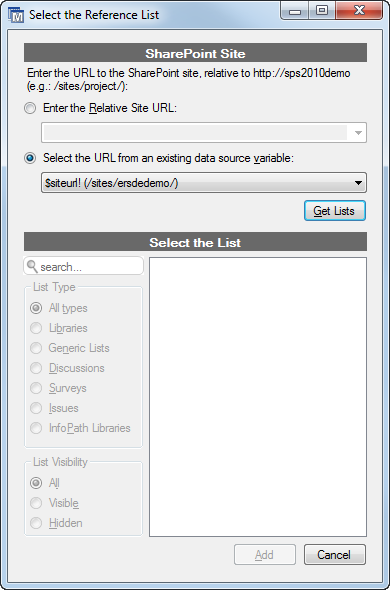
- Or, you can click on the “Get First List” button, which will execute the statement in order to retrieve the first available list from this statement. Please note that this method may take a long time depending on your current query.
Once you have selected the list or retrieved the first one, its title / relative site URL will be displayed:
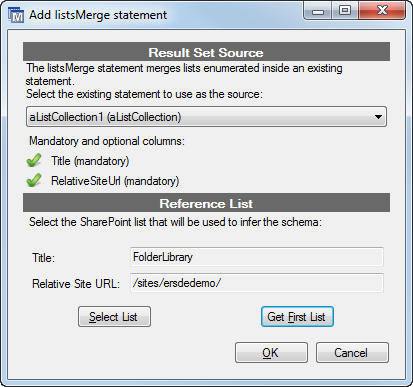
You are now able to add your new listsMerge statement, by clicking on the OK button.
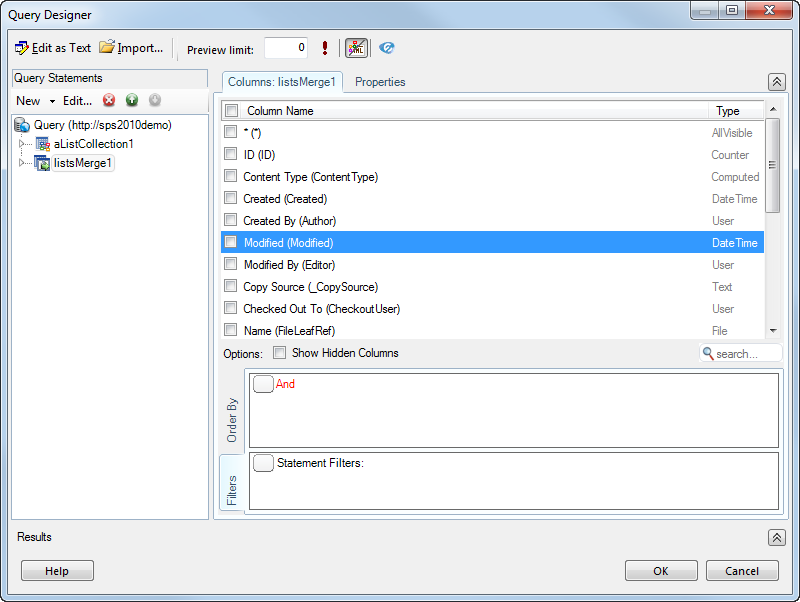
The schema displayed is the one of your reference list; you can select all the desired columns (ID and FileLeafRef in our sample) and execute your statement:
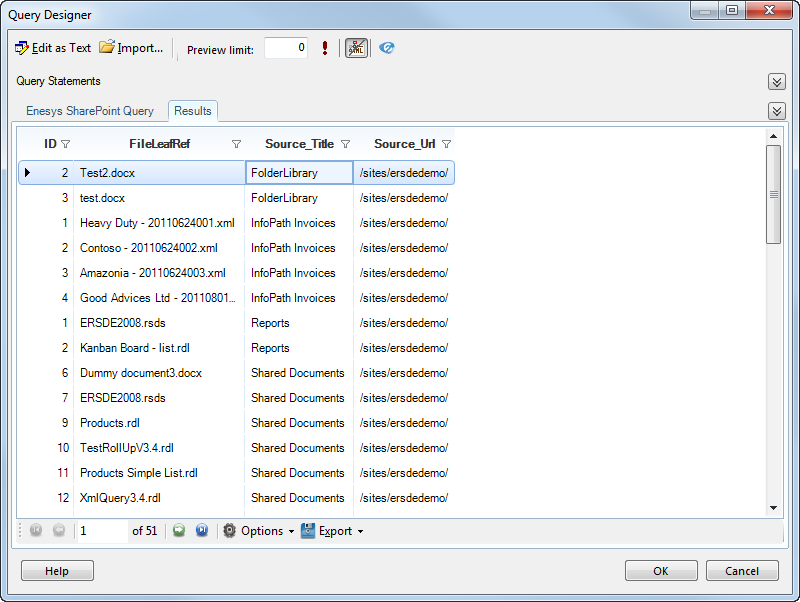
Our query merged the documents of all our document libraries.
As you can see on the previous screen shot, 2 columns are automatically added to the result set:
- Source_Title : contains the title of the list from which this item is retrieved
- Source_Url : contains the relative site url of the list