Version 3.5
Using Object Model for rolling up data
Section titled “Using Object Model for rolling up data”In this version, Enesys RS Data Extension can take advantage of the SharePoint object model when Reporting Services is installed in SharePoint Integrated mode. This can lead to tremendous performance improvement in some scenarios.
For more information, see the “
Using_the_Object_Model_for_rolling_up_data ” chapter.
Support for Forms Based Authentication
Section titled “Support for Forms Based Authentication”Enesys RS Data Extension (Standard and Enterprise Editions only) is now
able to query a SharePoint server using Forms Based Authentication by
simply setting the authenticationMode Connection String option to
Forms . For more information, see the “
Data_source_credentials-Forms_based_Authentication ” chapter.
Specifying fields for which to retrieve item versions
Section titled “Specifying fields for which to retrieve item versions”In previous versions, retrieving item versions was an all or nothing option. Enesys RS Data Extension would retrieve version information for all the selected fields.
Retrieving item versions is a time consuming process. In this version, we added the possibility to specify the fields for which you need version information.

For more information, please see the “ ESQ_itemVersionFields_element ”
chapter, and “ ESQD_Specifying_the_item_version_fields ” chapter.
Using Data Source variables inside the SqlServerQuery’s connection string
Section titled “Using Data Source variables inside the SqlServerQuery’s connection string”In this version, you can now specify “data source variables” inside the sqlServerQuery statement’s Connection String.
This additional feature makes it easier for moving reports from a development environment to a production environment by simply modifying the shared data source.
Example: Using this data source connection string:
server=http://spsdemo;$source!=mySqlServer;$user!=myUser;$pass!=myPass;
You can use a sqlServerQuery statement like this:
<sqlServerQuery tableName="sqlServerQuery1"> <connectionString> Data Source=$source!;User ID=$user!;Password=$pass!;... </connectionString> <commandText>SELECT ...</commandText></sqlServerQuery>For more information, see the
“Using_variables_inside_the_sqlDatas_Connection_String ” chapter, and
the “ ESQ_sqlData_statement ” chapter.
Advanced Properties Form
Section titled “Advanced Properties Form”We have added a new “Properties” form that you can access by right clicking on a statement or by clicking on the appropriate button inside the Properties tab:
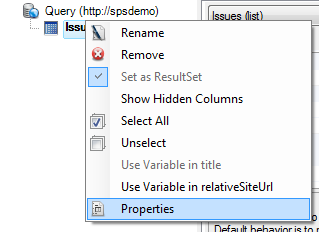
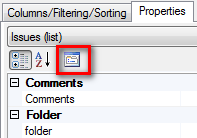
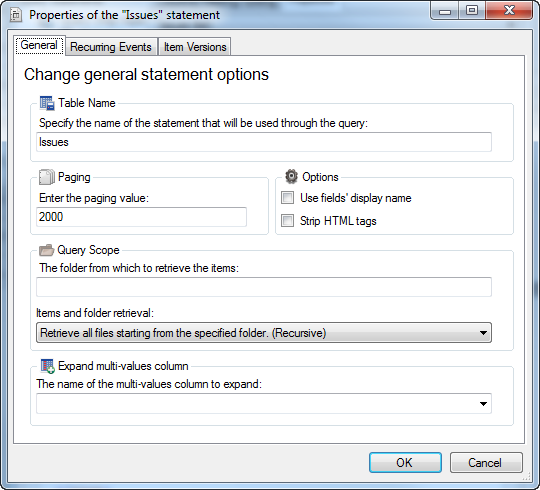
This new “Properties” form is available for all the statements and offers a better user experience for editing the most common statement properties.
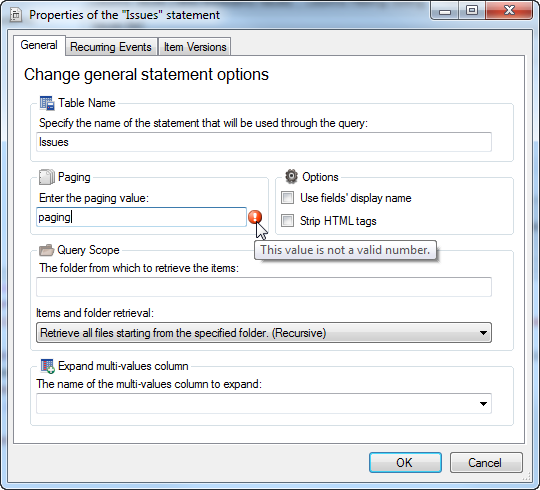
It automatically validates the data, and displays a small icon with information about the error if the data is invalid:
New Data Source Connection String options
Section titled “New Data Source Connection String options”Three new data source connection string options are available to help you fine tune how Enesys Data Extension retrieves data from your SharePoint server:
- timeout : The time (in milliseconds) to wait for each Web Services call to execute before a timeout occurs. Default value is 300000 (5 minutes).
- retryTime : The time (in milliseconds) to wait before retrying a call when a timeout occurs. If the value is specified, a single retry will be made, if the value is not specified, no retry will be made.
- sleepTime : The time (in milliseconds) to wait between two calls made to retrieve the list items (a paging mechanism is used to get items from lists that contain more than 2000 items). If no value is specified, the following call will be made just after the first one is parsed.
It is not recommended to change those properties unless you have a good reason to do so.
Bug corrections
Section titled “Bug corrections”- Corrected a bug with itemVersions and Document Library.
- Corrected a bug that prevented the use of a quote character inside the tableName attribute when using the rollUpLists statement.
- Corrected a bug inside the Query Designer that displayed Intellisense for invalid lookup ID column.
- Corrected a bug inside the “Add list statement” form that could lead to an error when trying to add a list.