Applying operations to lists
You are not limited to query a single SharePoint list. Enesys SharePoint Query lets you apply specific operations between SharePoint lists.
You can define as many list statements as necessary and apply as many operations ( sqlQuery statements) as you like in order to obtain the desired Dataset from which you will build your report.
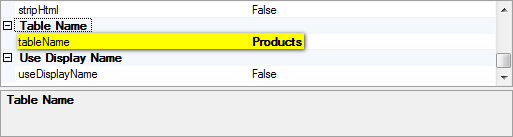
Each list statement defined within a query returns a set of data items from a SharePoint list for which we will use the generic term ” result set ”. The tableName attribute is used to give a unique name to this ” result set ”. The unique name of the result set will serve as the basis for specifying result sets involved in operations.
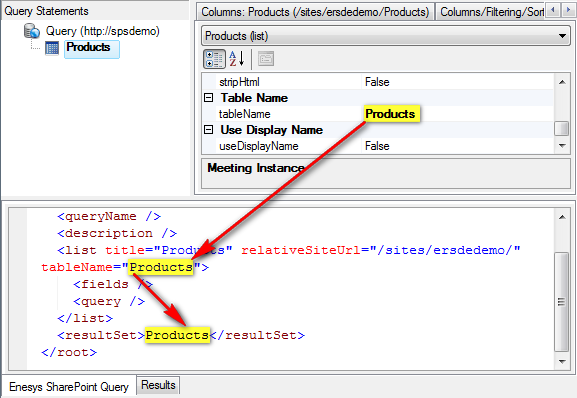
You can manipulate “result sets” by using sqlQuery statements. The data resulting from a sqlQuery statement is considered a “result set” as well and it can be further manipulated using other sqlQuery statements.
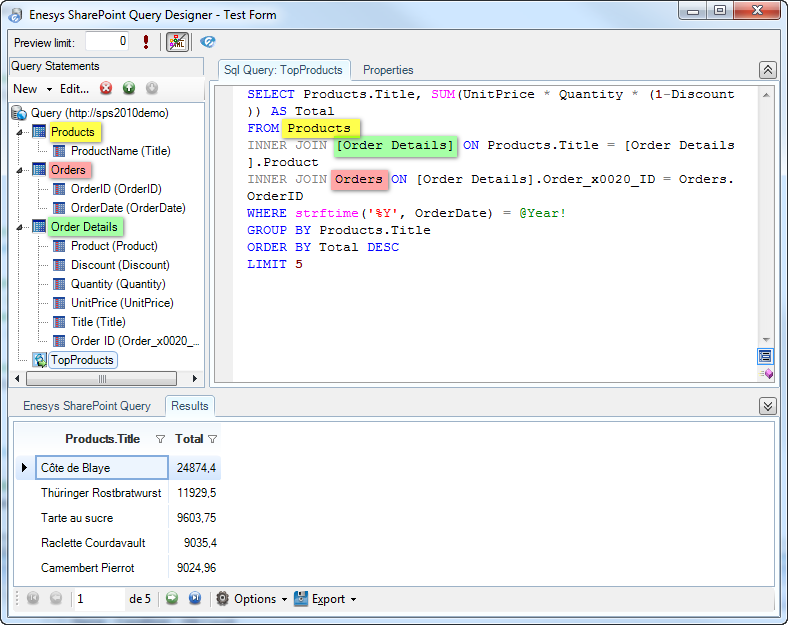
The following query shows three list statements used to retrieve data from three specific SharePoint lists as well as a sqlQuery statement used to further manipulate (join and group) the data retrieved from the SharePoint lists.
Joining SharePoint lists
Section titled “Joining SharePoint lists”The SQL JOIN operation lets you join matching items between two result sets based on their joining columns. The tableName attribute lets you give a unique name to the set of data resulting from the inner join operation.
The following image displays a JOIN statement between the Products and the Suppliers SharePoint lists. Rather than using the supplier value pointed to by the lookup column, the query relies on the supplier ID.
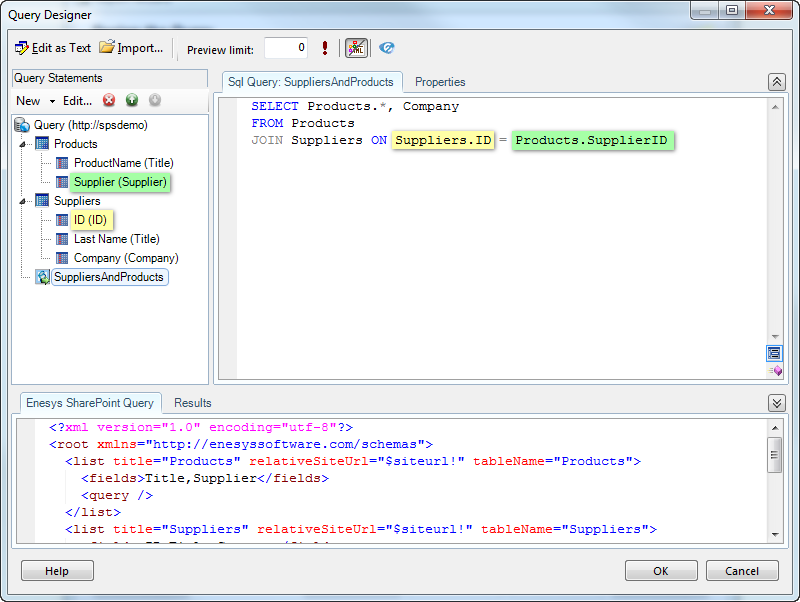
You will notice that the “SupplierID” column has not been selected in the “Products” list. It has been automatically created by Enesys SharePoint Query for holding the ID of the “Supplier” pointed to by the lookup column.
Joining lists is useful (though not limited to that usage) when dealing with SharePoint lists linked with a lookup field.
Note that a SharePoint lookup column will return 2 columns in the resulting data for holding both the actual value and the target list item’s ID. It is recommended to join lists using those ID rather than the actual value.
Merging SharePoint lists
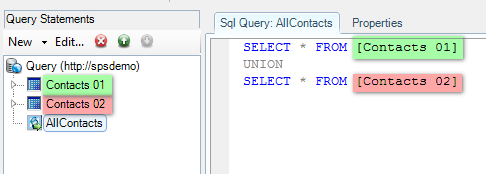
Section titled “Merging SharePoint lists”You can merge two result sets by using an SQL UNION operation:
Getting distinct values
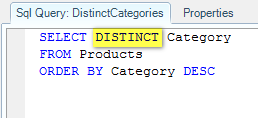
Section titled “Getting distinct values”The DISTINCT keyword is especially useful for creating a report dataset used to set the available values of a report parameter.
Say you have a SharePoint Products list with a Category column and you would like to let the user of your report select at run time the category of products that will be displayed in the report. You can easily achieve this by creating a specific report dataset as shown in the following image:
Using Intellisense inside sqlQuery statements
Section titled “Using Intellisense inside sqlQuery statements”Starting from the version 3.6, Intellisense was greatly enhanced inside sqlQuery statements.
Intellisense Items
Section titled “Intellisense Items”Intellisense is provided for the following items:
Statement names
Section titled “Statement names”The names of all the statements inside the current query (statements located before the current sqlQuery statement):
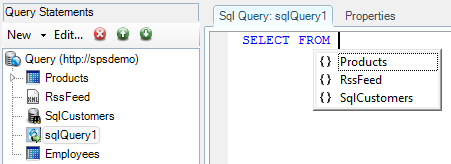
The Products list , RssFeed xmlQuery * and the SqlCustomers * sqlData * statements located before the current * sqlQuery * have Intellisense provided for their names. Contrary to the Employees * list * that is located after, that can’t be used inside the * sqlQuery * statement.*
Field names
Section titled “Field names”The names of all the available fields inside the selected statements:
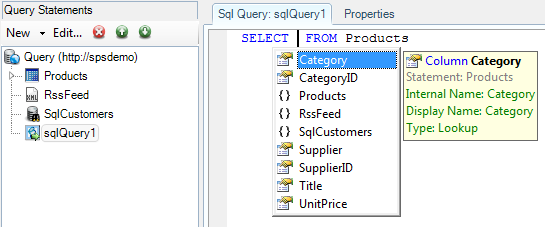
The only selected statement inside the query is the Products list ; the only fields available are the ones from this statement.
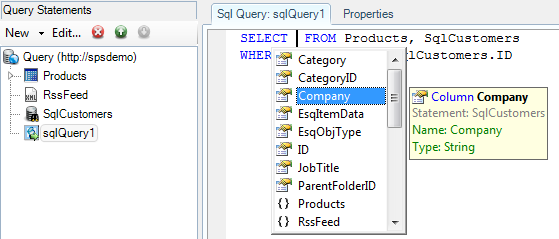
A join is made between the Products and the SqlSuppliers statements; fields from both statements are available for selection.
Code Snippets
Section titled “Code Snippets”Code snippets for quickly adding some SQL clauses:
“ SELECT” code snippet”
A “SELECT” snippet for inserting a SELECT clause with a FROM clause that selects a single statement.
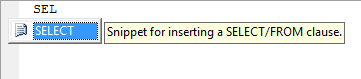
By validating (with the Tab key), the snippet is inserted:
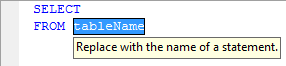
The statement names are available for replacement:
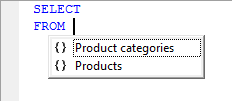
Enter/select the correct statement and click on Enter to validate the snippet modification. The caret is then moved just after the SELECT so that you can enter your selected fields:
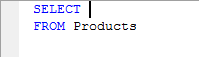
“ Join” code snippet A “JOIN” snippet for inserting a JOIN clause with an equality condition:

Similarly, you have to enter/select the name of the joined statement:

Once chosen, click on the Tab key to move to the next placeholder that asks you for the first column used in the join:

Once chosen, click on the Tab key to move to the next placeholder that asks you for the second column:

You can move to any placeholder by clicking on the Tab key to move forward or by clicking on the Shift+Tab keys to move backward. Click on Enter to validate the modification.
SQLite functions
Section titled “SQLite functions”All the SQLite functions and their parameters:
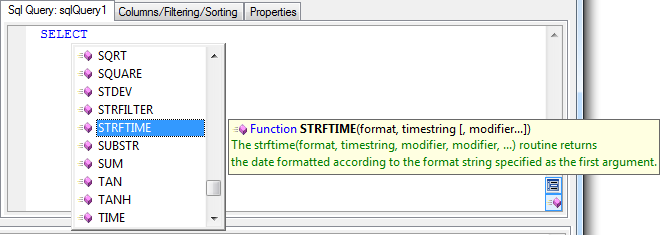
All the SQLite functions are listed with their associated parameters and a brief description.
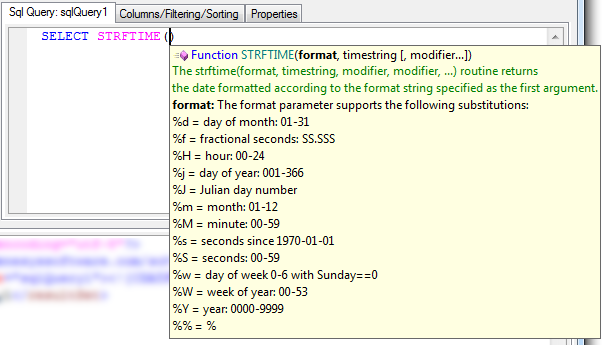
Parameter description is available inside the functions when typing the characters “(” and “,”.
Note
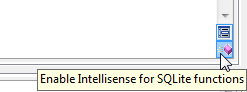
As there is a large amount of SQLite functions, Intellisense for the SQLite functions is disabled by default as it may be difficult to find your fields within those functions. You can enable Intellisense for the functions by clicking on the following button:
Query Parsing
Section titled “Query Parsing”The query is parsed in real-time in order to provide some “context” to the Intellisense provider, so that it can provide only meaningful data.
Fields from selected statements
Section titled “Fields from selected statements”Only fields from selected statements are available:
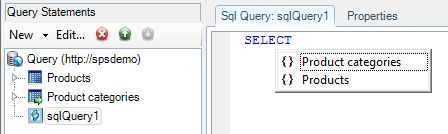
Two statements are available (“Product categories” and “Products”), but none is selected inside the current SQL query, no fields are available for selection.
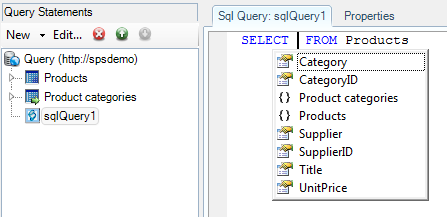
The same two statements are available but this time, “Products” is selected, its fields are available.
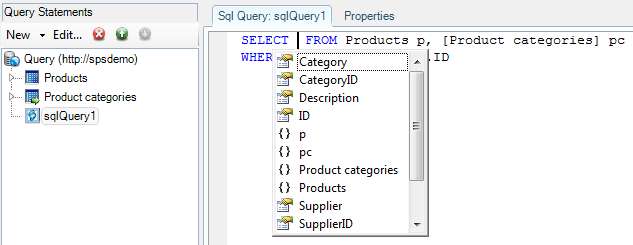
Both statements are joined, all the fields are available.
Table aliases
Section titled “Table aliases”Table aliases are fully supported:
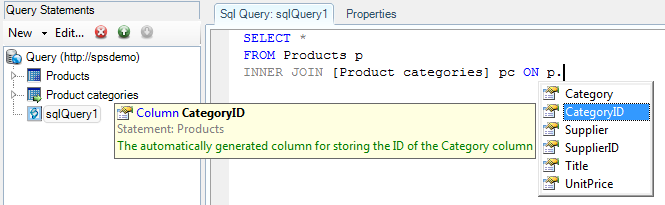
The name “p” is recognized as an alias for the Products statement, fields from the Products statement are available for completion.
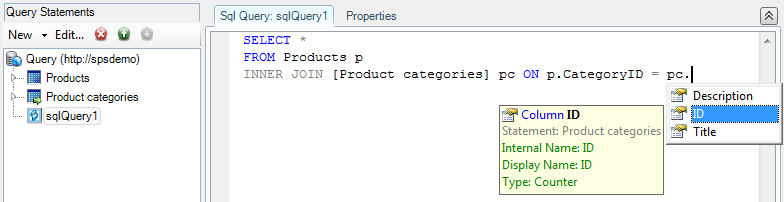
The name “pc” is recognized as an alias for the “Product categories” statement, its fields are available.
Meaningful data
Section titled “Meaningful data”Intellisense data is only available at places where it makes sense to use it.
Some examples:
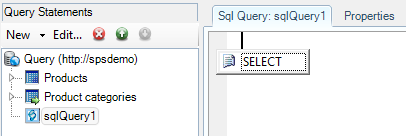
The query being empty, only a SELECT clause makes sense right here.
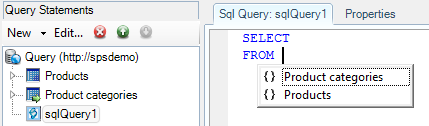
Only statements are provided, as neither functions nor column names make sense within the FROM clause.
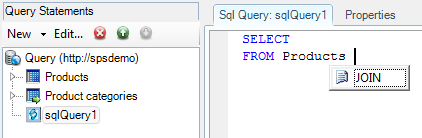
At this point, you can specify neither a table name, nor a column name, nor a function name, only the JOIN code snippet is available.
Frequently Asked Questions
Section titled “Frequently Asked Questions”- I don’t have Intellisense at all.
There are several things to check:
- Ensure that your version of Enesys RS Data Extension or Enesys IS Data Extension supports enhanced Intellisense (at least v3.6 for Enesys RS Data Extension and v1.2 for Enesys IS Data Extension ).
- Ensure that the “Enable Intellisense” button is checked.
- Ensure that some statements are located before the sqlQuery statement.
You may also read the following question if none of those checks resolved the problem.
- I don’t have Intellisense for one of my statements.
It may be for several reasons:
- The statement is located after the current sqlQuery statement; therefore it can’t be used inside this particular sqlQuery statement.
- For statements that retrieve external data (such as sqlData and xmlQuery ), it is necessary to silently execute the statement in order to retrieve the schema. If the execution failed, no error message is displayed but Intellisense is not available for those statements. Ensure that the statement is well configured and Intellisense should be available once corrected.
- For other sqlQuery statements, it needs the query to be valid and the statements that it uses to be properly configured. Please ensure both points.
- No Intellisense is provided inside the sqlData * statement?*
The Intellisense feature is currently only available inside the sqlQuery statement. If you want Intellisense for SQL Server or Oracle data, we would advise you to use tools that provide Intellisense for such providers (e.g.: “SQL Server Management Studio” for SQL Server) for writing your query, then copy it back to our Query Designer.
Known limitations
Section titled “Known limitations”There are some known limitations to our current Intellisense implementation, especially about subqueries.
Subqueries inside the FROM clause
Section titled “Subqueries inside the FROM clause”You can use subqueries inside the FROM clause of your SQL statement.
For example:
SELECT *FROM (SELECT DISTINCT Category FROM Products) AS DistinctCategoriesIn this case, Intellisense will be provided within the subquery, but no Intellisense will be provided for the DistinctCategories table inside the outer query.
You can overcome this limitation by using an intermediate sqlQuery statement that executes the subquery.
Subqueries inside the WHERE clause
Section titled “Subqueries inside the WHERE clause”Subqueries inside the WHERE clause can use data from the outer query, as you can see in the following sample that retrieves the minimum unit price, grouped by category:
For example:
SELECT Category, UnitPriceFROM Products pWHERE UnitPrice = (SELECT MIN(UnitPrice) FROM Products minP WHERE p.CategoryID = minP.CategoryID)Intellisense for the “p” table and its fields will not be prompted inside the subquery.