Data source credentials
In order to retrieve SharePoint lists data, credentials information must be passed to SharePoint Web Services.
This chapter will explain the various credential options provided by Reporting Services and their effect on Enesys RS Data Extension .
For clarity, we will differentiate Report Designer and Report Server side.
Report Designer
Section titled “Report Designer”When designing a report, you will use one or more datasets connected to a data source. Though it is possible to embed data source information within a report, we recommend using shared data sources for making future modifications easier.
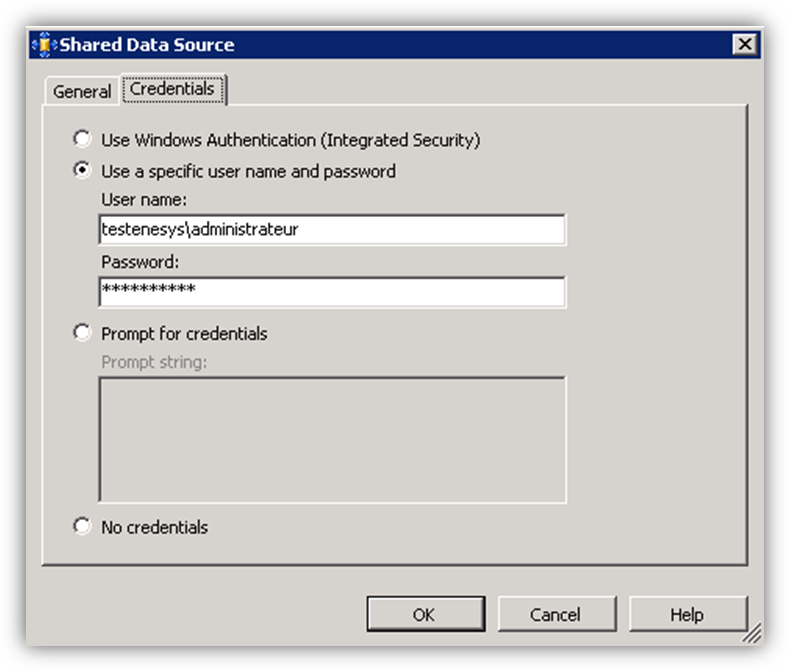
For connecting to the data source, you must provide credentials information using the credential tab as shown in the following image:
Use Windows Authentication (Integrated Security)
Section titled “Use Windows Authentication (Integrated Security)”When you use Windows Integrated Security , the credentials of the user currently designing the report will be passed to SharePoint Web Services. You will need the necessary rights on the SharePoint lists that will be retrieved using this data source.
Use a specific name and password
Section titled “Use a specific name and password”When using this option, Enesys RS Data Extension will create network credentials for the account specified and will pass those credentials to SharePoint Web Services. The account specified must have the necessary rights for accessing the SharePoint lists used in the report.
Prompt for credentials
Section titled “Prompt for credentials”This option will only work in preview mode and will let you specify at run time the account that should be used to connect to SharePoint.
We do not recommend this option when designing a report as this will not work when you run the query in the data view.
No credentials
Section titled “No credentials”“ No credentials” is not an option for Enesys RS Data Extension .
Report Server
Section titled “Report Server”When deploying a report to the server, several cases must be considered.
If you have embedded the data source information within the report, you will end up with the same data source configuration on the server. At this stage, you may decide to use a shared data source or change the report-specific data source connection string or credentials.
If your report is using a shared data source in the report designer, the shared data source will be deployed on the server along the report unless a shared data source with the same name already exists in the server deployment path (unless you have configured your project to overwrite data sources). This is something important to note as you may end up with a completely different data source configuration once a report is deployed on the server. At this stage, you may configure the report to use a different data source or even create a report-specific data source configuration though we would not recommend this approach unless you have specific reasons to make it so.
Credentials supplied by the user running the report
Section titled “Credentials supplied by the user running the report”When using this option, the user running the report will be prompted to enter a user name and password. The credentials of the user account entered will be passed to SharePoint Web Services.
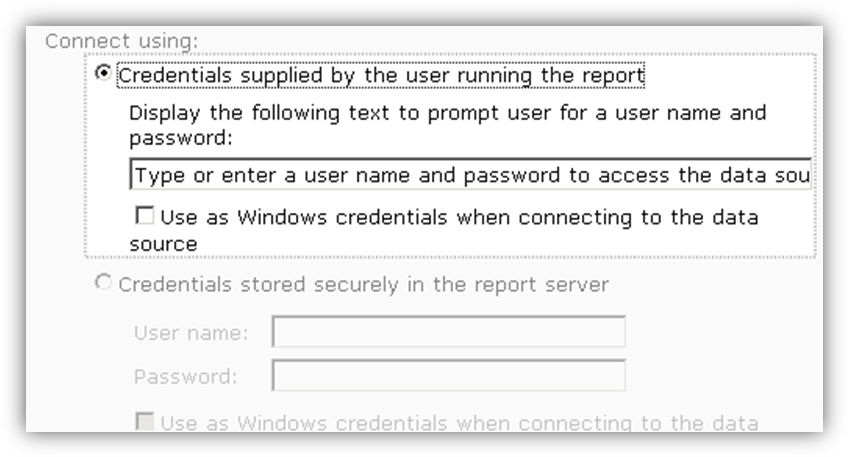
It is not necessary to check “Use as Windows credentials when connecting to the data source” as Enesys RS Data Extension will use network credentials anyway. This option will only makes a difference with data sources that may use different authentication schemes like SQL-Server.
Credentials stored securely in the report server
Section titled “Credentials stored securely in the report server”When using this option, the credentials of the user account entered and stored in the server will be passed to SharePoint Web Services.
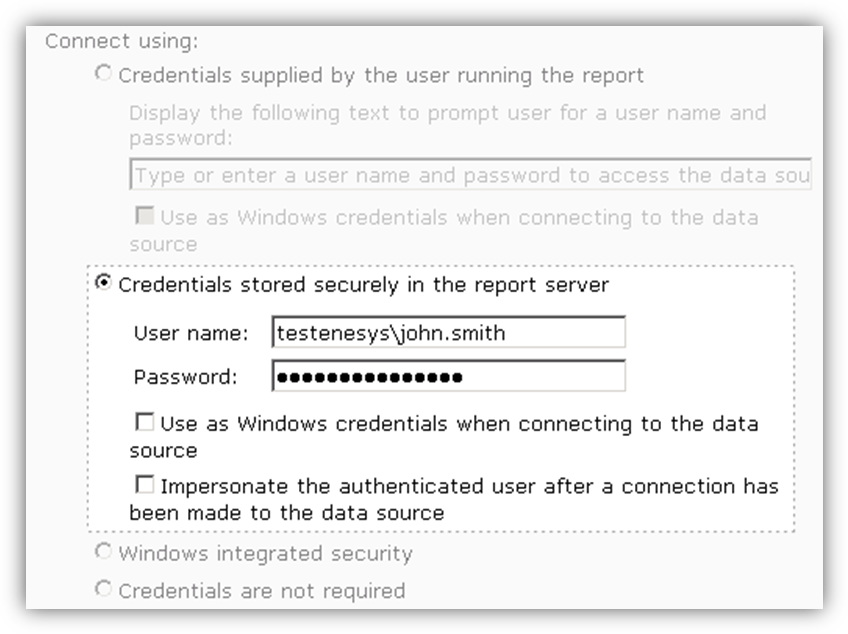
It is not necessary to check “Use as Windows credentials when connecting to the data source” as Enesys RS Data Extension will use network credentials anyway. This option will only makes a difference with data sources that may use different authentication schemes like SQL-Server. Note however that checking this option will work properly though it will make a difference on how credentials are passed to Enesys RS Data Extension by the report server.
The “Impersonate the authenticated user after a connection has been made to the data source” is meaningless for Enesys RS Data Extension and will not be used whether you checked it or not.
Windows integrated security
Section titled “Windows integrated security”When you use Windows Integrated Security , the credentials of the user running the report will be passed to SharePoint Web Services.
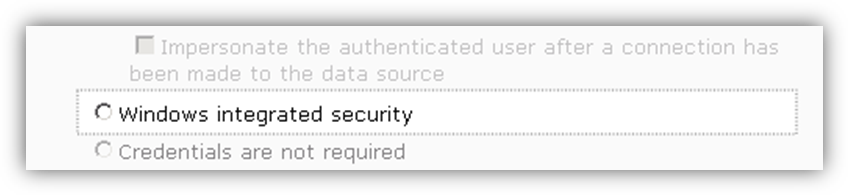
Be aware that if Reporting Services is not on the same machine as SharePoint, you may need to deploy Kerberos delegation in order to pass credentials from the Report Server to SharePoint.
Credentials are not required
Section titled “Credentials are not required”When using this option, the credentials of the unattended execution account will be used if it is configured.
This not a recommended option when using Enesys RS Data Extension .
Using Enesys SharePoint Token Data Extension
Section titled “Using Enesys SharePoint Token Data Extension”Starting from version 3.7, Enesys RS Data Extension now provides 2 extensions when installed on Reporting Services 2008R2 in SharePoint Integrated mode.
The new “Token” extension uses the Token of the currently connected SharePoint user in order to access SharePoint data.
This is the perfect addition to our existing extension, as it allows you to use Integrated Security in some configurations that were impossible to access using the existing extension.
Advantages
Section titled “Advantages”It allows you to use Windows Integrated Security in the following configurations:
- When using Classic Windows authentication (SharePoint 2007 or 2010), without the need for Kerberos.
- When using Claims Windows authentication (SharePoint 2010).
- When using Classic Forms authentication (SharePoint 2007).
- When using Claims Forms authentication (SharePoint 2010).
Drawbacks
Section titled “Drawbacks”This extension is perfect for retrieving SharePoint data using the currently connected user, but it has some drawbacks:
- Due to some limitations in Microsoft Implementation, “Stored Credentials” can’t be used with this extension. However, you can easily switch to our regular data extension and it will work perfectly.
- Reporting Services only provides the extension with the current user
SharePoint token. While this token is enough to retrieve any
SharePoint data, it doesn’t represent anything for statements
retrieving external data (such as xmlQuery and sqlData ). In order
to improve that, the extension tries to retrieve the windows
identity out of the SharePoint token. But this requires that:
- The data source (or server ) property of your connection string is set to a valid SharePoint server.
- The current user can open the root site of this server.
- The current user is a Windows user and not a Forms user.
If those three requirements are met, the extension should be able to retrieve a windows identity which will be used for retrieving external data. But, if those requirements are not met, the credentials used to access the external data will be those of the Reporting Services account.
For all those cases, we would recommend you to use the classic Enesys SharePoint Data Extension.
Conclusion
Section titled “Conclusion”The following table summarizes the type of data source you should use, depending on your Reporting Services version, the authentication mode of your site (web application) and the approach for authenticating: Stored Credentials or Integrated Security (or the current SharePoint user):
| Integrated Security or SharePoint Token | Stored Credentials | |
| Reporting Services 2005/2008 | ||
| SharePoint Integrated | ||
| Classic Windows (SP2007/SP2010) | Regular (Kerberos not needed) | Regular |
| Classic Forms (SP2007) | Not Supported | Regular |
| Claims Windows (SP2010) | Not Supported | Regular |
| Claims Forms (SP2010) | Not Supported | Regular |
| Standalone / BIDS | ||
| Classic Windows (SP2007/SP2010) | Regular (Kerberos needed) | Regular |
| Classic Forms (SP2007) | Regular | |
| Claims Windows (SP2010) | Regular (Kerberos needed) | Regular |
| Claims Forms (SP2010) | Regular | |
| Reporting Services 2008R2 | ||
| SharePoint Integrated | ||
| Classic Windows (SP2007/SP2010) | Regular / Token (Kerberos not needed) | Regular |
| Classic Forms (SP2007) | Token | Regular |
| Claims Windows (SP2010) | Token * (Kerberos not needed)* | Regular |
| Claims Forms (SP2010) | Token | Regular |
| Standalone / BIDS | ||
| Classic Windows (SP2007/SP2010) | Regular * (Kerberos needed)* | Regular |
| Classic Forms (SP2007) | Regular | |
| Claims Windows (SP2010) | Regular (Kerberos needed) | Regular |
| Claims Forms (SP2010) | Regular |
Note
* With Enesys RS Data Extension 3.7, Kerberos is not needed anymore when running reports using Integrated Security with Reporting Services configured in SharePoint Integration mode (as long as you are not disabling the Object Model). Note that it is still necessary with Reporting Services configured in Standalone mode for passing Windows Integrated Credentials in a multi-server environment: this is not a limitation of Enesys RS Data Extension but the way it works in Windows environment. * The new data source type (Token) is only being used for accessing Claims Based Sites (and also Classic 2007 FBA sites) in SharePoint Integration mode. Reporting Services 2008 R2 is required in that case. * ”-” (dash sign), means it’s not supported because it doesn’t make sense. In standalone mode, a report is hosted by Reporting Services report manager and run through its own web interface whereas in SharePoint integration mode, a report is necessarily run by a SharePoint user. * Not Supported, means that even though that would make sense to implement this approach, Reporting Services 2005/2008 limitations make it impossible to implement.
Which credentials should you use?
Section titled “Which credentials should you use?”It all depends on your requirements for a specific report.
- Stored credentials are a requirement for reports that run on a schedule (subscriptions).
- Stored credentials are interesting when you want to display specific SharePoint data from list(s) which are not normally accessible by the users.
- Integrated Security is great when you want to ensure that your report will only display data for which the user running the report has the necessary permissions. This scenario can come in handy when rolling up items from multiple sites.
Forms Based Authentication
Section titled “Forms Based Authentication”Starting from version 3.5 (for Standard and Enterprise Editions only), Enesys RS Data Extension is able to query a SharePoint site that uses Forms Based Authentication.
Even if the extension could determine the authentication mode configured for the SharePoint site, this is a time-consuming process that would slow down queries on both FBA and non-FBA servers. For this reason, you need to set a Connection String property in order to activate the Forms Based Authentication.
Inside the Connection String, add the authenticationMode option and set its value to Forms .
Example:
server=http://spsWithFba; authenticationMode=Forms;
When authenticationMode is not specified in the connection string, Windows Authentication will be used. Explicitly setting authenticationMode value to Windows has the same effect.